Updated
6 min read


Have you ever encountered an error that blocks your installation like a virtual gatekeeper? If you’re here, chances are you’ve run into Error 1303: Installer has insufficient privileges to access this directory while installing or updating QuickBooks. If the installer does not have permission to access a specific folder, such as C:/…/Intuit, this error will appear.
What’s going on behind the scenes? During QuickBooks installation, administrative rights are required to change certain folders. When those permissions are restricted, such as by misconfigured folder settings, limited user access, or system security policies, Error 1303 occurs.
Unless you resolve this issue, you will not be able to install or update QuickBooks, potentially delaying your ability to manage finances. In this blog, we will explain why this error occurs and how to troubleshoot it step by step so you can install QuickBooks without a hitch.
Ready to take back control of your “privileges”? Come on, let’s do this!
By identifying Error 1303 early, you can save time and effort. These are the common signs of this problem:

It can help you pinpoint the problem quickly and take the necessary steps to resolve it if you recognize these signs. After identifying the underlying permission issue, troubleshooting and fixing it is the next step.
You can resolve Error 1303 effectively by understanding what triggers it. The following are common causes of this error:

Identifying the root cause will allow you to choose the best solution for Error 1303 and proceed with the installation smoothly.
Facing QuickBooks Error 1303?
Don’t let installation issues slow you down! Follow our expert solutions to fix the error or connect with our specialists for quick and reliable support. Get started now!
Fixing Error 1303 usually involves adjusting folder permissions or modifying system settings. You can either use the QuickBooks Diagnostic Tool for a quick fix or manually adjust user rights and folder ownership. The following steps will allow you to regain access to the necessary directory and proceed with your QuickBooks installation or update without any problems. Take a look at the options to help you get back on track!
Use the QuickBooks Install Diagnostic Tool.
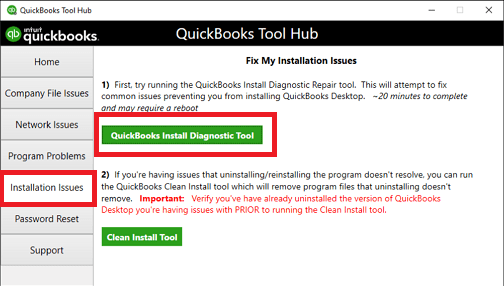
You can use this solution if the tool did not resolve the issue or if you prefer manual troubleshooting.
Manually Adjust Permissions for Full Control
By adjusting folder permissions and system settings, these solutions address the root causes of QuickBooks Error 1303. Disabling simple file sharing and granting Full Control to the SYSTEM and Everyone groups can help you overcome the access restrictions that trigger the error.
Error 1303 is most often caused by a lack of permissions or restricted access to crucial directories necessary for installation. Changing the folder permissions, ensuring the SYSTEM and Everyone groups have Full Control, and disabling simple file sharing can easily restore the necessary access for QuickBooks setup.
Following the steps carefully, you should now be able to continue installing or updating QuickBooks without interruption. If the problem persists, you may need additional troubleshooting or to contact QuickBooks professional if deeper system or software conflicts are involved.
We will help you take charge of the situation and get back to business!
1. Select Properties from the right-click menu of the folder mentioned in the error message.
2. Click Edit under Security.
3. Users or groups listed should have Full Control.
4. To save changes, click Apply and then OK.
The permissions-related issues during installation can be resolved by temporarily disabling UAC. For system security, re-enable UAC after the installation is complete.
CD Drive problems are one of the most common causes of this type of error. In addition, if the CD is damaged or the CD driver is not functioning properly, it can cause error 1304.
No, this error only affects QuickBooks Desktop since it involves installation on a local computer. There is no need to install QuickBooks Online locally since it is cloud-based.
About the author
Have a QuickBooks® question? Our ProAdvisors can help. QAsolved is not affiliated with Intuit.