Updated
15 min read



Have you ever tried to open your QuickBooks company file and been greeted with a message like “Company file in use” or “This file was locked by another user”? Locked File Errors in QuickBooks Desktop are a common yet frustrating issue that many users encounter. This is one of those moments that can bring your workflow to a grinding halt and seriously affect productivity. But if you’re scratching your head wondering what’s wrong, don’t stress because we’re here to walk you through the issue and help you fix it in the best possible way.
Most of the time, the problem is something relatively simple. The file might still be open on another computer, QuickBooks may not have closed properly, or a background process could still be holding onto the file. In some cases, incorrect user permissions or network conflicts are to blame. While it may seem intimidating at first, the fix is often straightforward once you know where to look.
This error can occur in both small offices and larger setups where multiple users access the same company file simultaneously. Although it might appear to be a major issue, most locked file errors can be resolved quickly with a few basic troubleshooting steps—and that’s exactly what we’re here to guide you through.
You’ll learn why these errors occur, how to fix them step by step, and how to prevent them from happening in the future. Whether you’re an accountant, an office manager, or a small business owner, these tips will help you unlock your QuickBooks company file and get back to business without delay.
Identifying the warning signs is vital before resolving any issue. Users may experience various disruptions when encountering QuickBooks Desktop locked file errors, preventing them from accessing or editing their company files. By identifying these indicators, you can determine whether the file is locked and what may be causing it to be restricted.
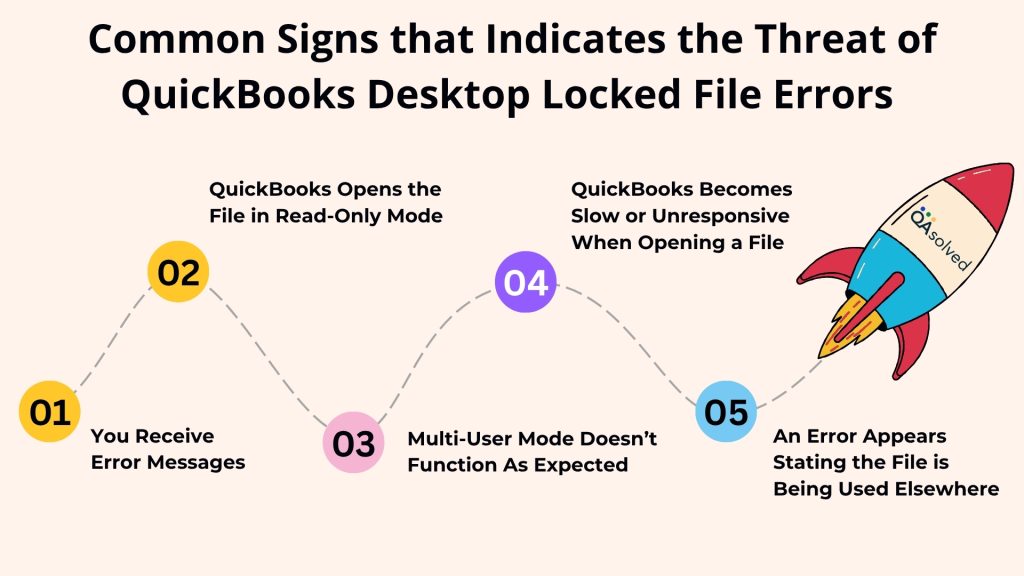
When you’re about to get hit by this error, you usually see pop-up messages on your screen stating “The company file is in use. Please wait” or “This file is locked by another user.” These messages usually indicate another session or user is blocking access.
Another common sign that indicates the possible scope of this issue is when QB opens the file in the read-only mode. While you can view the data, you cannot edit or perform key tasks until the file is unlocked.
The file is only accessible by one user even when the proper setup is in place, while others are blocked from accessing the file.
If there is a conflict or a background process that is holding the file, the application may freeze or pause.
It’s usually a sign that the file is open on another computer, or that a system process hasn’t been closed properly, or that the file was opened on another computer.
Early identification of these signs is essential to resolving accessibility issues and minimizing workflow disruptions. The next section explores different causes and the best methods for troubleshooting and resolving locked file errors, helping to minimize downtime and restore normal operations.
It is essential to understand the root causes of file access problems in order to troubleshoot them thoroughly. QuickBooks locked file errors are typically caused by a variety of reasons and here are some of the most common ones.
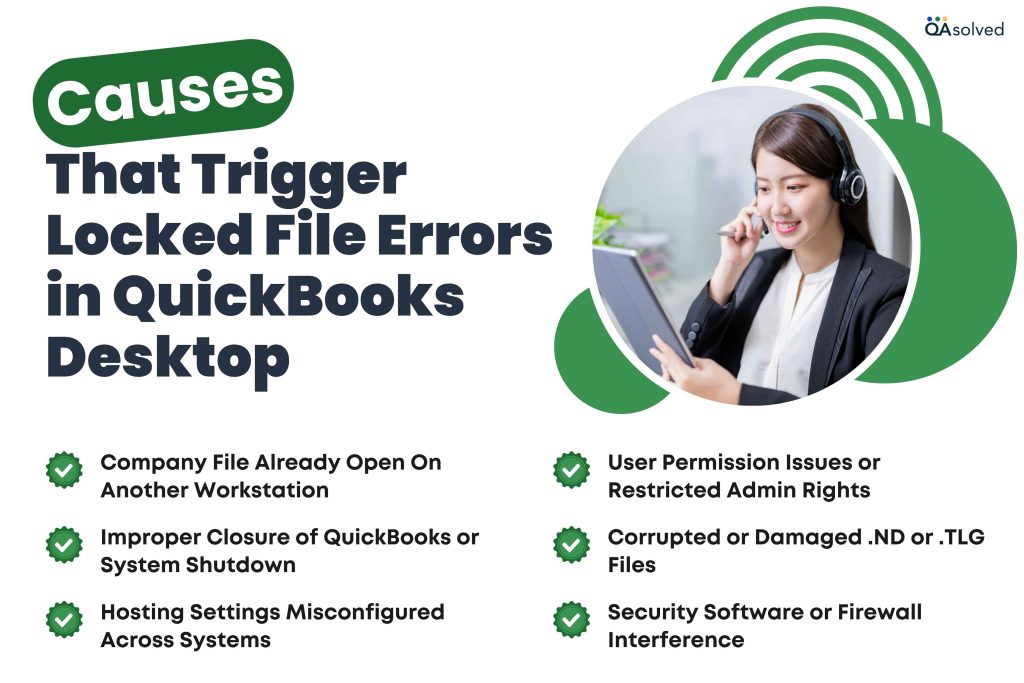
The same file may prevent others from accessing it simultaneously if it is active on a different computer or user profile.
Background processes might remain active if QuickBooks or the system was not closed correctly.
A multi-user environment can be compromised when multiple computers attempt to host the file. This can create access conflicts and restrict usage.
When users have limited access rights to a company file, especially in shared environments, they will not be able to open it or edit it.
Managing network access is made easier with these configuration files. QuickBooks may not be able to access the company file if they become corrupted.
File access issues or locking behavior can be caused by antivirus software or firewalls that mistakenly block QuickBooks processes.
Regardless of whether the setup is single-user or multi-user, these underlying factors can affect both scenarios. Identifying the specific cause can assist in determining the right fix and preventing future problems.
Need Help Fixing Locked File Errors in QuickBooks Desktop?
If you're experiencing issues or need personalized assistance, don’t hesitate to contact us. Our support team is here to help you get back on track quickly and efficiently.
Locked file errors in QuickBooks Desktop can occur under various circumstances, especially in multi-user environments. This section covers different scenarios where such errors are most likely to appear and offers practical troubleshooting steps for each case. Whether the issue is caused by a background process or improper shutdown, you’ll find clear solutions to help you identify the cause and resolve the error efficiently.
These errors often occur when another user is performing a task in QuickBooks that only one person can do at a time, even in multi-user mode. In such cases, you’ll need to wait until the other user finishes. If you know who they are, consider asking them to let you know when they’re done. However, if you’re certain that another user isn’t causing the issue, there are a few other troubleshooting steps you can try.
To resolve the error message naming a specific user who is not actively working in QuickBooks, follow these steps:
Performance-related errors are usually indicated by these error messages. It can be caused by network instability, database problems, conflicting background programs, or a server/workstation that doesn’t meet QuickBooks’ system requirements.
To troubleshoot and improve performance:
In case QuickBooks Desktop locked file error appears on multiple workstations, then there are 4 solutions to fix this easily. Here are the four solutions:
Follow the given below steps to fix this error across multiple workstations.
Here are the steps to stop and restart QuickBooks services on the server and get rid of locked file errors across multiple workstations.
QuickBooks Tool Hub offers a variety of tools that can help you fix common problems. In this situation, you should:
Complete a clean reinstall of QuickBooks Desktop on your server using the outlined procedure. Here are the steps to go through a clean QuickBooks Desktop reinstallation on the server. Before uninstalling, make sure to save all the important data and company files to prevent the possible threat of data loss.
Before You Start:
There are two ways to reinstall QuickBooks Desktop. Here are the steps for both ways:
If you face issues while uninstalling QuickBooks, your computer may be experiencing system-related problems. In such cases, it’s best to contact an IT professional or Microsoft support for assistance.
Once you’re done with the installation, it is time to reinstall QuickBooks Desktop again. When you reinstall the software, it will install new folders and rename the old ones automatically.
If this doesn’t work, then you need to manually uninstall QuickBooks and rename the installation folders.
Here are the steps to manually uninstall QuickBooks and rename the installation folders to get rid of locked file errors. After uninstalling QuickBooks, follow these steps to remove leftover folders:
There are chances that you might get an access error message while renaming the folders. In that case, follow the given below steps as well:
So, these are all the solutions to fix locked file errors in QuickBooks Desktop if the error appears on multiple workstations.
If the error keeps happening on only 1 user’s workstation, there may be a problem with their QuickBooks or Windows permissions. Here’s what to do:
QuickBooks may not function properly on a specific workstation due to a corrupted user profile or permission restrictions. By creating a new Windows user account with administrator rights, these problems can be resolved.
Here’s how:
So, these are the five scenarios that can trigger locked file errors in QuickBooks Desktop. By following the above-mentioned steps, you can easily fix this issue in no time. In case you’re still having trouble, then it would be ideal to contact our Certified QuickBooks Desktop Experts for immediate assistance at +1-888-245-6075.
In a nutshell, dealing with locked file errors in QuickBooks Desktop can feel like a major setback, especially when you’re in the middle of managing critical accounting tasks. Most of these issues stem from common scenarios such as multiple users accessing the same file, background processes holding the file, or QuickBooks not closing properly. By carefully following the troubleshooting steps, you can resolve the problem efficiently.
These steps are not just for tech experts; they’re straightforward enough for any office manager, bookkeeper, or small business owner to follow. Taking a few minutes to work through these solutions can save hours of downtime and frustration. More importantly, learning how to prevent these errors in the future can help you keep your financial pillar stable and productive.
To fix a corrupted file in QuickBooks Desktop:
1. Go to File > Utilities > Rebuild Data and follow the prompts to back up and repair your file.
2. After rebuilding, go to File > Utilities > Verify Data to confirm the issue is resolved.
3. Open the QuickBooks Tool Hub, select Company File Issues, and run QuickBooks File Doctor.
4. Go to File > Open or Restore Company > Restore a backup copy.
1. Use File > Utilities > Condense Data to remove old transactions.
2. Delete or inactivate unused customers, vendors, or accounts.
3. Delete duplicate entries or names.
4. Maintain accurate bank and credit card accounts.
5. File > Utilities can be used to fix file issues.
6. If the file is too large, backup and start over.
Data corruption in QuickBooks can occur as a result of power outages, improper shutdowns, or unstable network connections. In addition, oversized company files, faulty hardware, or outdated system drivers can cause this problem.The use of QuickBooks on unsupported systems, software conflicts, or incorrect user permissions can also lead to corruption. It is important to maintain a stable system performance and perform regular backups in order to avoid these problems.
1. Log in as the company’s administrator.
2. Select Company > Users > Set Up Users and Roles.
3. Click Edit on the user you want to edit.
4. Make necessary adjustments to their roles and access permissions.
5. To save changes, click OK.
1. File Locked by Another User: Request they log out or finish their task.
2. Stuck in Single-User Mode: Select File > Switch to Multi-User Mode.
3. User Access Denied: Ask the admin to reset your permissions under Company > Users.
4. License Activation Required: Click Help > Activate QuickBooks Desktop.
5. Forgot Admin Password: Intuit offers a QuickBooks Password Reset Tool.
About the author
Have a QuickBooks® question? Our ProAdvisors can help. QAsolved is not affiliated with Intuit.