Updated
14 min read


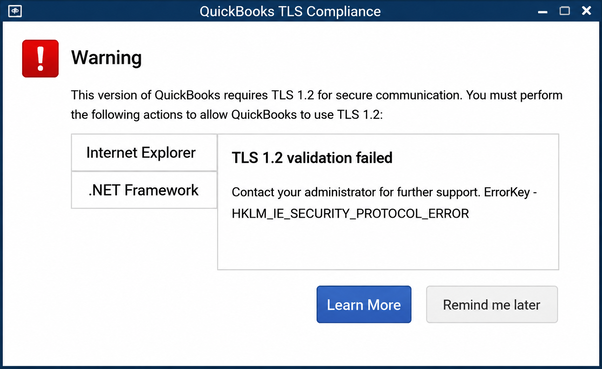
TLS 1.2 is a security protocol that encrypts data transmitted between an application and a server over the internet. This secure connection is particularly important to QuickBooks users, as the Desktop version depends on it to communicate safely with Intuit’s online services, including updates, payroll, payments, subscriptions, and other connected features. However, users sometimes encounter the “TLS 1.2 Validation Failed” error and may not know how to fix it.
But the good news is that you can troubleshoot the TLS 1.2 Validation Failed error without needing advanced technical expertise. And that’s exactly what we’ll cover in this blog. We’ll explain what TLS 1.2 means for QuickBooks Desktop users, walk you through the system requirements for a TLS-compliant setup, show you how to check and enable TLS 1.2 in Windows, cover the troubleshooting steps, and highlight the common causes that can trigger this error.
With that in mind, let’s get into the details.
TLS, or Transport Layer Security, is a security protocol used to establish secure connections over the internet. TLS 1.2 provides encryption and helps protect information exchanged between your computer and online services. QuickBooks Desktop uses secure internet connections to communicate with Intuit for several features. Therefore, your computer needs to support TLS 1.2 and meet the related system requirements.
If the requirements are not met, affected services may include:
This means a TLS issue may not necessarily indicate a problem with your QuickBooks company file, but an underlying issue related to your windows OS, Internet components, .NET Framework, security settings, or system permissions.
Earlier, QuickBooks relied on older SSL and TLS protocols for secure communication. This naturally raises an important question: Why did Intuit move to TLS 1.2 instead of continuing to use early-age SSL and TLS protocols.
If you’re wondering why QuickBooks Desktop moved toward TLS 1.2, improved security is the primary reason. Here’s how it offers better protection:
As security standards evolved, moving to TLS 1.2 became necessary to maintain secure and reliable communication between QuickBooks Desktop and Intuit’s online services. However, for TLS 1.2 to work properly, your system and QuickBooks installation must meet certain requirements.
Let’s look at these requirements first before moving on to the troubleshooting steps for the TLS 1.2 validation failed error.
Before troubleshooting a TLS 1.2 problem, check whether your computer meets the necessary system requirements. QuickBooks Desktop 2018 and later versions require a compatible environment to establish secure connections with Intuit services.
According to Intuit’s TLS 1.2 requirements, supported operating systems include:
If you are using an older Windows version, check its compatibility with your specific QuickBooks Desktop release before attempting to troubleshoot TLS settings.
QuickBooks Desktop uses certain Internet Explorer features and components. Intuit recommends installing Internet Explorer 11 to ensure that the required components and updates are available.
To update Internet Explorer:
Even though Internet Explorer has reached end of support from Microsoft, some legacy QuickBooks Desktop functionality can still depend on its underlying components. Therefore, these components may remain relevant when troubleshooting older QuickBooks Desktop versions.
QuickBooks Desktop requires .NET Framework 4.5.2 or later for the relevant connected functionality. If your system does not have the required version:
If you encounter errors while installing .NET Framework, Microsoft or an IT professional can help determine whether another Windows component is preventing the installation.
Another potential cause of TLS-related problems is insufficient system permissions. QuickBooks may need elevated privileges to establish or update certain internet security settings. You can try running QuickBooks Desktop as an administrator:
Meeting these requirements is essential because TLS 1.2 affects several connected QuickBooks Desktop features. If the problem disappears after running QuickBooks with elevated privileges, the issue may be related to Windows permissions or security configuration. If not, you can also try checking and enabling TLS 1.2 for different versions of Windows to use QuickBooks seamlessly.
Checking and enabling TLS 1.2 can help QuickBooks Desktop establish secure connections with Intuit’s online services. It may also help resolve the “QuickBooks TLS 1.2 Validation Failed” error.
Before making any changes to your Windows settings, it’s a good idea to check whether TLS 1.2 is already enabled. You can verify this using the Registry Editor, PowerShell, or Internet Options.
The Windows Registry stores several settings related to TLS and other security protocols. Here’s how to check the TLS 1.2 settings:
Note: If the TLS 1.2 keys or values are missing, that does not necessarily mean TLS 1.2 is disabled. Windows versions and configurations can handle these settings differently.
PowerShell provides a quick way to see which security protocols are configured for .NET connections.
You can also check the TLS settings through Windows Internet Options:
If TLS 1.2 is enabled through one of these methods, you may not need to make any additional changes. If it is disabled or unavailable, you may need to enable it before using applications or services that require TLS 1.2.
TLS 1.2 is required by many modern applications and online services, including newer versions of QuickBooks. On most supported Windows versions, it is already enabled, but older systems may need additional configuration.The steps vary depending on your Windows version. Follow the instructions for your operating system below.
Windows 11 generally has TLS 1.2 enabled by default. However, if an application is unable to establish a secure connection, you can check the TLS settings manually.
Check TLS 1.2 in Internet Options:
If TLS 1.2 still does not work as expected, an administrator can check the relevant Windows registry settings. Before making registry changes, create a backup of the registry to avoid unintended system issues.
Navigate to:
HKEY_LOCAL_MACHINE\SYSTEM\CurrentControlSet\Control\SecurityProviders\SCHANNEL\Protocols
Now, Under TLS 1.2 > Client, make sure these DWORD values are configured as follows:
If required for server-side communication, the same settings can be configured under TLS 1.2 > Server. Restart Windows after making registry changes.
TLS 1.2 is generally enabled by default on these operating systems. If it has been disabled, you can turn it back on through Internet Options.
Restart your computer if the application still cannot establish a secure connection.
Windows 7 requires Service Pack 1 for the TLS 1.2 configuration described below. You may also need to install Microsoft’s KB3140245 update before configuring TLS 1.2. Once the required update is installed, check the following registry location:
HKEY_LOCAL_MACHINE\SYSTEM\CurrentControlSet\Control\SecurityProviders\SCHANNEL\Protocols\TLS 1.2\Client
Set:
You can also configure the corresponding Server key:
HKEY_LOCAL_MACHINE\SYSTEM\CurrentControlSet\Control\SecurityProviders\SCHANNEL\Protocols\TLS 1.2\Server
Set:
For applications that use the Windows WinHTTP API, TLS 1.2 may also need to be enabled through the WinHTTP settings:
HKEY_LOCAL_MACHINE\SOFTWARE\Microsoft\Windows\CurrentVersion\Internet Settings\WinHttp
Add or update the DefaultSecureProtocols value with the appropriate TLS 1.2 configuration. Once you have completed the required changes, restart your computer and try connecting to the application again.
TLS 1.2 is not supported on Windows XP or Windows Vista. If you are using either operating system, enabling TLS 1.2 through the standard Windows settings is not an option. Upgrading to a supported Windows version is the recommended approach when an application requires TLS 1.2.
Now that you know how to check and enable TLS 1.2 in Windows, let’s take a quick look at the best solutions to fix the QuickBooks TLS 1.2 Validation Failed error.
Need Help with TLS 1.2?
If you’re experiencing issues updating or enabling TLS 1.2 in QuickBooks Desktop, contact our support team. Our experts can help identify the issue and guide you through the necessary steps.
If your computer meets the necessary system requirements, but QuickBooks still has TLS-related connectivity problems, you can use the QuickBooks TLS 1.2 Tool available through QuickBooks Tool Hub. The tool is designed to help make your operating system TLS 1.2 compliant when the underlying Windows, Internet Explorer, and .NET requirements are already satisfied.
Before running the TLS tool, close QuickBooks Desktop. Then:
If you cannot find the Tool Hub icon on your desktop, search for QuickBooks Tool Hub using Windows Search.
Tip: Intuit recommends using QuickBooks Tool Hub on Windows 10, 64-bit, for the best experience.
Once QuickBooks Tool Hub is open:
The tool checks and updates the relevant system configuration needed for TLS 1.2 compliance.
There can be several reasons why QuickBooks Desktop encounters the TLS 1.2 Validation Failed error. Understanding the possible causes can help you identify the issue and choose the right troubleshooting approach.
Maintaining TLS compliance helps QuickBooks users keep their connections with Intuit’s online services secure and avoid potential TLS-related issues.
Running the TLS 1.2 tool may not resolve every connectivity problem. If the issue continues, check the underlying components rather than repeatedly running the tool. Start by confirming that:
For computers managed by an organization, contact your IT administrator before changing Group Policy or other system-level security settings.
Taking a few preventive measures can help QuickBooks Desktop maintain secure connections with Intuit’s online services and reduce the chances of encountering TLS-related errors in the future.
Following these tips can help keep your system TLS 1.2-compliant and support a secure, reliable QuickBooks experience.
The TLS 1.2 Validation Failed error in QuickBooks Desktop can be frustrating, especially when you’re simply trying to access a connected service or complete an important task. However, it doesn’t always point to a problem with your company file or QuickBooks itself. In many cases, the issue is related to TLS settings, Windows configuration, outdated components, or connectivity. As discussed, keeping your system TLS 1.2-compliant, meeting the required system requirements, and ensuring QuickBooks Desktop is up to date can help maintain a secure connection.
The key is to address the cause rather than repeatedly trying random fixes. With the right configuration and a few preventive measures, you can keep QuickBooks connected securely and reduce the chances of running into the same TLS validation issue again.
Yes. QuickBooks Desktop 2018 and later requires a system environment that supports TLS 1.2 for connections to Intuit services.
TLS compatibility can affect connected services such as payroll, payments, online banking, activation, password reset, Intuit Data Protect, account-related services, help pages, and other online functionality.
First, verify your Windows, Internet Explorer, and .NET Framework requirements. If your system meets those requirements, run the QuickBooks TLS 1.2 Tool through QuickBooks Tool Hub.
Not necessarily. A TLS problem generally concerns the connection between QuickBooks Desktop and Intuit’s online services. Your company file itself may not be affected.
TLS 1.2 settings can depend on Windows configuration, Internet Explorer components, Group Policy, and other system settings. If your computer is managed by an organization, it is best to consult your IT administrator before changing system-level security settings.
About the author
Have a QuickBooks® question? Our ProAdvisors can help. QAsolved is not affiliated with Intuit.