Updated
13 min read


Managing payroll efficiently is one of the most critical tasks for any business, and QuickBooks offers a streamlined solution to handle it seamlessly. To fully utilize QuickBooks’ payroll capabilities, you need a valid QuickBooks Payroll service key. This unique service key acts as an authorization code, linking your QuickBooks account to the payroll services you subscribe to. Entering or editing this key correctly ensures that you can process employee wages, taxes, and benefits without interruptions. Many users often overlook the importance of this step, which can lead to errors in payroll processing or restrictions in accessing its features.
Whether you are setting up payroll for the first time, renewing a subscription, or troubleshooting issues, QuickBooks allows you to manage your service key efficiently through its user-friendly interface. In this blog, we will walk you through the step-by-step process of entering or editing your payroll service key in QuickBooks to ensure seamless operations and avoid unnecessary complications.
Additionally, we’ll share the steps to retrieve your QuickBooks Payroll service key and explain how to resolve common QuickBooks Payroll service key errors. So, let’s get started.
A QuickBooks Payroll Key is a 16-digit alphanumeric PIN provided by Intuit that allows users to activate and access QuickBooks Payroll services. This unique code acts as a secure link between your QuickBooks software and the subscription you have purchased. Without this key, you cannot process employee paychecks, calculate taxes, or utilize other essential payroll features.
The QuickBooks Payroll Key not only verifies that your subscription is active but also ensures smooth integration with Intuit’s servers. It allows you to download tax table updates, stay compliant with regulations, and receive timely software updates.
Like we said, the QuickBooks Payroll Key is an essential 16-digit PIN that links your QuickBooks software with payroll services. It ensures secure access, seamless processing, and timely updates, making financial management accurate and hassle-free. Here are the five key uses of Intuit Payroll service key:
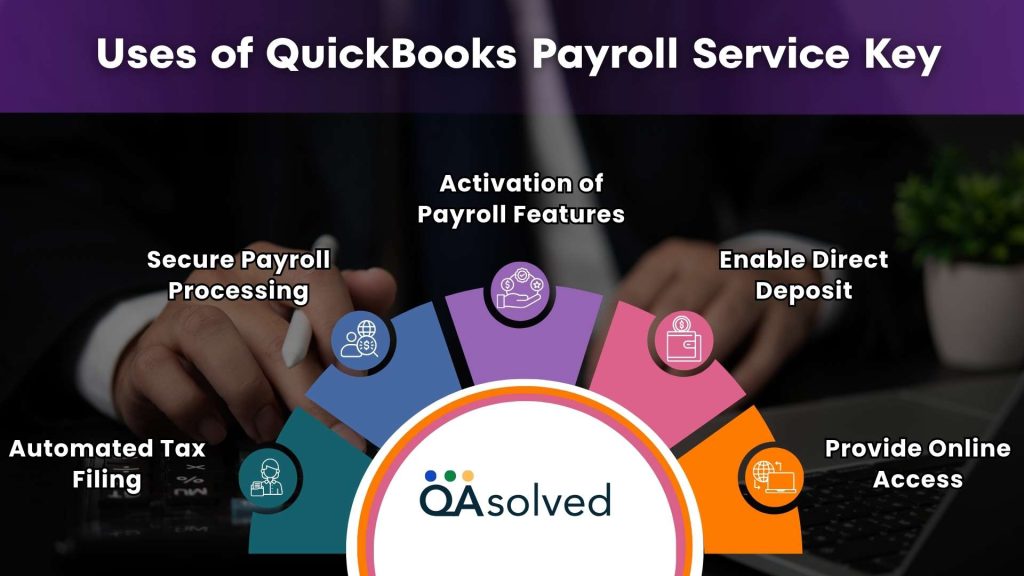
Your QuickBooks Payroll Key activates intuitive features such as garnishments, benefits tracking, and employee management tools, enhancing efficiency and accuracy in financial operations.
The key ensures a safe connection between QuickBooks and Intuit’s payroll servers, protecting sensitive employee and business payroll information from unauthorized access.
With an active payroll key, QuickBooks can automatically calculate, file, and pay federal and state payroll taxes on your behalf, reducing errors and ensuring compliance.
The payroll key allows you to set up direct deposits for employees, making salary disbursement faster, safer, and more convenient, eliminating the need for physical checks.
The QuickBooks Payroll Key enables secure online access to your account, allowing you to manage employee payments, tax filings, and payroll settings from anywhere, anytime.
So, add the payroll service key to QuickBooks and unlock all payroll features, including direct deposit, tax filing, and detailed reporting, for seamless payroll management.
If you need to enter and edit your company’s payroll service key in QuickBooks, follow these step-by-step instructions to ensure smooth payroll access and management.
The first step is to obtain your payroll service key, which is usually sent via email when you subscribe to QuickBooks Payroll.
To access your service key in QuickBooks Desktop:
Here are the steps to enter or edit a payroll service key in QuickBooks.
By following these steps, you can efficiently manage, update, or retrieve QuickBooks payroll service key and ensure uninterrupted payroll operations. So, these are the steps that can help you enter or edit the payroll service key in QuickBooks.
If you have lost your QuickBooks Payroll service key, you can easily retrieve it by following these steps:
Note: If you cannot find the key through your account or email, reach out to QuickBooks Payroll Support. Provide your company name, license number, and registered email to retrieve or regenerate your key.
While entering, editing, and retrieving the payroll service key in QuickBooks is generally straightforward; many users encounter difficulties. This issue is officially known as the QuickBooks payroll service key error. Although there are four methods to resolve it, several underlying causes can trigger the problem. In the following sections, we will explain these causes and provide solutions to help users eliminate the error.
Also Read: QuickBooks Payroll Service Server Error: Fixes, Causes, and Prevention
A QuickBooks Payroll service key error can disrupt payroll processing and prevent access to important payroll features. This error typically occurs due to incorrect entry of the 16-digit service key, expired subscriptions, or connectivity issues with Intuit’s payroll servers. Resolving this error promptly is essential to ensure smooth payroll operations, accurate employee payments, and compliance with tax regulations.
In the following sections, we will outline practical methods to help you fix payroll service key errors and get your system back on track efficiently. But before that, let’s take a look at the points that you need to consider.
Having trouble with your QuickBooks Payroll Service Key?
Don’t let payroll delays slow you down! Get expert help now — we’ll guide you to enter, edit, retrieve, or troubleshoot errors with your QuickBooks Payroll Service Key in minutes. Contact us today!
Upgrading to the latest version of QuickBooks Desktop can often resolve errors related to the payroll service key. Here are the steps to fix QuickBooks Desktop Payroll service key error.
If you encounter this issue in QuickBooks Desktop 2024, manually synchronizing the license data can help resolve problems with entering the payroll service key. Follow the guidelines below to perform this fix effectively:
Sometimes, a simple system restart can resolve the error, especially if it’s caused by a temporary glitch. Here’s what you can do:
If the previous methods do not resolve the issue, you can try repairing your QuickBooks program to fix the problem.
The payroll service key error in QuickBooks is a common issue that can prevent users from entering, editing, or validating their payroll service key. This error usually occurs when there are mismatches, outdated software, connectivity problems, or account-related issues. Understanding the main factors that trigger this error is essential for resolving it efficiently and ensuring uninterrupted payroll operations.
Using an older version of QuickBooks Desktop can cause compatibility issues with payroll services. The software may not recognize the payroll service key, leading to errors. Upgrading to the latest version helps ensure smooth integration with Intuit’s payroll servers and access to all payroll features.
Entering the payroll service key incorrectly is one of the most common causes of this error. Even a single missing digit or typographical mistake can prevent QuickBooks from validating the key, blocking access to payroll processing and updates.
An expired, inactive, or mismatched QuickBooks payroll subscription can trigger the service key error. If the account details, such as the registered email or phone number, do not match Intuit’s records, the key may fail to work properly.
Poor internet connectivity, firewall restrictions, or proxy settings can stop QuickBooks from verifying the payroll service key with Intuit servers. Network interruptions may prevent successful authentication, causing the error to appear repeatedly.
Having multiple payroll orders or subscriptions linked to the same company account can create conflicts in QuickBooks. This situation may cause the payroll service key to malfunction, become invalid, or be rejected by the system during updates.
To delete or remove a payroll service key in QuickBooks, follow the steps below carefully:
Managing payroll efficiently is crucial for any business, and the QuickBooks Payroll service key plays a central role in ensuring smooth operations. While entering or editing the payroll service key is usually straightforward, many users encounter the payroll service key error due to outdated software, incorrect key entry, account mismatches, network issues, or multiple payroll orders. Understanding these causes is the first step toward resolving the problem effectively.
By following the methods outlined, such as restarting your system, upgrading QuickBooks Desktop, synchronizing license data, or repairing the program, you can quickly restore access to payroll services and avoid disruptions. Keeping your QuickBooks software up to date and verifying account details regularly ensures that your payroll service key remains active and functional.
Ultimately, maintaining an active payroll service key in QuickBooks guarantees accurate employee payments, timely tax filing, and uninterrupted payroll processing, allowing businesses to focus on growth without worrying about payroll interruptions.
Payroll service keys are usually sent directly to users via the email address associated with their QuickBooks account. This ensures secure delivery and allows users to activate or manage their payroll services without any delays. It is important to check the registered email inbox, including the spam or junk folder, to ensure the key has not been missed.
No, the same QuickBooks Payroll service key cannot be used on multiple computers. Each installation of QuickBooks Desktop Payroll must have its own unique service key for proper activation and functionality.
Yes, QuickBooks provides an automated service key retrieval tool to help users quickly obtain their payroll service key. This tool is useful if you haven’t received your key via email or need to retrieve it again. To use the tool, log in to your Intuit account associated with your QuickBooks Payroll subscription and follow the on-screen instructions to retrieve the key.
Using a payroll service can be beneficial for your business, as it saves time and reduces errors in payroll processing. It makes sure that payroll taxes are filed correctly and on time, avoiding costly penalties. Along with this, some payroll services offer additional HR services, such as benefits administration and employee onboarding.
1. Go to Settings.
2. Select Subscriptions and Billing underneath the Your Company heading.
3. Look for QuickBooks Payroll.
4. Select Subscribe. If you do not already have a credit card on file, you will be prompted to enter payment information.
There are several reasons you might not have received your payroll service key. It could be due to multiple payroll orders being entered into your company’s QuickBooks system, which can cause conflicts. Another common reason is that the phone number provided does not match the one registered with your QuickBooks account, preventing proper verification and delivery of the key.
1. Go to Employees → Payroll → Existing Payroll Service.
2. Add a file from the Account Maintenance window.
3. Click Add to Subscription Number, enter the required zip code, and press Next.
4. Click OK to finish adding another EIN to your current subscription.
About the author
Have a QuickBooks® question? Our ProAdvisors can help. QAsolved is not affiliated with Intuit.