Updated
8 min read


QuickBooks Online (QBO) has been a go-to accounting solution for MSMEs, CPAs, Freelancers, and even Large Enterprises due to its impeccable ability to manage business finances efficiently. QuickBooks Online is a cloud-based platform that can be accessed through web browsers. Across the globe, users prefer the QuickBooks Online’s desktop or laptop app for ease of use and enhanced performance. Why? Because with QuickBooks Online, a user can work from anywhere without having to open a browser every time. In short, QuickBooks Online is an ideal platform in today’s competitive landscape as it provides faster navigation, a clutter-free interface, and improved productivity tools.
Whether you’re a new QuickBooks user or an existing one, streamlining your accounting workflow by installing the QuickBooks Online app can significantly enhance your experience. With the QuickBooks Online app for desktop, you can gain the flexibility to manage your finances on the go, access real-time data, and stay connected with your business all the time. On top of all this, QuickBooks accounting app is specifically designed to simplify tasks like invoicing, expense tracking, and bank reconciliation.
If you’re also looking forward to using this app, then you’re just at the right spot. In this blog, we will cover all the steps required to download, install, and use the QuickBooks Online app on your system. So, let’s get started!
To ensure a smooth installation and optimal performance, ensure the following requirements are met before you use theQuickBooks Online App:
So, these are the prerequisites that help ensure a seamless installation process and uninterrupted usage of the QuickBooks Online App on your computer.
The QuickBooks Online app for desktop can improve your accounting workflow, and if you’re using a PC, the QuickBooks Online app for Windows offers an optimized, seamless experience.
The app allows you to view multiple companies and pages at once.
If you are experiencing any issues with the app, try closing and reopening it. It might be necessary to uninstall and reinstall the app to resolve installation errors. Check for system updates or app updates as outdated software can sometimes cause compatibility issues. Additionally, make sure your internet connection is stable.
Need Help Getting Started with QuickBooks Online App?
If you have questions or need personalized assistance, we're here to help. Contact QuickBooks Online Support today to get the guidance you need to download, install, and make the most of your QuickBooks experience.
Installing QB Online app on your computer means accessing a wide range of features that are designed to enhance your accounting experience. The QuickBooks Online app makes it easy to access and manage your company files from your desktop if you’re using QBO. It also allows you to:
Here’s a detailed look into some benefits of using the QuickBooks Online app for Windows:
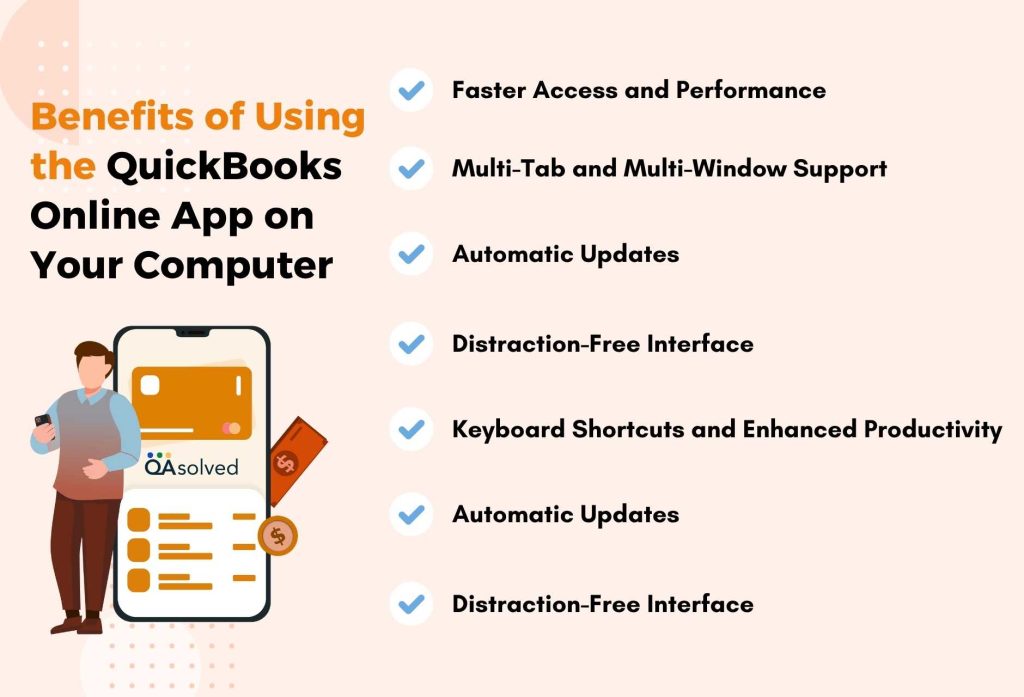
The desktop app has been optimized for speed. When compared to browser-based access, it runs more smoothly with faster loading times and easier navigation between tabs.
When using the QuickBooks Online app, you can open multiple tabs or windows without the limitations and confusion of browser tabs. If you are working on multiple company files, comparing reports, entering transactions, or entering transactions, this is especially helpful.
Keeping up with the latest features and security improvements is part of the app’s routine maintenance. It all happens automatically in the background, so you don’t have to worry about manually checking for updates.
Being a standalone application, it minimizes distractions from browser notifications, bookmarks, and other unrelated tabs as well. In addition, you will have a dedicated workspace for accounting tasks that is solely dedicated to you.
QuickBooks-specific keyboard shortcuts have been added to the app so that tasks such as entering expenses, creating invoices, or running reports can be completed faster and more efficiently.
Compared to the browser version, the app has a longer session timeout compared to the browser version. Hence, you won’t be logged out as quickly due to inactivity, so if you are a frequently logged in and out user throughout the day, this is useful for you.
With real-time desktop alerts, you can be kept informed about important updates such as transactions, reminders, and changes in real time. This will allow you to respond faster to important updates.
With the new app, you can upload files via drag-and-drop functionality, change printer settings, and experience a more reliable performance across Windows and macOS, as well as better integration with native operating system features.
QuickBooks Online desktop app makes it easier to work smarter and more efficiently. Apart from agility and efficiency, you can simplify financial management and stay focused on running your business with its user-friendly features and optimized performance.
In a nutshell, The QuickBooks Online Desktop app is a convenient and easy way to stay on top of your business finances and streamline your daily accounting tasks. With features like extended login sessions, multitasking with multiple tabs, and a user-friendly interface similar to QuickBooks Desktop, it enhances productivity and simplifies your workflow. By understanding the prerequisites and following the step-by-step instructions shared in this blog, you can easily download, install, and start using the app to streamline your financial operations.
So, start using the QuickBooks Online Desktop App today to take control of your accounting with greater speed, flexibility, and ease, right from your system.
For Windows:
– Windows 10 (64-bit) or Windows 11
– Update your system
For Mac:
– macOS High Sierra (10.13) or newer
– Compatible with the latest macOS versions, such as Monterey and Ventura
They’re not the same, but they work together.
1. The QuickBooks Online web-based accounting software can be accessed from any web browser.
2. QuickBooks is a desktop app that you install on your computer. With it, you can access QuickBooks Online faster and get extra features such as:
– Signing in for a longer period of time
– Multi-tabbed browsing
– Shortcuts on the keyboard
Therefore, the app is just an easier way to use QuickBooks Online on your desktop – it does not store your data, but it connects to it.
Yes, you can use both QuickBooks Online and QuickBooks Desktop, but they are separate products and do not automatically sync. Moving data between them requires manual intervention or the use of third-party tools. To avoid confusion or data mismatches, use one consistently.
QuickBooks Online is cloud-based, so you don’t need to transfer anything. Just follow the below-mentioned steps:
1. Access a browser on your new computer.
2. Go to quickbooks.intuit.com.
3. To sign in, click Sign In and enter the email address and password you used to register with QuickBooks Online.
Optional: Install the App
To use the desktop app, follow these steps:
1. Install the QuickBooks Online app on your Windows or Mac.
2. Install it and log in.
About the author
Have a QuickBooks® question? Our ProAdvisors can help. QAsolved is not affiliated with Intuit.