Updated
7 min read


QuickBooks Desktop Update Errors, including codes 12157, 12045, 12038, and 12037, are part of the 12000 series and typically occur during software updates or while downloading payroll updates. It indicates an internet connectivity issue within the software, typically arising during update downloads or when using online features. These errors are often associated with problems in the Windows operating system. This is one of the most common issues that QuickBooks users frequently face. These update errors occurs when QuickBooks cannot establish a secure connection to the server, usually due to a variety of reasons. QuickBooks Desktop error codes can prevent you from accessing key features such as updating, syncing, and connecting to QuickBooks services, which can slow down your workflow.
While these errors can certainly be a setback, you can easily overcome it and get back to business quickly. In this article, we’ll describe the common causes behind these QB Update Errors and give you step-by-step solutions to help you resolve it effectively.
So, let’s understand the potential causes that trigger these errors, various signs to take proactive measures, and top-notch solutions to get rid of it once and for all.
There is always a reason behind every problem and QuickBooks Update Error Codes are no exception. Here are some of the common causes that trigger this issue.
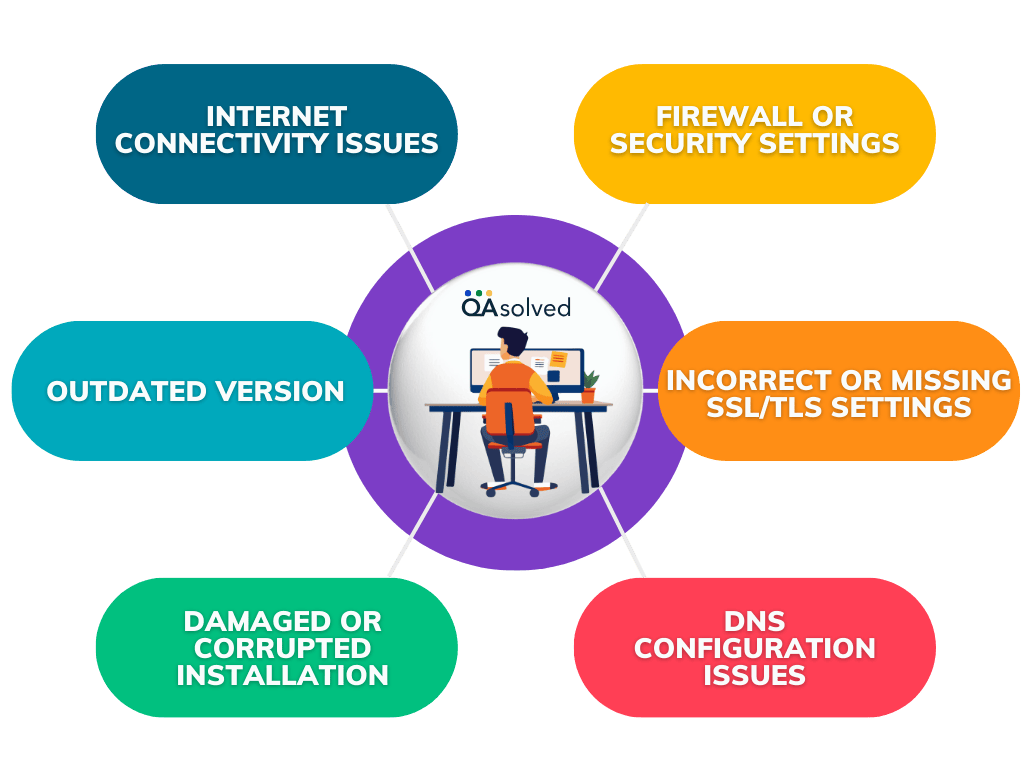
By addressing these causes and taking the appropriate troubleshooting steps, the issue can be resolved and QuickBooks functionality restored.
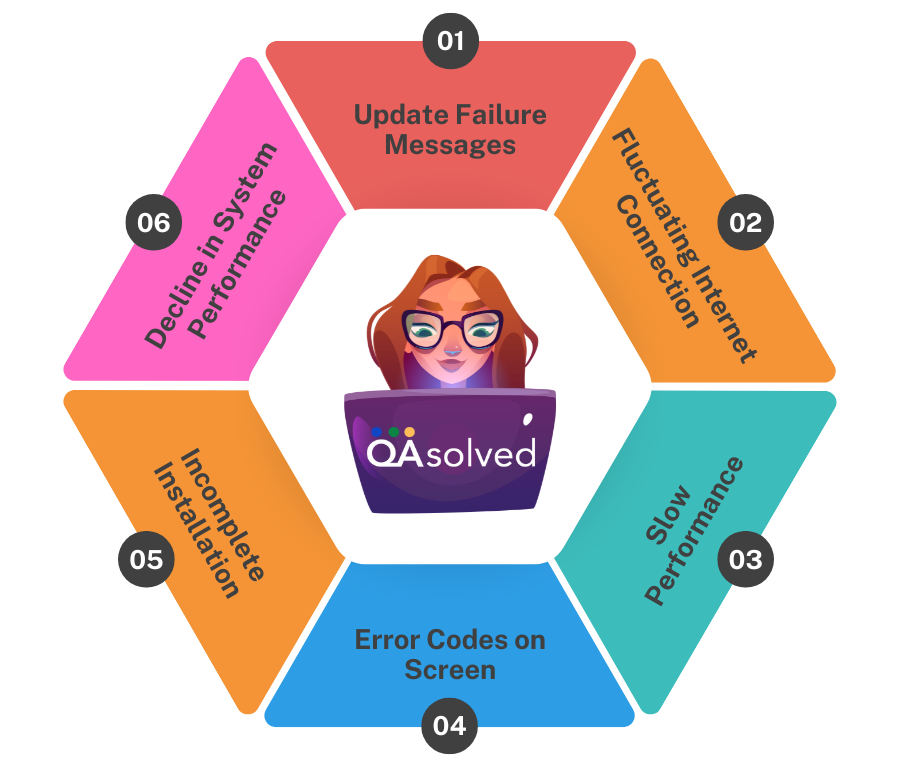
QuickBooks Update Error Codes: 12045, 12157, 12038 & 12037 are commonly associated with internet connectivity issues, which may affect the software’s ability to perform updates or access online services. Here are some of the symptoms:
QuickBooks update errors (12045, 12157, 12038, & 12037) slowing you down?
Contact us today for fast and easy troubleshooting solutions!
To ensure uninterrupted payroll updates and smooth software functionality, QuickBooks Update errors must be fixed. These issue can be resolved with a few simple steps, and your QuickBooks will continue to function as normal. Here are the 4 solutions to fix these:
Access a web browser and visit Chase banking’s website to verify your secure internet connection.
If the Chase page cannot be loaded, your connection is insecure, and you will not be able to receive QuickBooks updates.
If the Chase page loads, follow the steps mentioned:
QuickBooks can be prevented from downloading the latest updates by restrictive firewall settings or internet security settings. By adjusting these settings, you can allow both incoming and outgoing connections via port 10172. Maintain a stable internet connection for essential files such as QBDBMgrN.exe, QBW32.exe, and FileManagement.exe. If the error still persists after making these changes, try updating QuickBooks.
Also, add QuickBooks and its related processes to the firewall exceptions. Among them are:
If other processes happen to occupy these ports, QuickBooks Database server will automatically switch to fallback port, 56719.
Multiple QuickBooks Desktop installations of the same version year can cause update errors (for example, QuickBooks Enterprise Solutions 18.0 and QuickBooks Premier 2018).
It is recommended to download and install a manual update for one or more versions of QuickBooks Desktop if this occurs.
QuickBooks Desktop Update Errors can be extremely frustrating, especially if it prevents you from downloading essential payroll updates and affects the overall performance of QuickBooks. Connection problems, such as restrictive firewall settings, incorrect system configurations, or conflicts with duplicate QuickBooks installations, usually cause this error. Ensure that your internet connection is stable and that the QuickBooks files have the appropriate access permissions as well. Taking the right steps allows you to quickly return to managing your business finances.
If you’re still facing the same issue, then it is wise to connect with Certified QuickBooks ProAdvisors to fix your technical and functional hurdles.
Solution 1: Configure the Windows Firewall.
Solution 2: Assign Administrative Rights to the User Account.
Solution 3: Download and Run QuickBooks File Doctor.
Solution 4: Register MSXML Files.
Solution 5: From the Tool Hub, run the Quick Fix My Program.
Solution 6: Manually delete your Entitlement file
1. Choose Settings.
2. Go to Sync & Integrations and select Setup.
3. Click Connect to QuickBooks.
4. Log in using your QuickBooks Online Primary Admin user ID and password.
5. Choose the QuickBooks Online company you want to sync to BILL.
6. Then click Confirm.
1. Ensure that the connection is stable.
2. Right-click QuickBooks and select “Run as Administrator.”
3. Go to Help > Update QuickBooks > Update Now.
4. Turn security software off temporarily.
5. Go to Control Panel > Programs > QuickBooks > Repair.
6. Ensure Windows is up to date.
Sync errors occur when data does not transfer or update correctly between QuickBooks and other applications. Internet connection problems, incorrect settings, software glitches, or conflicts between QuickBooks and other applications can cause this. Data synchronization errors may affect transactions, invoices, or other data, resulting in discrepancies.
QuickBooks payroll error 12152 occurs when QuickBooks cannot connect to the internet to download payroll updates. There are several possible reasons for this error, including problems with your internet connection, firewall settings, or an incorrect configuration of your system.
About the author
Have a QuickBooks® question? Our ProAdvisors can help. QAsolved is not affiliated with Intuit.