Installing QuickBooks is the first step towards hassle-free accounting. However, when QuickBooks Error Code 1406 appears, it feels like finding the door jammed just as you’re about to enter. Though QuickBooks provides a comprehensive picture of your business finances through an intuitive interface, this error can be frustrating during the installation process. Error 1406 in QuickBooks usually occurs when the software installer is unable to access specific registry keys, usually due to permission issues, software conflicts, or misconfigured systems.
A technical error like this can leave you feeling stuck, especially if you’re unfamiliar with the installation process. If you’re also stuck with this, then do not worry, we are here to guide and assist you. In this article, We’ll explore why this error occurs, how to identify its symptoms, and most importantly, how to resolve it. So, let’s get on with it.
What Triggers QuickBooks Installation Error 1406?
There is always a reason behind every technical error or glitch, and QuickBooks Installation Error 1406 is no different. The following are the primary causes of QuickBooks Installation Error 1406:
Insufficient Administrative Privileges: The installer lacks the necessary permissions to modify or create registry keys during installation.
Conflicting Software: QuickBooks may not be able to access certain files or registry keys due to antivirus software, firewalls, or other security software.
Damaged Windows Registry: QuickBooks installation can be hindered by errors or corruption in the Windows registry.
Outdated Operating System: Windows versions that are outdated may not be compatible with the QuickBooks installer, resulting in an error during installation.
Damaged QuickBooks Installer: If the QuickBooks installer file is corrupted or incomplete, this error may occur during setup.
Background Applications Interference: The installation process may be hampered by active background processes, such as Microsoft Office or Adobe products.
Insufficient System Resources: Installation can be complicated if you don’t have enough disk space, RAM, or other resources.
Identifying these causes can help you resolve Error 1406 effectively and identify the right troubleshooting steps.
Struggling with QuickBooks Error Code 1406?
Don’t let it disrupt your workflow- Reach out to QuickBooks experts for quick and effective support today!
How to Identify QuickBooks Installation Error 1406?
QuickBooks Installation Error 1406 is typically recognized by specific error messages that appear during the installation or update process. The following are some common signs that QuickBooks installation error 1406 is occurring:
Error Message Pop-up: There is a notification stating: “Error 1406: Could not write value to key [registry key path].”
System Performance Issues: When attempting to complete the installation, the system may run slowly or freeze.
Program Crashes: When installing QuickBooks or other applications, there is a possibility that they might crash unexpectedly.
Registry Key Access Errors: Access-denied errors may occur when attempting to modify the registry manually.
Partial Installation: Due to missing or incomplete files, QuickBooks may appear to be installed but fail to function properly.
Early detection of these signs can help you troubleshoot and resolve the error before it negatively impacts your workflow.
How Can You Fix QuickBooks Error Code 1406?
If you encounter QuickBooks Error Code 1406 while installing or updating your software, you may find it frustrating. Registry issues, insufficient permissions, or interference from third-party applications often cause this error. Unresolved issues can disrupt your workflow and prevent QuickBooks from functioning properly. You can fix this error with a few troubleshooting steps and get back to managing your finances smoothly.
Solution 1: Adjust Registry Permissions
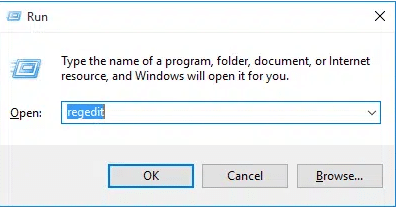
Click on Windows + R to open the “Run” window.
To open the Registry Editor, type regedit in the Run field and press Enter.
In the Registry Editor, follow this path: HKEY_LOCAL_MACHINE\SYSTEM\CurrentControlSet\services\iaSTOR.
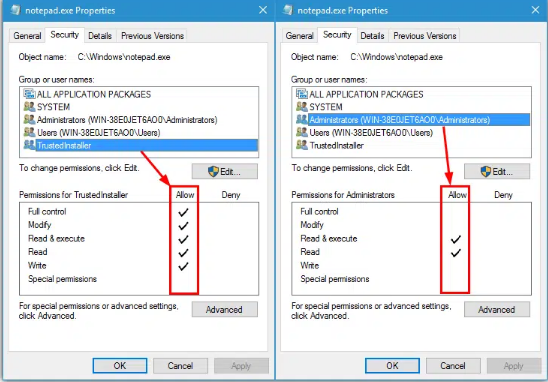
Confirm that all registry keys within this path are assigned to the Admin Group.
Ensure that the admin group has full access to QuickBooks by modifying the permissions, if necessary.
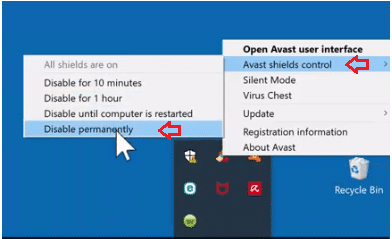
Solution 2: Turn Off Antivirus Software
Locate the antivirus icon in the system tray.
Right-click on the icon.
Choose Disable, Turn Off, or Pause Protection.
It is necessary to confirm the action.
Set the duration (if prompted).
Disable the protection.
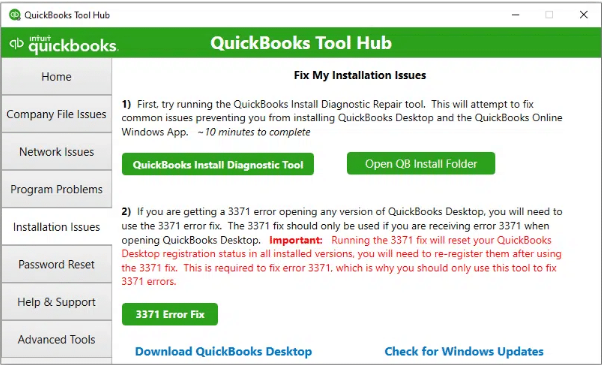
Solution 3: Use QuickBooks Install Diagnostic Tool
Uninstall QuickBooks via Control Panel > Programs and Features.
Launch the Clean Install Tool and select your QuickBooks version.
Follow the prompts to clean up installation files.
Reinstall QuickBooks using the setup file or installation CD.
Solution 9: Use System Configuration (Selective Startup)
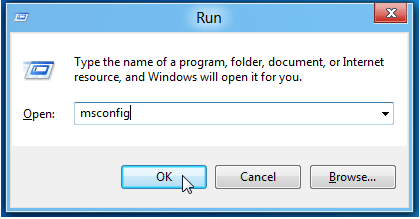
Press Windows + R, type msconfig, and press Enter.
In the General tab, select Selective Startup and uncheck Load startup items.
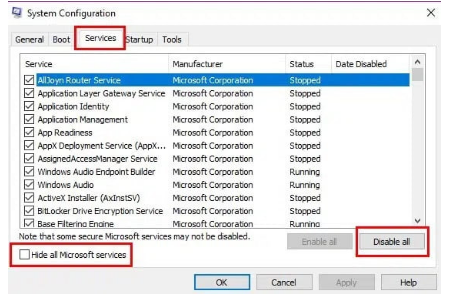
Go to the Services tab, check Hide all Microsoft services, and click Disable all.
Ensure QuickBooks-related services are checked and restart your computer.
Install, repair, or update QuickBooks as needed.
Return to System Configuration, select Normal Startup, and restart your computer.
So, these are the nine solutions to fix QuickBooks Error Code 1406. If you still face the issue even after going through these steps, then we would recommend you to connect with our certified ProAdvisors for top-notch QB assistance with round-the-clock availability.
Summary
QuickBooks Installation Error 1406 can be a major roadblock, but with the right approach and careful troubleshooting, it can be overcome. You can resolve the error and ensure a smooth installation process by identifying the underlying causes, such as permission issues, corrupted files, or conflicting software. It doesn’t have to stand in your way for long if you have the right tools and solutions at your disposal.
You can resolve this issue with methods like adjusting registry permissions, disabling antivirus software, and using the QuickBooks Install Diagnostic Tool. Follow the steps outlined above, and you’ll be back to managing your finances with QuickBooks in no time.
Frequently Asked Questions
How can I check for permissions issues related to Error 1406?
Ensure that your computer has administrative privileges. To resolve the error, right-click QuickBooks and select Run as Administrator.
How do I fix QuickBooks error 15240?
1. Run QuickBooks as admin. 2. Configure firewall. 3. Clean install QuickBooks. 4. Configure the internet settings. 5. Make corrections to the system date and time.
What is the QuickBooks error code 0x80004005?
The error code 0x80004005 in this context generally indicates that there is an issue with activating Office 365 in a shared computer scenario. This could be related to your Office 365 licensing or settings within your Office 365 account
What is the error code 12007 in QuickBooks?
The QuickBooks Desktop application is not properly installed on Windows. An outdated QuickBooks application may lead to this issue. The IE settings might have removed the SSL checkbox. A network timeout error might emerge because of dropped internet packets, leading to error 12007 QuickBooks desktop.
The QAsolved Editorial Team is a group of accountants, bookkeepers and software specialists with backgrounds in finance and technology. We write practical guides, troubleshooting steps and comparisons to help businesses get more from their accounting software. QAsolved is an independent firm offering bookkeeping, CFO and advisory services, software setup and integration, data migration and conversion, training and support, and has helped more than 30,000 customers across a wide range of industries.