Updated
19 min read



When it comes to managing finances, numbers alone rarely tell the full story. For accountants, bookkeepers, and business owners, presenting data in a professional, polished format can make all the difference. That’s where QuickBooks Statement Writer (QSW) steps in. Built as an add-on tool for QuickBooks Desktop, it allows you to create customized, presentation-ready financial statements directly in Microsoft Excel and Word without the hassle of manual formatting.
Think of QSW as your bridge between raw financial data and boardroom-ready reports. Instead of spending hours wrestling with spreadsheets, you can pull live data from QuickBooks and shape it into meaningful statements tailored to your audience, whether that’s investors, clients, or your own management team. From balance sheets to profit and loss reports, the flexibility to design statements that actually reflect your business is right at your fingertips.
But here’s the catch: While QSW is powerful, many users find it a little intimidating at first glance. The interface is different from the usual QuickBooks environment, and navigating its features can feel like stepping into unfamiliar territory. The good news is that once you understand how to use and move around within the tool, it becomes one of the most valuable assets in your accounting toolkit.
In this blog, we’ll show you how to access QSW, use its key features, and navigate the interface efficiently so that you can create accurate, customized statements with confidence. So, let’s begin with it.
The QuickBooks Statement Writer (QSW) is your secret weapon for crafting polished, professional financial statements that meet GAAP standards. Instead of struggling with formatting or starting from scratch, QSW lets you pull data straight from your QuickBooks company file and turn it into custom reports that look ready for boardroom discussions. The best part? Your statements stay in sync with QuickBooks, so if the numbers change, your reports update too. Once you launch a new statement, everything flows seamlessly in Excel, giving you the flexibility to tweak, style, and present financials exactly the way you want.
Here are the three QSW parts:
The QSW feature is available in QuickBooks Premier Accountant, Enterprise Accountant, and Enterprise Solutions. Earlier versions of QuickBooks referred to it as Intuit Statement Writer (ISW).
QSW offers powerful features that go beyond basic reporting to cater to accounting professionals and advanced users. The following are some key benefits that make QSW an ideal choice for anyone who is serious about accurate and professional financial reporting.
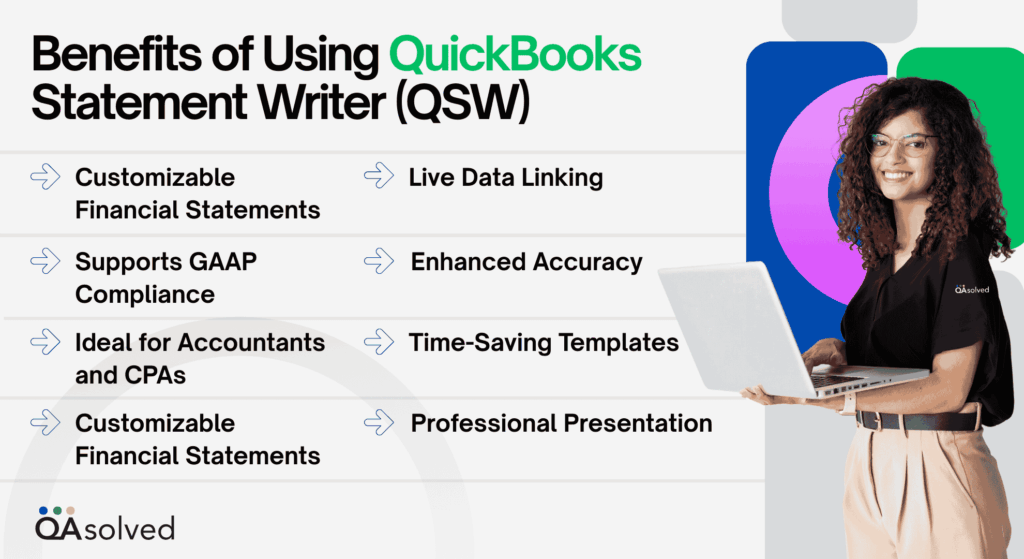
QuickBooks SW allows you to customize financial statements beyond the standard QuickBooks templates. Create balance sheets, income statements, and cash flow reports based on the needs of the client or business.
This QuickBooks Statement Writer feature works hand-in-hand with Microsoft Excel, giving you the flexibility of Excel formatting as well as real-time QuickBooks data accuracy.
QSW’s live data connection automatically updates your financial statements when changes are made in your QuickBooks file. It eliminates the need for repeated data exports and manual updates.
In QSW, you can apply consistent formatting, branding, headers and footers, and footnotes to make your reports look polished and presentable-ideal for clients, stakeholders, and auditors.
You can create and save templates for recurring reports so that you can reuse layouts and formatting. A monthly, quarterly, or annual report can now be prepared in a fraction of the time.
Financial advisors and accountants will appreciate QSW’s ability to format your statements in accordance with generally accepted accounting principles (GAAP).
With QSW, data is directly linked from QuickBooks, so there is no chance for human error that occurs with manual copying and spreadsheets.
Accountants will benefit from QSW’s advanced features that streamline report creation and enable quick adjustments during client reviews.
QuickBooks Financial Statement Writer can enhance your financial report’s accuracy, efficiency, and presentation. It offers seamless integration and customization options, making it the ideal solution for professionals who want more control over their reporting.
Also Read: Create and Send Customer Statements in QuickBooks Online and Desktop
In this section, we are going to cover the step-by-step process of using and navigating QuickBooks Statement Writer (QSW). So, let’s begin with it.
QuickBooks Statement Writer offers a range of options for customizing financial reports. Below is a brief overview of the basic steps for creating a report.
If you’d like to personalize how QuickBooks Statement Writer works, it’s super easy. Just click on the Statement Writer drop-down arrow and choose Preferences. From there, pick the section that matches the kind of preference you want to set, whether it’s formatting, layout, or other report options, and adjust it to fit your needs.
You can choose the folders where your financial reports and templates will be stored. All you need to do is follow the below mentioned steps:
This option allows you to save your personal or firm details, so you can quickly add them to future statements without retyping. You can update the information anytime, and any changes will automatically apply to both new and previously created statements that use those details.
These are universal settings applied to all future reports; however, you can adjust similar settings for an individual report by opening the Report menu and selecting Report Data Properties. Here are some formatting options:
Use Styles to customize global formatting for your reports. These style settings apply to all future reports. To make changes, select a style from the Styles list and apply formatting options from the toolbar, such as font, bold, or italics. As you adjust, the Preview pane on the right lets you see the changes instantly.
Need Help with QuickBooks Statement Writer?
If you have questions or need further assistance using QuickBooks Statement Writer (QSW), don’t hesitate to contact us. Our support team is here to help you make the most of your financial reporting tools.
Now, let’s see how you can create, open, and back up financial reports while using QuickBooks Statement Writer.
Creating, opening, and backing up financial reports in QuickBooks Statement Writer (QSW) ensures your data is accurate, accessible, and secure. When starting a new financial report in QSW, you build at least one statement from the open QuickBooks file, with the option to add more statements and supporting documents. If you open an existing report, you can edit current content or include additional statements and documents.
Note: The sequence of statements and documents displayed in Excel does not dictate the order or content of the final PDF report. The final arrangement and included content are determined when you print the report.
Financial reports in QSW use the .qsm extension. Opening a report while another is already open launches a new Excel instance, allowing both reports to remain active and fully functional. There are multiple methods available to open an existing financial report.
Here, all you need to do is open your QSW, navigate to the Statement Writer menu, or select the QSW icon. You can open a financial report via different techniques, including:
Note: QuickBooks Statement Writer files are not part of the company backup and must be backed up separately. Here are the steps to create a exact copy of the QSW statements:
So, these are the steps to successfully open a financial report by using QuickBooks and QuickBooks Statement Writer.
With the Report Designer, you can easily set up and customize a report with the statements and documents you need. Once done, you can save a single statement or the entire report as a template, making it quick and simple to create similar reports for other clients with a comparable chart of accounts.
Also, templates let you save your design choices and formatting, helping you work faster by avoiding the need to redo tasks you’ve already completed. Here are some tips to navigate the Report Designer correctly:
Here are some key features on each screen that you, as a user, can use to tailor the reports.
On this screen, you create a “bundle,” which is a collection of statements and documents that will be included in your financial report.
You can make the best use of advanced features to successfully customize different columns for each and every statement in the report.
You can also use the below mentioned features to successfully customize rows and accounts for every statement in the report. Here’s how:
QSW offers four new total row types, all of which can be customized in Excel. To modify the formula for a total row, open the Row Properties area in the Statement Writer pane. Note that only the SUM formula can be changed on the Rows/Accounts screen in the Report Designer, double-click the row to make adjustments.
Use the tools below to review your report, save a single statement or the entire report as a template, and then create the report. Keep in mind that you cannot print directly from this screen. First, create the report, save it as a PDF in Excel, and then it is ready to print.
In short, QSW empowers accounting professionals and business users to generate accurate, customized financial statements directly from QuickBooks data. Understanding how to set up and manage report components-such as selecting report types, customizing rows and columns, mapping accounts, and integrating with Microsoft Excel-can streamline financial reporting and reduce manual entry errors. Using QSW’s familiar Excel-based interface, reports can be formatted in a variety of ways while staying up-to-date with real-time financial data.
Using QSW to prepare balance sheets, income statements, or other financial reports helps you save time, improve consistency, and deliver professional-grade documents tailored to your business or client needs. QuickBooks Statement Writer enhances both the efficiency and accuracy of your financial reporting process with clear workflows and thoughtful customization.
1. QuickBooks Desktop Accountant (Premier or Enterprise Edition) – QSW works with these versions of QuickBooks.
2. Microsoft Excel – QSW uses Excel to create and format its financial statements. To use this program, you will need Excel installed on your computer (usually the 32-bit version is the best).
3. Microsoft Word (Optional) – Add cover pages or additional documents using Word, but it’s not necessary.
QuickBooks Desktop provides access to financial statements in the following ways:
1. Log in to your company file in QuickBooks Desktop.
2. Go to the Reports menu at the top of the page.
3. Hover over Company & Financial.
4. Select the statement you want, such as Balance Sheet, Profit & Loss, or Statement of Cash Flows.
5. Click on the report to open it. Date ranges and other options can be customized if necessary.
6. You can save or print the report using the buttons at the top.
You can follow the same steps using QuickBooks Online by clicking the Reports tab on the left sidebar.
Yes, the primary admin in QuickBooks can undo reconciliations. Their access to the company file allows them to review and undo previous bank reconciliations if necessary. Correcting errors or discrepancies ensures accurate financial records. Ensure that data consistency is maintained at all times.
1. Log into your company file in QuickBooks Desktop.
2. Click Reports in the top menu.
3. Pick Company & Financial from the dropdown menu.
4. Choose the type of statement you want to create: Balance Sheet, Profit & Loss Statement, or Cash Flow Statement.
5. Make sure your date range and other filters are set correctly.
6. View the report and make changes to the columns or layout if necessary.
7. Use the Save, Export, or Print buttons at the top of the report window to save or print the report.
If your QuickBooks Statement Writer stops working, first ensure that both QuickBooks and QSW are updated on your system. Next, try re-enabling the add-in in Excel or repairing your QuickBooks installation. If the issue persists, close all background applications and restart your system. Should the problem continue, we recommend contacting our certified ProAdvisors for immediate assistance.
About the author
Have a QuickBooks® question? Our ProAdvisors can help. QAsolved is not affiliated with Intuit.