Updated
8 min read



There is nothing more disruptive than an unexpected error in your accounting software, it not only minimizes the scope of flawless operations but also triggers a sense of panic. Despite being one of the best accounting and bookkeeping software for businesses of all sizes and verticals, QuickBooks is not free from technical errors. One such disruption is QuickBooks error code -6123, 0. QuickBooks typically displays this error when you open or restore a company file, upgrade QuickBooks, or use multi-user mode.
A damaged company file, a firewall restriction, or intrusion by a security software program are commonly responsible for this issue. If you’re also facing this issue, then you have landed on the right page because we are here to assist you in the best possible manner. In this blog, we are going to highlight the key indicators and primary reasons behind QuickBooks error -6123, 0. On top of that, we have compiled a set of solutions that will help you to get rid of this error effectively.
Let’s get QuickBooks running without interruptions by diving into the solutions!
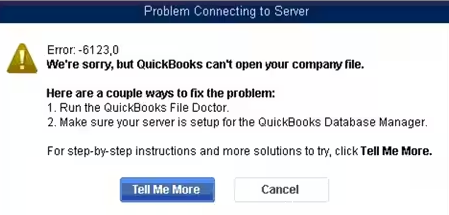
There are a few things you should look out for if you are experiencing QuickBooks Error -6123, 0:
Whenever you notice these signs, it is essential that you troubleshoot the issue as soon as possible in order to avoid interruptions in your workflow as soon as possible.
Facing QuickBooks Error 6123, 0?
If QuickBooks Error 6123, 0 is preventing you from opening your company file, don’t let it disrupt your accounting work. Contact our QuickBooks experts today for personalized assistance and get the right solution to resolve the error.
The QB Desktop Error -6123, 0 can be caused by a number of issues, such as network problems, security settings, or corrupted files. The most common causes are as follows:
When you understand these causes, you will be able to apply the right troubleshooting steps and resolve the error in a timely manner.
Also Read: Fix QuickBooks Error –6000, XXXX: When Opening a Company File
Getting rid of QuickBooks Error -6123, 0 is necessary for regaining access to your company file. The good news is that you can resolve this error with a few troubleshooting steps. The steps below will help you fix the error and resume work without disruption.
Choose the section that best fits your needs.
Accessing your company file through Windows Explorer may result in an error. Be sure to open it from QuickBooks directly rather than from Windows Explorer.
Try using File Doctor to repair your company file if Quick Fix My Program did not resolve the issue. In this tool, you will be able to diagnose and fix common data errors within QuickBooks Desktop automatically.
Open and Restore Your Company File Directly from Your Hard Drive.
Transfer the backup to your local hard drive if your file is stored on a network or external device. Don’t open it from a removable drive or online storage. Follow the steps to restore your company file from the backup.
Make a portable company file (.qbm) and use it to restore your company file.
Open QuickBooks Desktop on the computer where the backup was originally created.
These solutions should help you resolve error -6123, 0 and restore QuickBooks to normal operation. Disable security software temporarily and rename the .ND and .TLG files if your company file is stored locally. The QuickBooks Tool Hub and File Doctor can be used to resolve file-related issues. Reinstalling QuickBooks with the Clean Install Tool may be necessary if the error persists.
Facing QuickBooks error -6123, 0 can be frustrating, especially when you can’t access your company file. With the right troubleshooting steps, you can resolve the issue and get back to managing your finances. Start by making sure your company file is local and not on an external drive or network. Disable any security software that may be interfering with the file’s opening and try again. Using the above-mentioned steps, you can effectively troubleshoot error -6123, 0 and keep QuickBooks running smoothly.
If you’re still facing the issue despite following the troubleshooting steps, then we are here to assist you in the best possible manner. Connect with our certified QB ProAdvisors today and get your QuickBooks running back to normal.
QuickBooks Error 6131, 0 occurs when QuickBooks is unable to access or open a company file due to corruption, a damaged installation, or system problems. It can occur when files are damaged, shutdowns are not properly performed, or security software conflicts occur. Verifying file locations and running QuickBooks File Doctor can help resolve this issue.
1. Check and correct the opening balance
2. Look for transactions that have been modified, duplicated, or missing
3. Make sure the correct account is reconciled
4. Verify QuickBooks transactions with bank statements
5. If necessary, undo and reconcile again
6. Run the Verify & Rebuild Data tool
7. Consult an expert
1. Lower the number of large items (e.g., accounts) below $9,999,999,999.99 in lists
2. Check and fix errors with Verify & Rebuild Data
3. Verify that lists and transactions do not contain corrupted data
4. In reports, identify and correct overflowing fields
5. Install the latest version of QuickBooks
6. If the issue persists, restore a backup
When QuickBooks does not have permission to access, modify, or delete a file, it displays the Access Denied Error. There are a number of reasons why this might occur, including insufficient user privileges, restricted company file locations, or security software interference. This issue can be resolved by running QuickBooks as an administrator and adjusting folder permissions.
QuickBooks Database Server Manager can’t start, which prevents multi-user access. It can be caused by damaged database files, incorrect server settings, firewall restrictions, or service interruptions. If the problem persists, restart the QuickBooksDBXX service, check the firewall settings, and run QuickBooks File Doctor.
About the author
Have a QuickBooks® question? Our ProAdvisors can help. QAsolved is not affiliated with Intuit.