Updated
9 min read



Do you know how QuickBooks Desktop manages various business credit card activities with the utmost flawlessness? If not, then you should be aware of the steps and procedure to set up a credit card account in QuickBooks Desktop. Whether you’re tracking everyday purchases, making vendor payments, or reconciling monthly statements, handling your credit card data accurately is essential for keeping your books clean and up to date. If you also rely on QuickBooks Desktop to manage your credit card activities then knowing how to handle credit card transactions the right way can make a huge impact in maintaining accurate books.
Staying on top of your business expenses is a critical aspect for any business entrepreneur out there. When you set up a credit card account in QuickBooks Desktop, you gain the ability to monitor expenses, categorize transactions, and maintain real-time visibility into your credit card balances. This not only ensures that your financial reports reflect actual spending and liabilities but also helps prevent errors, overspending, and missed payments.
Additionally, QuickBooks Desktop simplifies the process of recording credit card activity, including QuickBooks Desktop credit card payments through checks, electronic transfers, or direct bank payments. With accurate credit card tracking and reconciliation, you’ll have a clearer picture of your company’s cash flow, credit usage, and overall financial health.
In this informational article, we’ll walk you through the steps to set up and manage a credit card account in QuickBooks Desktop. By the end, you’ll not only understand how to handle credit card transactions effectively but also gain insight into the key benefits of using QuickBooks Desktop for credit card management. Let’s dive in! So, let’s get started!
A credit card enables you to borrow funds for making purchases or settling bills. In QuickBooks Desktop, you can set up a credit card account to efficiently monitor your spending and payments, ensuring accurate and up-to-date financial tracking. Here are the steps:
So, these are the six easy steps to successfully set up a credit card account in QuickBooks Desktop.
Here are the eight easy steps to enter the credit card charges in QuickBooks Desktop:
Knowing how to set up a credit card account and enter charges in QB Desktop is important. The cherry on top of the cake comes when you’re also equipped with the steps to pay credit card charges. Don’t worry! You will no longer remain uninformed.
For your information, you can pay credit card charges both before and after reconciliation: Here are the steps:
While we recommend making credit card payments after reconciling the account, you can also pay your credit card by writing a check. All payments and charges will appear in your credit card register and can be reconciled as usual. Here are the steps:
Here, you have two options for paying a portion of the outstanding balance after reconciling your credit card account:
So, these are the two options to pay credit card account charges in QuickBooks Desktop without facing any problem.
Entering credit card annual and finance charges in your accounting system helps ensure that all expenses related to your credit card usage are accurately recorded. These charges typically include annual fees, interest, and other service-related costs. Recording them properly in QuickBooks Desktop allows you to maintain accurate financial reports and get a clear picture of your overall credit card expenses. Here are the steps:
So, these are the steps to set up a credit card account and enter charges to pay them on time in QuickBooks Desktop. With the help of above mentioned steps, you can stay consistent with your entries, whether you’re entering purchases, applying payments, or reconciling accounts.
Still Need help setting up or managing your credit card accounts in QuickBooks Desktop?
Simplify your bookkeeping by quickly setting up your credit card accounts, tracking transactions, and making payments—straight from QuickBooks Desktop. Don't waste time managing finances manually; let QuickBooks streamline your process. Need help getting started or have questions? Contact us today for expert guidance and personalized support!
Managing QuickBooks Desktop credit card payments accurately brings your business several key benefits. Your financial reports reflect real-time spending and liabilities, which support better budgeting and decision-making. By categorizing expenses, you can improve your cash flow visibility and keep track of expenses more easily. Keeping accurate records also simplifies monthly reconciliations and makes it easier to detect errors or unauthorized transactions.
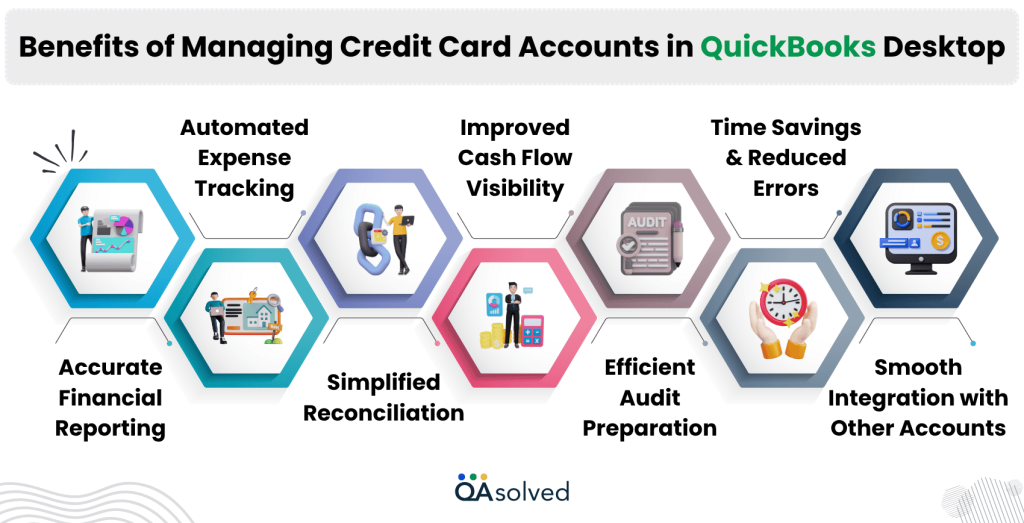
Accounting for credit card transactions correctly ensures that your financial statements (such as Profit and Loss or Balance Sheet) reflect true expenses and liabilities.
A credit card charge can be categorized by vendor, expense type, or job, making it possible to track your money in detail. Budgeting and cost control become easier.
Reconciling your monthly statements becomes faster and more accurate if you maintain an up-to-date credit card register in QuickBooks. Duplicate charges, missed transactions, or unauthorized activity can be easily caught.
Monitoring credit usage in real time is made easier by recording payments and charges as they occur. Having a clear view of your available credit and upcoming liabilities will allow you to make better financial decisions.
Keeping track of credit card information reduces the stress that comes with tax season and audits. As long as you have supporting documentation attached to each transaction, you will be able to review and verify your records with ease.
When you import transactions directly from your credit card provider, automating the entry and reconciliation of credit card data saves time and reduces manual entry errors.
A complete and connected financial system can be created by linking credit card payments to bank transactions, checks, or vendor bills.
Not only will these benefits help you keep your business organized and compliant, but they will also help you manage your finances more intelligently and improve the effectiveness of your long-term business planning.
In short, When you use a credit card account in QuickBooks Desktop correctly, the process simplifies expense tracking, improves reporting accuracy, and helps you to maintain a clear view of your business’s liabilities. Keeping track of these details will help you manage your finances more efficiently and facilitate your accounting workflow.
Managing your credit card accounts effectively in QuickBooks Desktop is crucial for maintaining accurate financial records and gaining full visibility into your business’s cash flow. It is important to set up your accounts correctly in the Chart of Accounts, record daily charges, and make timely payments to ensure your books remain accurate and current. The QuickBooks Desktop credit card account allows you to track business expenses in real time, categorize spending accurately, and simplify monthly reconciliations. Regularly reconciling your credit card statements and entering payments correctly minimizes errors, avoids duplicate entries, and keeps you audit-ready.
So, manage credit card accounts in QuickBooks Desktop for better visibility into spending and liabilities.
Credit card payments do not reduce your credit card balance, but are liability payments. As you pay your credit card, funds are transferred from your bank account to settle what you owe, so the payment itself should reduce your credit card liability.
Here’s how to do it:
1. Make a payment using Write Checks (in QuickBooks Desktop) or Pay Bills.
2. Choose the bank account from which the payment will be made.
3. Choose the credit card company or account you wish to pay to.
4. Enter the payment amount and date.
5. Select the credit card account in the Expenses tab to apply the payment.
6. Save the transaction.
1. Click + New.
2. Select Receive Payment.
3. Choose the customer, then choose the credit to apply and the invoice.
4. In the Payment column, enter the extra amount for another outstanding invoice if there is an overpayment.
5. To finish, click Save and New or Save and Close.
Inventory assembly builds cannot be tagged in QuickBooks. Assembly builds, which combine inventory parts into finished goods, can’t be tagged because tags are typically used to categorize and track transactions like expenses, invoices, and sales receipts.
About the author
Have a QuickBooks® question? Our ProAdvisors can help. QAsolved is not affiliated with Intuit.