Updated
13 min read



A business isn’t just about selling goods or providing services, it’s also about keeping your finances in order, especially when money keeps flowing in and out. Staying on top of your bank transactions is crucial to making smart financial decisions, whether they are customer payments, vendor bills, or day-to-day expenses.This is where QuickBooks Desktop plays its part exceptionally well. In order to minimize the threat of costly errors, it is important for a user to add and match bank feed transactions in QuickBooks Desktop.
QuickBooks Desktop’s bank feeds feature allows you to connect your bank accounts and have transactions flow directly into the software. No more downloading statements or manually entering payments! You can then match those bank transactions with existing records or add new ones as needed. It’s simple, smart, and prevents unnecessary errors.
If you’re also having trouble adding or matching bank feed transactions in QuickBooks Desktop, then don’t worry because we’ve got you covered. In this article, we’ll discuss how to use bank feeds in QuickBooks Desktop for Windows. Whether you’re just getting started or looking to fine-tune your workflow, this article will guide you every step of the way. It’s time to get started!
Managing your finances efficiently is easier with the bank Feeds feature in QuickBooks Desktop. It allows you to connect your bank accounts and automatically download transactions, saving time and reducing manual data entry. Following the right steps to add and match transactions streamlines your reconciliation process and keeps your accounting error-free.
To successfully download the bank feed transactions in QuickBooks Desktop, follow the below given steps:
Following your bank statement download, match what you’ve already entered in QuickBooks with the transactions on your bank statement. It helps you identify which transactions have been cleared by your bank and which ones are still pending. According to your bank data and your records, QuickBooks organizes these into three categories.
To review, follow these steps:
You can also match transactions for the bank feeds mode you use:
QuickBooks automatically compares downloaded bank feed transactions with existing entries in your linked account. A new transaction will be created if no match is found. It is always a good idea to review the matches before adding them to your register to ensure accuracy.
QuickBooks categorizes matches as follows:
A check mark appears next to matched transactions. Use the Batch Actions or Actions dropdown to select Add/Approve or Approve if the match appears correct. Select Not a Match if the match doesn’t look right; this will change the status back to Unmatched so you can review or edit it.
There are different types of match categories in Classic Mode in QuickBooks:
When a transaction from your bank feed aligns with an existing entry in QuickBooks, it’s considered a match.
Sometimes, transactions from your bank feed don’t match anything in QuickBooks. This can happen for several reasons:
Once all transactions are either matched or added, the Items Received section will clear the statement from the Bank Feeds Center.
In advanced mode, there are three ways to easily match bank feed transactions in QuickBooks Desktop. Choose your option and follow the steps for the same:
Recognized tab transactions display a Match Status such as:
Choose an action from the action column for each transaction:
Batch Actions allow you to match multiple transactions at once. In QuickBooks, you can view more details about a particular transaction by clicking on it.
There may be multiple entries in your account corresponding to these transactions. From a list of existing transactions, QuickBooks will ask you to select the most accurate match. Click on a transaction in the Partially Recognized tab to view QuickBooks’ suggested matches. Then click Confirm match to confirm the match. You can also:
The transactions don’t match anything in your records and don’t meet any rule criteria. Select an unrecognized transaction and update its details or choose from the following options:
Use Batch Actions to apply updates to multiple items at once, such as Name, Class, Account, Memo, or Customer: Job.
Need help matching bank feed transactions in QB Desktop?
Contact our QuickBooks Desktop experts now for personalized support and get your books in perfect shape. Call us or chat live today!
In some cases, QuickBooks may not automatically link an electronic statement transaction with your records. When this happens, you can manually match it to an existing open or posted transaction.
The Unrecognized tab lets you manually match transactions with those already recorded.
Note: You cannot add split entries to transactions that have already been posted or linked to your bank, such as:
There you have it! Follow these steps to add and match bank feed transactions in QuickBooks Desktop to ensure your books remain accurate. By regularly managing your bank feeds, you will not only save time but will also gain a better understanding of your financial situation.
If everything is matched correctly, your reconciliations will run smoothly, your reporting will be more accurate, and you will be able to make more confident decisions.
Also Read: How to Fix QuickBooks Bank Feeds Not Working Error?
Maintaining daily financial transactions can be time-consuming and prone to errors, especially when done manually. QuickBooks Desktop offers a feature called bank feeds that automates and simplifies this process. It’s easy and convenient to manage your bank transactions with bank feeds, whether you’re a small business owner or a bookkeeper. Here are some benefits one can avail after adding and match bank feed transactions in QuickBooks Desktop:
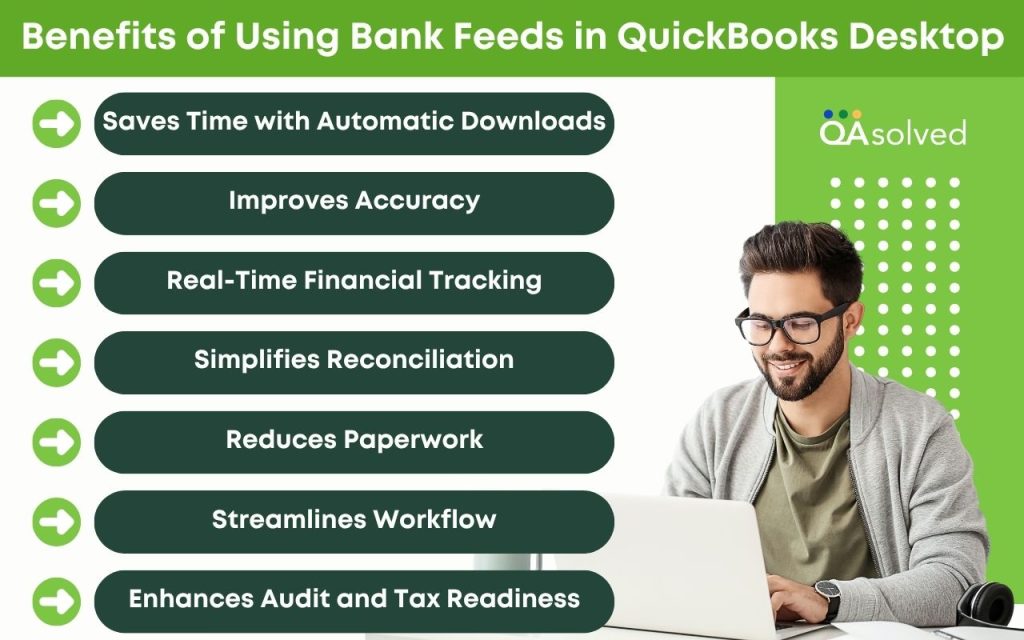
Bank feeds automatically pull transactions from your connected accounts, eliminating the need to manually enter them. Using this automation, you can focus on running your business rather than entering data.
You can eliminate errors and duplicate entries by matching your bank transactions with QuickBooks records. This ensures that your financial data is accurate and up-to-date at all times.
The bank can provide you with daily or frequent updates on your cash flow, so that you can keep track of it in real time. By understanding where your money is going, you can make better decisions.
Reconciling your accounts becomes easier and faster when your bank transactions are already imported. Early detection and correction of discrepancies is easier.
QuickBooks stores all bank statement information digitally, eliminating the need for paper statements. By going paperless, you can keep your records organized and accessible.
QuickBooks makes it easy to review, match, or add transactions. With this intuitive workflow, you can reduce back-and-forth and simplify your day-to-day accounting tasks.
An audit or tax filing can be made easier when your transactions are up-to-date, classified, and well-documented. Financial and legal standards are met through the use of QuickBooks.
When it comes to simplifying your accounting, bank feeds in QuickBooks Desktop are a game changer. Saving time, improving accuracy, and staying tax-ready are just a few of the benefits. Bank feeds can help you streamline your bookkeeping and gain better control over your finances. You can easily change bank feed mode in QuickBooks Desktop to manage and display your transactions in accordance with your workflow preferences.
Effectively managing bank feed transactions in QuickBooks Desktop is essential for maintaining accurate financial records and streamlining your reconciliation process. Whether you’re downloading transactions using Direct Connect or Web Connect, QuickBooks offers a user-friendly interface to help you stay on top of your banking activity. By learning how to categorize, match, or exclude transactions, you can avoid duplicates, reduce errors, and ensure that your books reflect real-time financial data.
Regularly reviewing your bank feeds, understanding transaction statuses, and taking timely actions not only save time but also build confidence in your financial reporting. With the right approach, QuickBooks Desktop can be a powerful tool to help you manage cash flow and stay financially organized.
If you follow the steps outlined in this guide, managing your bank feeds will become a smoother, more reliable part of your workflow.
Here’s how you can reconcile bank feed transactions in QB Desktop:
1. Launch QuickBooks Desktop.
2. Select Reconcile from the Banking menu.
3. Choose the bank account you want to reconcile.
4. Enter your bank statement’s statement date and ending balance.
5. Hit Continue.
6. Compare the transactions on your statement with those in QuickBooks.
7. The difference at the bottom should be $0.00.
8. If everything matches, click Reconcile Now.
Bank feeds can be added to QuickBooks Desktop for the following types of accounts:
1. Checking Accounts – Typically used for day-to-day business transactions.
2. Savings Accounts – Used to store funds and track interest or savings.
3. Credit Card Accounts – Allows business credit card payments to be tracked.
4. Money Market Accounts – If your bank allows online access, they can be linked.
5. Loan Accounts – Some types can be connected to monitor payments (depending on your financial institution).
The categorize option in QuickBooks Desktop’s bank feeds is used when a downloaded transaction doesn’t match any existing entry in your books. Instead of matching, you’re telling QuickBooks how to record this transaction for the first time. This is helpful when:
1. The transaction is new and hasn’t been manually entered in QuickBooks.
2. It’s a recurring expense or income (e.g., utilities, subscriptions, or deposits) you haven’t recorded yet.
3. You want to assign the transaction to a specific account category (e.g., Office Supplies, Rent, or Sales Income).
4. The transaction is legitimate but needs to be added rather than matched.
Using Categorize ensures transactions are recorded accurately and assigned to the correct chart of accounts, helping maintain clean financial records.
Here are the steps to delete bank feed transactions in QuickBooks Desktop, based on whether they are added to the register or still pending in the Bank Feeds Center:
If Transactions Are Still in the Bank Feeds Center (Not Yet Added):
1. Go to the Banking menu.
2. Select Bank Feeds, then click Bank Feeds Center.
3. Choose the appropriate bank account.
4. Under the Transaction List, find the transaction(s) you want to delete.
5. Right-click on the transaction and select Ignore.
– This removes the transaction from the list without adding it to QuickBooks.
6. Confirm the action when prompted.
If Transactions Have Already Been Added to the Register:
1. Go to the Banking menu.
2. Select Use Register (or press Ctrl + R).
3. Choose the bank account and click OK.
4. In the register, locate the transaction you want to delete.
5. Select the transaction, then click Edit > Delete Check/Deposit, or right-click and choose Delete.
6. Confirm deletion when prompted.
About the author
Have a QuickBooks® question? Our ProAdvisors can help. QAsolved is not affiliated with Intuit.