Updated
6 min read


Managing a QuickBooks Desktop subscription effectively can make a world of difference for small businesses and accounting professionals who rely on this software for their accounting needs. From tracking finances to processing payroll, QuickBooks Desktop provides robust features tailored to simplify financial management. However, like any subscription-based software, it requires regular attention to keep things running smoothly. Renewal reminders, billing updates, and managing licenses can quickly become overwhelming if not handled flawlessly. There are certain aspects that a user needs to be aware of in order to manage QuickBooks Desktop subscription effectively.
In this article, we’ll walk you through the essentials of managing your QuickBooks Desktop subscription. Whether you’re looking to renew your subscription, update billing information, add or transfer licenses, or resolve issues related to account settings, we’ve got you covered. Plus, we’ll touch on ways to ensure uninterrupted access to your software, even as Intuit continues to evolve its offerings.
By the end of this article, you’ll have a clear understanding of best practices and tips for maintaining your QuickBooks Desktop subscription so that you can focus on what really matters: growing your business.
Let’s dive into the steps and resources that make subscription management hassle-free!
Being aware of all the available resources enables businesses to optimize their performance and fetch the best results. Managing your QuickBooks Desktop subscription efficiently can help businesses maximize their software’s potential and maintain seamless financial operations. Here are the key benefits of the same:
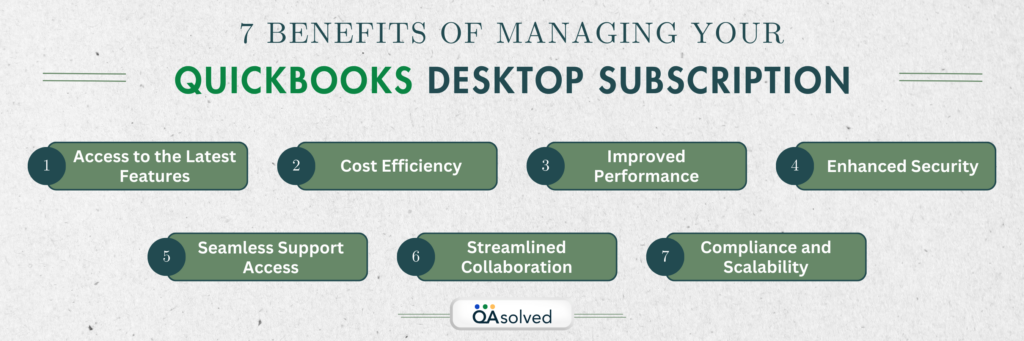
By managing your QuickBooks Desktop subscription, you ensure a smooth, secure, and scalable accounting process tailored to your business goals. Now, let us highlight the steps to effectively manage your QuickBooks Desktop Payroll subscription.
Struggling with your subscription?
Contact us for quick, reliable help with your QuickBooks Desktop subscription.
Managing your QuickBooks Desktop account and services is easy with the Customer Account Maintenance Portal (CAMP).
Note: The download and installation steps do not apply if your company file is hosted by Rightworks, and may not apply to other cloud-enabled services.
The download and installation steps do not apply if your company file is hosted by Rightworks, and may not apply to other cloud-enabled services.
Accountants or ProAdvisors who have the ProAdvisor Program (PAP) software bundle:
Your Desktop apps and subscriptions are listed in the Products & Services section of CAMPs. For any QuickBooks Desktop version listed here, you will find licensing information and download options.
Here you can also download products and cancel your subscription.
For detailed information about your payroll subscription, enter your EIN if you’re a first-time user. If necessary, you can also update your EIN.
Managing your QuickBooks Desktop subscription ensures you always have access to the latest tools, updates, and support, allowing you to easily manage your business finances. In CAMPs, you can view essential details, such as licensing information, product numbers, user limits, and payroll subscription details, right at your fingertips. You can quickly download, update, or even cancel subscriptions as your business needs change through this centralized access.
Furthermore, managing account settings and verifying your registration email helps prevent access issues and keeps all QuickBooks assets in one place. Connect with our experts in case you have any questions or need technical assistance with your QuickBooks Desktop subscription.
Yes, you can upgrade or downgrade your subscription version at any time. Log in to your account, go to the Subscription tab, and select the new version you’d like to switch to.
QuickBooks offers a 30-day trial period for its subscriptions, allowing you to explore the software before committing to a subscription.
If you cancel your subscription, you will still have read-only access to your data for one year. After that, you may need to export your data or consider other options for access.
No, each subscription is intended for a single user or device. If you need multiple users or devices, you should consider a multi-user license or cloud-based alternatives.
You can contact QuickBooks customer support through their website, phone, or live chat for any subscription-related queries or issues.
About the author
Have a QuickBooks® question? Our ProAdvisors can help. QAsolved is not affiliated with Intuit.