Updated
8 min read



Imagine you are ready to get started on your work, but QuickBooks throws an unexpected roadblock: Error -6000, -77. Now, instead of managing your financial data, you’re stuck troubleshooting an issue preventing you from opening your company file. What a hassle, isn’t it? Incorrect file location settings, insufficient permissions, or network configuration conflicts usually cause this error. Your workflow can be disrupted by this error whether your company file is stored in the wrong directory, does not have proper access, or encounters firewall restrictions.
The following error occurs when trying to open a company file: “We’re sorry. QuickBooks encountered a problem. Error codes: (-6000, -77).”
In this blog, we’ll explain the causes of QuickBooks Error -6000, -77 and walk you through a step-by-step process to fix it. Let’s resolve this issue and get your QuickBooks experience back to normal.
The following signs may indicate QuickBooks Error -6000, -77:
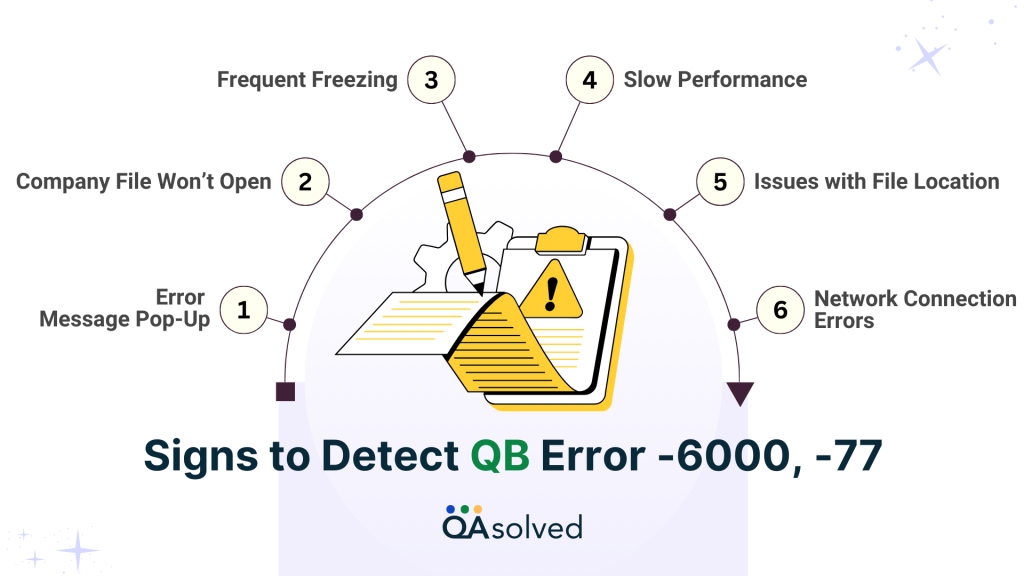
When you recognize these signs early, you will have a better chance of resolving the issue quickly and restoring your company’s file access.
Read More: How to Fix QuickBooks Error Code 6000?
A QuickBooks Error -6000, -77 usually occurs because of a file access or storage issue. These are the most common causes:
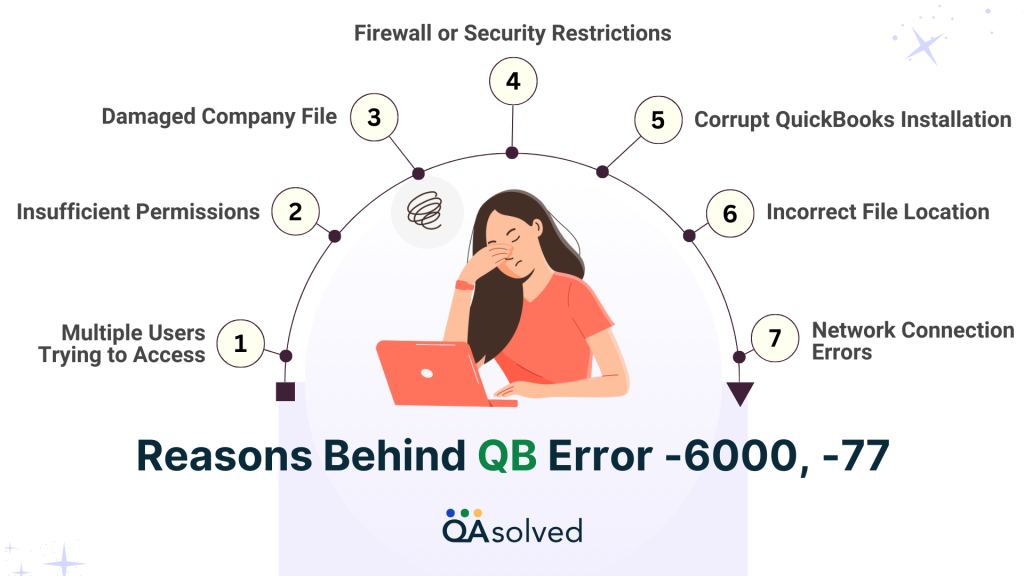
To get QuickBooks back up and running smoothly, you will need to identify the exact cause of the error.
Fix QuickBooks Error Code -6000, -77 Now!
Don’t let it slow you down! Follow our troubleshooting steps or reach out to our QuickBooks experts for assistance.
Now that you understand the causes of QuickBooks Error -6000, -77, let’s fix it. Even though this error may seem daunting, you can quickly resolve it with the right steps. Below are effective solutions to resolve the issue and get QuickBooks working again. With these steps, you’ll soon be able to manage your finances on your own.
Also Read: How to Download, Install, and Use QuickBooks File Doctor?
Configuration files such as ND and. TLG help QuickBooks Desktop access company files over a network or in multi-user mode. It is possible to experience errors when trying to open QuickBooks Desktop if these files become corrupted or damaged. When you open the company file or scan it with QuickBooks Database Server Manager, these files are automatically recreated, so renaming them does not result in data loss.
Here’s how to rename. ND and .TLG files:
You can often resolve errors by renaming these files.
Setting up your firewall and internet security settings correctly is crucial to maintaining a secure and stable network. A misconfigured setting can cause connectivity issues, slow performance, or even security vulnerabilities. Your firewall should allow necessary connections while blocking unwanted ones to safeguard your system.
Check out our blog for an in-depth explanation of how to configure these settings.
We hope this section has provided you with the information you need to resolve the error. By following the steps listed below, you’ll find that everything is back to normal.
QuickBooks Error -6000, -77 can disrupt your workflow, but you can resolve it quickly with the right troubleshooting steps. It is crucial to understand the root cause of an issue before finding an effective solution, whether it is the location of the file, insufficient permissions, or corrupted configuration files. Following the steps outlined in this blog, such as using the QuickBooks Tools Hub, renaming. ND and .TLG files, or adjusting network access, you can resolve the issue.
In case these solutions do not resolve the error, it’s best advised to contact QuickBooks experts. Maintaining proper file management, backup routines, and network settings will help prevent similar issues in the future. By taking the right steps, you can access your company files without interruptions and continue using QuickBooks.
Identify the error and its cause to fix QuickBooks error codes. The most common solutions include updating QuickBooks, checking network connections, verifying file paths, and making sure the Database Server Manager is running.
QuickBooks files that aren’t reading correctly could be caused by corruption, network issues, incorrect file paths, or outdated versions of QuickBooks. If the file cannot be repaired, try updating the software, checking the file location, or using QuickBooks File Doctor.
There may be network issues, damaged company files, incorrect file paths, or permission restrictions on the folder where the file is stored that cause this error.
Make sure all systems are on the same network, check file sharing permissions, and confirm Database Server Manager is running. Additionally, ensure the company file is on the server rather than a local or external drive.
The company file can sometimes be blocked by antivirus or firewall settings, resulting in Error Code -6000, -77. Make sure your security software is not interfering by adding QuickBooks to the trusted applications list or temporarily disabling it.
About the author
Have a QuickBooks® question? Our ProAdvisors can help. QAsolved is not affiliated with Intuit.