

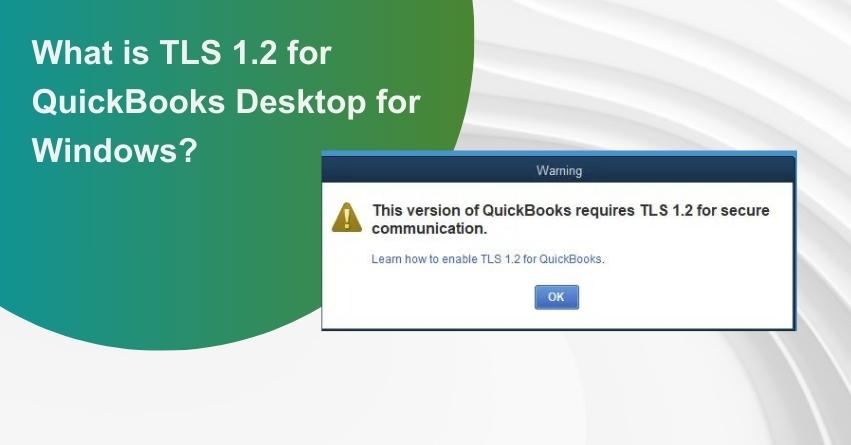
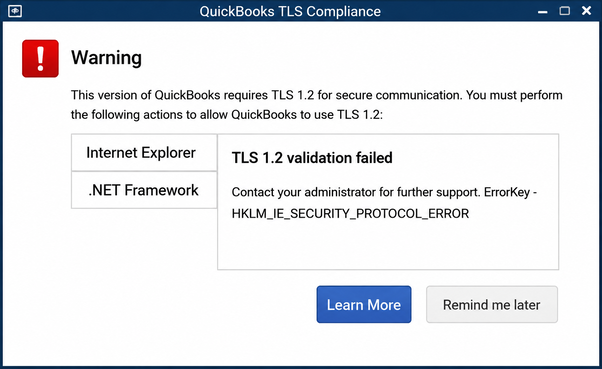
TLS 1.2 is a security protocol that encrypts data transmitted between an application and a server over the internet. This secure connection is particularly important to QuickBooks users, as the Desktop version depends on it to communicate safely with Intuit’s online services, including updates, payroll, payments, subscriptions, and other connected features. However, users sometimes encounter the “TLS 1.2 Validation Failed” error and may not know how to fix it.
But the good news is that you can troubleshoot the TLS 1.2 Validation Failed error without needing advanced technical expertise. And that’s exactly what we’ll cover in this blog. We’ll explain what TLS 1.2 means for QuickBooks Desktop users, walk you through the system requirements for a TLS-compliant setup, show you how to check and enable TLS 1.2 in Windows, cover the troubleshooting steps, and highlight the common causes that can trigger this error.
With that in mind, let’s get into the details.
What Is TLS 1.2 and Why Is It Important for QuickBooks Desktop Users?
TLS, or Transport Layer Security, is a security protocol used to establish secure connections over the internet. TLS 1.2 provides encryption and helps protect information exchanged between your computer and online services. QuickBooks Desktop uses secure internet connections to communicate with Intuit for several features. Therefore, your computer needs to support TLS 1.2 and meet the related system requirements.
If the requirements are not met, affected services may include:
- Connected Services: Payroll, payments, online banking, and other internet-based QuickBooks services may become unavailable or experience connectivity problems.
- QuickBooks Activation: You may encounter difficulties when attempting to activate QuickBooks Desktop on a new computer.
- Checks and Supplies: Online ordering of QuickBooks-related checks and supplies may be affected.
- VAT E-filing: Users who rely on VAT e-filing may experience problems when the required secure connection cannot be established.
- Intuit Data Protect: Features that depend on Intuit Data Protect may not function correctly without the required TLS configuration.
- Intuit Account Services: Features that require Intuit account credentials, including certain account-related services, may be affected.
- Password-related Services: Password recovery and reset functionality may be disrupted when QuickBooks cannot establish the required secure connection.
This means a TLS issue may not necessarily indicate a problem with your QuickBooks company file, but an underlying issue related to your windows OS, Internet components, .NET Framework, security settings, or system permissions.
Earlier, QuickBooks relied on older SSL and TLS protocols for secure communication. This naturally raises an important question: Why did Intuit move to TLS 1.2 instead of continuing to use early-age SSL and TLS protocols.
Why Did Intuit Move QuickBooks Desktop to TLS 1.2?
If you’re wondering why QuickBooks Desktop moved toward TLS 1.2, improved security is the primary reason. Here’s how it offers better protection:
- Older SSL Protocols Became Vulnerable: Evolving security threats exposed weaknesses in older SSL versions, making them unsuitable for modern communications.
- Protection Against Known Attacks: Older SSL and TLS versions were vulnerable to attacks such as BEAST and POODLE, making stronger security standards increasingly necessary.
- TLS Replaced SSL: TLS was developed as a more secure successor to SSL, with successive versions addressing known security weaknesses.
- Stronger Cryptography: TLS 1.2 supports stronger encryption methods, making internet communication more secure and harder for unauthorized parties to intercept.
- Improved Data Protection: By providing a stronger security layer, TLS 1.2 helps protect sensitive information as it travels between applications and online services.
- Secure QuickBooks Connectivity: QuickBooks Desktop uses TLS 1.2 to establish secure connections with Intuit’s online services, including updates, payroll, payments, and subscription services.
As security standards evolved, moving to TLS 1.2 became necessary to maintain secure and reliable communication between QuickBooks Desktop and Intuit’s online services. However, for TLS 1.2 to work properly, your system and QuickBooks installation must meet certain requirements.
Let’s look at these requirements first before moving on to the troubleshooting steps for the TLS 1.2 validation failed error.
What Are the System Requirements for QuickBooks TLS 1.2?
Before troubleshooting a TLS 1.2 problem, check whether your computer meets the necessary system requirements. QuickBooks Desktop 2018 and later versions require a compatible environment to establish secure connections with Intuit services.
A. Supported Windows Operating Systems
According to Intuit’s TLS 1.2 requirements, supported operating systems include:
- Windows 10
- Windows Server 2008 R2
- Windows Server 2012 R2
- Windows Server 2017
If you are using an older Windows version, check its compatibility with your specific QuickBooks Desktop release before attempting to troubleshoot TLS settings.
B. Internet Explorer 11
QuickBooks Desktop uses certain Internet Explorer features and components. Intuit recommends installing Internet Explorer 11 to ensure that the required components and updates are available.
To update Internet Explorer:
- Close QuickBooks Desktop.
- Install Internet Explorer 11 and the latest available updates.
- Restart QuickBooks Desktop.
Even though Internet Explorer has reached end of support from Microsoft, some legacy QuickBooks Desktop functionality can still depend on its underlying components. Therefore, these components may remain relevant when troubleshooting older QuickBooks Desktop versions.
C. .NET Framework 4.5.2 or Later
QuickBooks Desktop requires .NET Framework 4.5.2 or later for the relevant connected functionality. If your system does not have the required version:
- Download the supported .NET Framework version from Microsoft.
- Save the installer to your computer.
- Open the installer and follow the on-screen instructions.
- Restart your computer after installation.
If you encounter errors while installing .NET Framework, Microsoft or an IT professional can help determine whether another Windows component is preventing the installation.
D. Run QuickBooks with Elevated Privileges
Another potential cause of TLS-related problems is insufficient system permissions. QuickBooks may need elevated privileges to establish or update certain internet security settings. You can try running QuickBooks Desktop as an administrator:
- Close QuickBooks Desktop.
- Right-click the QuickBooks Desktop icon.
- Select Run as administrator.
- Open the required QuickBooks feature again.
Meeting these requirements is essential because TLS 1.2 affects several connected QuickBooks Desktop features. If the problem disappears after running QuickBooks with elevated privileges, the issue may be related to Windows permissions or security configuration. If not, you can also try checking and enabling TLS 1.2 for different versions of Windows to use QuickBooks seamlessly.
How to Check and Enable TLS 1.2 for QuickBooks Desktop in Windows?
Checking and enabling TLS 1.2 can help QuickBooks Desktop establish secure connections with Intuit’s online services. It may also help resolve the “QuickBooks TLS 1.2 Validation Failed” error.
3 Ways to Check If TLS 1.2 Is Enabled on Windows
Before making any changes to your Windows settings, it’s a good idea to check whether TLS 1.2 is already enabled. You can verify this using the Registry Editor, PowerShell, or Internet Options.
Method 1: Check TLS 1.2 Through Registry Editor
The Windows Registry stores several settings related to TLS and other security protocols. Here’s how to check the TLS 1.2 settings:
- Press Win + R, type regedit, and press Enter.
- In Registry Editor, go to: HKEY_LOCAL_MACHINE\SYSTEM\CurrentControlSet\Control\SecurityProviders\SCHANNEL\Protocols\TLS 1.2\Client
- Check the following values:
- DisabledByDefault: Set to 0
- Enabled: Set to 1
- You can also check the Server section by navigating to: HKEY_LOCAL_MACHINE\SYSTEM\CurrentControlSet\Control\SecurityProviders\SCHANNEL\Protocols\TLS 1.2\Server
Note: If the TLS 1.2 keys or values are missing, that does not necessarily mean TLS 1.2 is disabled. Windows versions and configurations can handle these settings differently.
Method 2: Check TLS 1.2 Using PowerShell
PowerShell provides a quick way to see which security protocols are configured for .NET connections.
- Open PowerShell as an administrator.
- Run: [Net.ServicePointManager]::SecurityProtocol
- Check the output. If Tls12 appears, TLS 1.2 is included in the protocols currently configured for the .NET ServicePointManager
Method 3: Check TLS 1.2 Through Internet Options
You can also check the TLS settings through Windows Internet Options:
- Press Win + R, enter inetcpl.cpl, and press Enter.
- Select the Advanced tab.
- Scroll down to the Security section.
- Look for Use TLS 1.2.
- Make sure the option is checked, then click Apply and OK.
If TLS 1.2 is enabled through one of these methods, you may not need to make any additional changes. If it is disabled or unavailable, you may need to enable it before using applications or services that require TLS 1.2.
How to Enable TLS 1.2 on Older Windows Versions?
TLS 1.2 is required by many modern applications and online services, including newer versions of QuickBooks. On most supported Windows versions, it is already enabled, but older systems may need additional configuration.The steps vary depending on your Windows version. Follow the instructions for your operating system below.
A. Windows 11
Windows 11 generally has TLS 1.2 enabled by default. However, if an application is unable to establish a secure connection, you can check the TLS settings manually.
Check TLS 1.2 in Internet Options:
- Press Windows + R to open the Run dialog.
- Enter inetcpl.cpl and press Enter.
- In Internet Properties, select the Advanced tab.
- Scroll down to the Security section.
- Make sure Use TLS 1.2 is selected.
- Click Apply, then OK.
If TLS 1.2 still does not work as expected, an administrator can check the relevant Windows registry settings. Before making registry changes, create a backup of the registry to avoid unintended system issues.
Navigate to:
HKEY_LOCAL_MACHINE\SYSTEM\CurrentControlSet\Control\SecurityProviders\SCHANNEL\Protocols
Now, Under TLS 1.2 > Client, make sure these DWORD values are configured as follows:
- Enabled = 1
- DisabledByDefault = 0
If required for server-side communication, the same settings can be configured under TLS 1.2 > Server. Restart Windows after making registry changes.
B. Windows 8.1 and Windows Server 2012 R2
TLS 1.2 is generally enabled by default on these operating systems. If it has been disabled, you can turn it back on through Internet Options.
- Press Windows + R, type inetcpl.cpl, and press Enter.
- Open the Advanced tab.
- Scroll to Security.
- Select Use TLS 1.2.
- Click Apply and then OK.
Restart your computer if the application still cannot establish a secure connection.
C. Windows 7 and Windows Server 2008 R2
Windows 7 requires Service Pack 1 for the TLS 1.2 configuration described below. You may also need to install Microsoft’s KB3140245 update before configuring TLS 1.2. Once the required update is installed, check the following registry location:
HKEY_LOCAL_MACHINE\SYSTEM\CurrentControlSet\Control\SecurityProviders\SCHANNEL\Protocols\TLS 1.2\Client
Set:
- DisabledByDefault = 0
- Enabled = 1
You can also configure the corresponding Server key:
HKEY_LOCAL_MACHINE\SYSTEM\CurrentControlSet\Control\SecurityProviders\SCHANNEL\Protocols\TLS 1.2\Server
Set:
- DisabledByDefault = 0
- Enabled = 1
For applications that use the Windows WinHTTP API, TLS 1.2 may also need to be enabled through the WinHTTP settings:
HKEY_LOCAL_MACHINE\SOFTWARE\Microsoft\Windows\CurrentVersion\Internet Settings\WinHttp
Add or update the DefaultSecureProtocols value with the appropriate TLS 1.2 configuration. Once you have completed the required changes, restart your computer and try connecting to the application again.
D. Windows XP and Windows Vista
TLS 1.2 is not supported on Windows XP or Windows Vista. If you are using either operating system, enabling TLS 1.2 through the standard Windows settings is not an option. Upgrading to a supported Windows version is the recommended approach when an application requires TLS 1.2.
Now that you know how to check and enable TLS 1.2 in Windows, let’s take a quick look at the best solutions to fix the QuickBooks TLS 1.2 Validation Failed error.
How to Fix TLS 1.2 Validation Failed Error Using QuickBooks Tool Hub?
If your computer meets the necessary system requirements, but QuickBooks still has TLS-related connectivity problems, you can use the QuickBooks TLS 1.2 Tool available through QuickBooks Tool Hub. The tool is designed to help make your operating system TLS 1.2 compliant when the underlying Windows, Internet Explorer, and .NET requirements are already satisfied.
Step 1: Download and Install QuickBooks Tool Hub
Before running the TLS tool, close QuickBooks Desktop. Then:
- Download and install QuickBooks Tool Hub from Intuit.
- Save the installer somewhere you can easily access, such as your Downloads folder or desktop.
- Open QuickBooksToolHub.exe.
- Follow the installation instructions.
- Accept the terms and conditions.
- Once installation is complete, open QuickBooks Tool Hub.
If you cannot find the Tool Hub icon on your desktop, search for QuickBooks Tool Hub using Windows Search.
Tip: Intuit recommends using QuickBooks Tool Hub on Windows 10, 64-bit, for the best experience.
Step 2: Run the QuickBooks TLS 1.2 Tool
Once QuickBooks Tool Hub is open:
- Select Installation Issues.
- Find and select QuickBooks TLS 1.2 Tool.
- Select OK to open the TLS tool.
- Accept the End User License Agreement when prompted.
- Select Run.
- Wait for the tool to complete.
- Select Exit once the process is finished.
The tool checks and updates the relevant system configuration needed for TLS 1.2 compliance.
What Causes the TLS 1.2 Validation Error in QuickBooks?
There can be several reasons why QuickBooks Desktop encounters the TLS 1.2 Validation Failed error. Understanding the possible causes can help you identify the issue and choose the right troubleshooting approach.
- TLS 1.2 is Disabled: Windows may not have TLS 1.2 enabled, which can prevent QuickBooks from establishing a secure connection with Intuit’s online services.
- Outdated QuickBooks Desktop: An older QuickBooks release may lack the necessary updates to support current security standards. Updating QuickBooks Desktop to the latest release can help reduce the chances of encountering this error.
- Incorrect Security Settings: Improper Windows or Internet settings can interfere with QuickBooks’ ability to establish secure communication with Intuit’s online services.
- Incorrect Date and Time Settings: An incorrect system date or time can sometimes interfere with secure server authentication and prevent QuickBooks from establishing a proper connection.
- Internet Connectivity Issues: An unstable, slow, or restricted internet connection may prevent QuickBooks from reaching Intuit’s online services and completing the required validation.
- Damaged QuickBooks Installation: Corrupted or damaged QuickBooks installation files can affect the application’s ability to establish a secure TLS connection and access online services.
Maintaining TLS compliance helps QuickBooks users keep their connections with Intuit’s online services secure and avoid potential TLS-related issues.
What to Do If QuickBooks Still Has TLS Problems?
Running the TLS 1.2 tool may not resolve every connectivity problem. If the issue continues, check the underlying components rather than repeatedly running the tool. Start by confirming that:
- Your Windows version is supported.
- QuickBooks Desktop is updated to the latest available release for your version.
- The required Internet Explorer components are installed.
- .NET Framework 4.5.2 or later is available.
- TLS 1.2 is permitted by your organization’s security policies.
- Your Windows account has the required permissions.
- QuickBooks can connect to the internet without interference from security software or network restrictions.
For computers managed by an organization, contact your IT administrator before changing Group Policy or other system-level security settings.
How Can You Prevent QuickBooks TLS 1.2 Validation Error To Appear in the Future?
Taking a few preventive measures can help QuickBooks Desktop maintain secure connections with Intuit’s online services and reduce the chances of encountering TLS-related errors in the future.
- Ensure your Windows environment and QuickBooks installation continue to meet the required TLS 1.2 standards.
- Regularly update QuickBooks Desktop to maintain compatibility with the latest security standards.
- Stick to QuickBooks and Windows guidelines when making system or configuration changes.
- Pay attention to recurring connection or validation messages before they become bigger problems.
- If an issue continues after basic troubleshooting, consider contacting QuickBooks Desktop support or a qualified professional.
Following these tips can help keep your system TLS 1.2-compliant and support a secure, reliable QuickBooks experience.
Final Thoughts
The TLS 1.2 Validation Failed error in QuickBooks Desktop can be frustrating, especially when you’re simply trying to access a connected service or complete an important task. However, it doesn’t always point to a problem with your company file or QuickBooks itself. In many cases, the issue is related to TLS settings, Windows configuration, outdated components, or connectivity. As discussed, keeping your system TLS 1.2-compliant, meeting the required system requirements, and ensuring QuickBooks Desktop is up to date can help maintain a secure connection.
The key is to address the cause rather than repeatedly trying random fixes. With the right configuration and a few preventive measures, you can keep QuickBooks connected securely and reduce the chances of running into the same TLS validation issue again.
Frequently Asked Questions
Yes. QuickBooks Desktop 2018 and later requires a system environment that supports TLS 1.2 for connections to Intuit services.
TLS compatibility can affect connected services such as payroll, payments, online banking, activation, password reset, Intuit Data Protect, account-related services, help pages, and other online functionality.
First, verify your Windows, Internet Explorer, and .NET Framework requirements. If your system meets those requirements, run the QuickBooks TLS 1.2 Tool through QuickBooks Tool Hub.
Not necessarily. A TLS problem generally concerns the connection between QuickBooks Desktop and Intuit’s online services. Your company file itself may not be affected.
TLS 1.2 settings can depend on Windows configuration, Internet Explorer components, Group Policy, and other system settings. If your computer is managed by an organization, it is best to consult your IT administrator before changing system-level security settings.