

Every small business owner has lived that moment: you open your QuickBooks dashboard with a cup of coffee, expecting a smooth start to the day, only to find that your bank transactions haven’t synced for two days straight. The numbers look off, the cash flow graph feels suspiciously quiet, and suddenly the calm morning turns into a mental checklist of what could possibly be wrong. For many QuickBooks Online users, this tiny sync hiccup becomes a surprisingly big pause in their workflow.
That’s where understanding how to update bank info and bank feeds in QuickBooks Online becomes more than just a technical task. It’s a confidence booster. It’s the assurance that your financial records reflect reality, not yesterday’s estimates. And most importantly, it’s the key to keeping your bookkeeping smooth, accurate, and stress-free.
In this blog, we’ll walk you through how to update your bank information and bank feeds in QuickBooks Online, ensuring your transactions stay accurate and up to date. You’ll also learn why sync issues happen, the early signs to look for, and how a quick manual refresh can fix most connection problems. So, let’s get on with it.
Benefits of Manually Updating Bank Feeds and Info in QuickBooks Online
Though QuickBooks Online is designed to update bank feeds and account information automatically, there are times when this automated process may fail or experience delays. This is where a little manual attention becomes important. If you’ve been avoiding the task of updating your bank info and reconnecting your feeds in QuickBooks Online, these benefits should be enough to motivate you to take action.
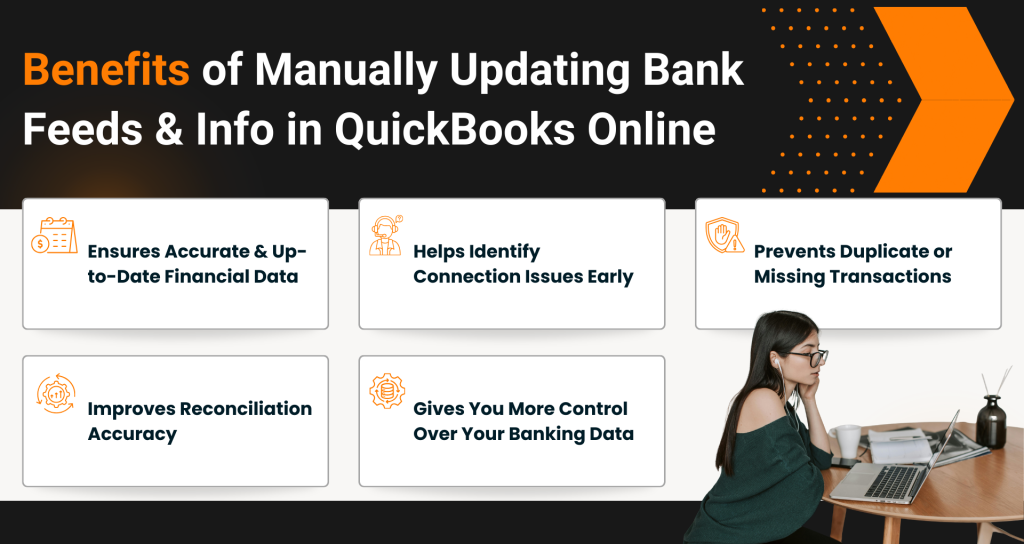
1. Ensures Accurate and Up-to-Date Financial Data
Manually updating your bank feeds helps you pull the latest transactions instantly instead of waiting for the next automatic sync. This ensures your books always reflect the most current information, helping you avoid mismatches, missing entries, or outdated balances.
2. Helps Identify Connection Issues Early
When you manually refresh your bank feed or update account details, you can quickly detect if something is wrong, such as an expired password, bank outage, or authentication requirement. Catching these issues early prevents bigger reconciliation problems later.
3. Prevents Duplicate or Missing Transactions
Manual updates help reset the connection between QuickBooks and your bank. This reduces the chances of duplicate entries appearing or recent transactions going missing, keeping your records clean and accurate.
4. Improves Reconciliation Accuracy
A manual sync before starting reconciliation ensures that all the latest transactions are visible in QuickBooks. This makes month-end or year-end reconciliation smoother, faster, and error-free because no entries are left behind.
5. Gives You More Control Over Your Banking Data
Taking a moment to refresh or update your bank info gives you better control over your financial data flow. You’re not relying solely on automated updates and can decide exactly when the books are brought up to date, helping you stay in charge of your accounting.
Now that you understand the key benefits of manually updating your bank feeds and account information, let’s walk through the methods that will help you keep everything updated in QuickBooks Online.
What to Do If Your Bank Feeds and Info Aren’t Updating Automatically in QuickBooks Online?
When you link your bank or credit card account to QuickBooks Online, it automatically pulls in new transactions. If there’s ever a known issue with your bank connection, QuickBooks will alert you right on the Banking screen so you can stay ahead of it. However, if those fresh transactions don’t appear as expected, the connection may just need a quick refresh. Here’s how you can update your bank feeds and bank info in QuickBooks Online.
Solution 1: Begin with a Manual Update
To update bank information in QuickBooks Online, you can first try to start a manual update. Most banks sync with QuickBooks every 24 hours, though the timing can differ. If you want the latest transactions right away, simply run a manual update. Here’s how to do it:
- Sign in to QuickBooks Online.
- Go to the Banking or Transactions menu.
- Select the Banking tab at the top.
- Choose the bank account you want to refresh.
- Click Update in the upper-right corner.
Wait a few moments while QuickBooks reconnects to your bank and downloads any new transactions. A manual update usually resolves most syncing delays and helps ensure your books stay aligned with your real-time bank activity.
Note: When running a manual update, keep these points in mind.
- If QuickBooks asks for additional verification, simply follow the on-screen steps to continue the update.
- Banks don’t allow downloads older than 90 days, so any older transactions must be entered into QuickBooks Online manually.
Solution 2: Check Your Credit Card or Bank’s Official Website
The next solution that may help you resolve bank feeds not updating in QuickBooks Online is to check your credit card or bank’s official website. If your downloads are taking unusually long or not moving at all, the delay might be coming from the bank’s side. Log in to your bank’s website to confirm everything is working normally. Here are the steps:
- Visit your bank or credit card provider’s website.
- Tip: If you’re unsure of the correct URL, try the following:
- Sign in to QuickBooks Online.
- Go to the Banking or Transactions menu.
- Choose the Banking tab.
- Select Link account when prompted.
- Choose your bank from the list, or simply copy the URL provided for it.
- Tip: If you’re unsure of the correct URL, try the following:
- Log in to your bank or credit card account on their official website.
If you’re able to log in successfully, it usually means everything is working fine on the bank’s end. After that, on your bank’s website, do the following:
- Look for any messages, notifications, or alerts on your account.
- Check for display or navigation issues while browsing, as these can prevent QuickBooks from pulling in new transactions.
- Stay updated on any security changes or announcements posted on your bank’s website.
If nothing seems out of place, return to QuickBooks and continue with the next steps.
- Use this link to finish the steps directly within QuickBooks.
- Click on Update.
Solution 3: Update Your Bank Information in QuickBooks Online
If you’ve changed your account number, username, or password on your bank’s website, be sure to update the same details in QuickBooks. Follow the below-mentioned steps:
- Login to your QuickBooks Online.
- Go to the Transactions or Banking menu from the left sidebar.
- Select the Banking tab to view all connected bank and credit card accounts.
- Click the account card for the bank you want to update.
Tip: If the card isn’t visible, click on the dropdown menu next to the bank name and choose Show account cards. - Select Edit, then choose Edit sign-in info.
- Enter your updated banking credentials.
- Click Save and connect to apply the changes.
Updating your bank feeds and bank info in QuickBooks Online doesn’t have to be complicated. With a simple manual refresh, a quick check on your bank’s website, and a timely update of your login details, you can easily keep your financial data accurate and up to date. These steps ensure that your transactions flow smoothly into QuickBooks, helping you avoid errors, delays, and unnecessary stress.
So, the next time your transactions don’t appear as expected, just remember, it’s easy to update bank feeds and bank info in QuickBooks Online and keep everything running seamlessly. Moving ahead, we will now highlight the common reasons and signs that indicate a user’s bank feeds are not updating or functioning properly.
5 Common Issues That Prevent Bank Feeds From Updating in QuickBooks Online
Even though QuickBooks Online is designed to sync your transactions automatically, several factors can interrupt the connection. Understanding these causes helps you troubleshoot faster and avoid repeated issues.
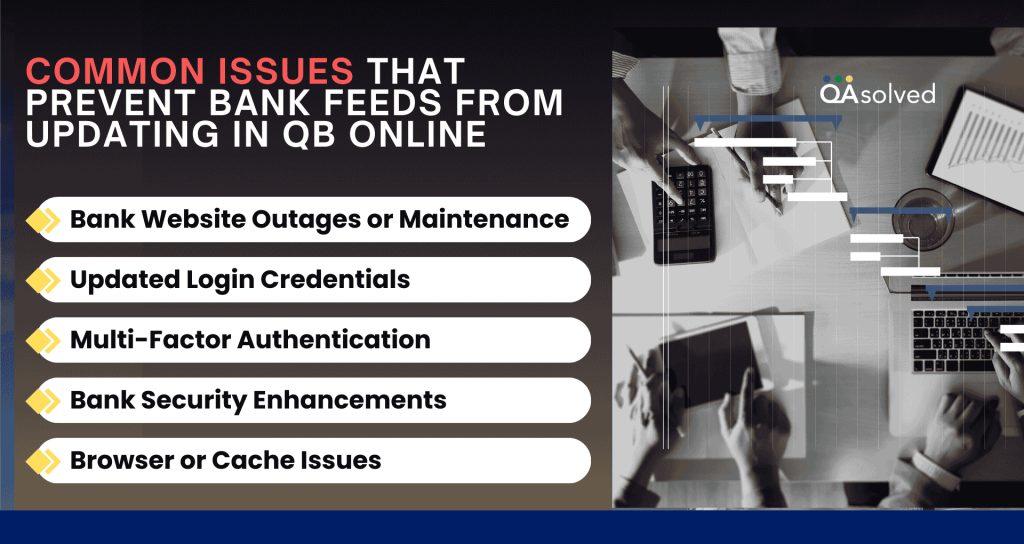
1. Bank Website Outages or Maintenance
Your bank may be performing system upgrades or undergoing scheduled maintenance. During this period, the bank’s server may temporarily block access, preventing QuickBooks from retrieving your account information until the website is fully operational again.
2. Updated Login Credentials
If you recently changed your username, password, or any security settings on your bank’s website, QuickBooks will no longer recognize the old information. Until you update those details inside QuickBooks Online, the connection will fail and your transactions will not sync.
3. Multi-Factor Authentication
Many banks use additional verification steps such as OTPs, security questions, or mobile approvals. When QuickBooks cannot complete these security checks, the bank feed may stop updating until you authorize access again.
4. Bank Security Enhancements
Banks regularly strengthen their security measures to protect user accounts. When these updates change how data is accessed, QuickBooks may temporarily lose the ability to connect. A quick refresh or reconnection often resolves this issue.
5. Browser or Cache Issues
Sometimes the problem is on your device rather than the bank. A cluttered or corrupted browser cache can interfere with QuickBooks Online’s ability to communicate with your bank, resulting in delays, partial updates, or a complete sync failure.
These are some of the most common reasons that interrupt the normal flow of bank feeds in QuickBooks Online. Now, let’s explore how you can identify these issues early and take the right steps to fix them promptly.
Symptoms of a Disrupted or Stalled Bank Feeds in QuickBooks Online
Before you start troubleshooting, it helps to spot the early indicators that your bank’s feed may not be functioning as expected. Paying attention to these signs can save time and help you resolve syncing issues more efficiently.
1. Missing Recent Transactions
If your newest deposits, expenses, or payments are not showing up in QuickBooks, it often means the bank’s feed has stopped updating or is experiencing a delay.
2. Duplicate Entries
When you notice the same transaction appearing more than once, it usually signals a temporary connection issue between your bank and QuickBooks that caused the system to download items repeatedly.
3. Error Codes on the Banking Screen
QuickBooks may display specific error codes such as 102, 103, 105, or 187 when something is blocking the connection to your bank. These messages are clear indicators that the sync needs your attention.
4. Stuck or Slow Refreshing Status
If the Banking page remains on the “Refreshing” screen for longer than usual, or if it loads new information very slowly, it often suggests that the feed is struggling to update properly.
5. Alerts or Connection Messages
If you see banners or notifications in QuickBooks stating, “We can’t update your account,” “Fix connection,” or similar messages, it is a strong indication that the bank feed has encountered an issue that needs to be resolved.
Before concluding, we would also like to share the most useful tips that can help you manage and update your bank feeds and information in QuickBooks Online more effectively.
Proven Practices to Restrict Bank Feed Errors Before They Happen
While troubleshooting helps fix problems, preventing bank feed interruptions in the first place is even more effective. By following a few simple best practices, you can keep your QuickBooks Online banking connection stable, secure, and consistently updated.
1. Update Your Bank Password
Whenever you change your bank login credentials, make sure you update the same information inside QuickBooks Online right away. Keeping both accounts synced helps avoid sudden disconnections.
2. Limit Multi-Factor Authentication
If your bank allows trusted devices or longer authentication for Windows, enable these options. Too many MFA prompts can interrupt QuickBooks’ ability to complete the connection and download transactions smoothly.
3. Keep Your Browser Updated
QuickBooks Online runs best on the latest versions of major browsers. Regularly updating your browser helps improve security, speed, and overall compatibility with QBO features, including bank feeds.
4. Clear Your Cache Regularly
Over time, stored cache files can become outdated or corrupted, leading to loading delays and syncing errors. Clearing your browser cache at regular intervals ensures QuickBooks can process new banking data without interruptions.
5. Check Scheduled Maintenance Days
Most banks perform system maintenance during late hours or weekends. Knowing these schedules helps you avoid updating your bank feeds during downtime, preventing unnecessary errors or failed sync attempts.
Conclusion
Keeping your financial data accurate doesn’t have to be complicated. When you regularly update bank info and bank feeds in QuickBooks Online, you reduce sync delays, prevent missing transactions, and maintain clean, organized records for smooth bookkeeping. By understanding the common causes of connection issues, recognizing early signs of syncing problems, and following the right steps to refresh or update your account, you can stay in full control of your financial workflow.
With these practices in place, QuickBooks Online continues to deliver reliable, real-time insights that support smarter decisions and a hassle-free accounting experience.
Frequently Asked Questions
Your bank account may not update in QuickBooks Online due to outdated login credentials, bank maintenance, extra security verification, or a temporary connection issue. Browser cache problems can also interrupt the sync. To resolve this, run a manual update, check for alerts on your bank’s website, update your login details in QuickBooks, and clear your browser cache. Completing any required security steps usually restores the connection and brings in your latest transactions.
Yes, QuickBooks Online receives automatic updates from Intuit throughout the year, so you always get the latest features without doing anything. It also automatically pulls new bank and credit card transactions once a day. If you ever need the most recent data sooner, you can trigger a manual update anytime.
1. Sign in to QuickBooks Online.
2. Go to the Transactions menu on the left.
3. Select Bank Transactions.
4. Click Connect account.
5. Search for and select your bank from the list.
6. Enter your online banking username and password.
7. Choose the bank accounts you want to link with QuickBooks.
8. Select the date range for how far back you want to import transactions.
9. Confirm and complete the connection.
Once done, QuickBooks will automatically download new transactions for you to categorize.
If you want to switch how QuickBooks handles downloaded banking transactions, you can change the Bank Feeds mode from the preferences. QuickBooks lets you choose between different modes depending on how you want transactions to be managed.
Follow these steps to update your Bank Feeds mode:
1. Login to your QuickBooks Online account.
2. Go to the Edit menu and select Preferences.
3. In the left panel, click Checking to open the account-related settings.
4. Select the Company Preferences tab at the top of the window.
5. In the Bank Feeds section, pick the mode you want to use:
– Advanced Mode for more detailed control
– Express Mode for balanced speed and automation
– Classic Mode for traditional download and matching workflows
6. Click OK to apply the new settings.
If you no longer want QuickBooks Online to pull transactions from a particular bank or credit card account, you can disconnect the bank feed in just a few steps. This stops future downloads but keeps your existing data intact.
Steps to Disconnect a Bank Feed
1. Open the Banking or Transactions menu.
2. Locate the bank account you want to disconnect.
3. Select the three-dot menu next to the account.
4. Choose Disconnect (or Disconnect this account depending on your version).
When the confirmation message appears, select Yes to complete the process.