Updated
15 min read



Getting error code -6000 when attempting to open a company file in QuickBooks can be a challenging situation for users. Error -6000 is an issue that arises due to various factors such as network configuration problems, insufficient permissions, file corruption, or firewall restrictions. It’s crucial to promptly address errors linked to the company file, as they can jeopardize critical data and lead to additional complications. In the case of QuickBooks error -6000, it typically indicates an issue with the company file, impeding access to it.
Resolving this error is essential to ensure uninterrupted access to important financial data and to resume normal operations within QuickBooks.
In this article, we will explore the causes, symptoms effective strategies, and troubleshooting steps to address error -6000 and enable users to successfully open their company files in QuickBooks.
The below-mentioned message box will appear on your computer screen, alerting you to the error:
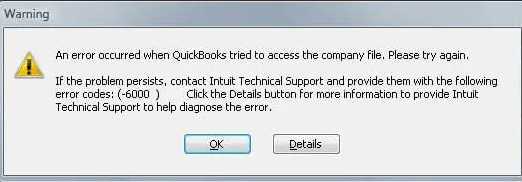
Error 6000 occurs in both local and network setups. Typically identified by three or four additional digits, these errors display a message indicating the inability to open the company file.
| Error | Possible Cause |
|---|---|
| -6176, 0 | Your firewall blocks the connection between two computers. |
| -6000, -107 | When working with a file, a user is working in single-user mode rather than multiuser. The transaction log file (.tlg) and the company file (.qbw) may not match. |
| -6000, -1076 | The installation of your QuickBooks is compromised. |
| -6010, -100 | The company file is hosted on a computer other than the server. |
| -6138, -105 | A different computer than the server hosts the company file. |
| -6210, 0 | The company file is hosted on a computer other than the server. |
| -6189, -83 | The company file is hosted on a computer other than the server. |
| -6190, -83 | The company file is hosted on a computer other than the server. |
| -6012, -1061 | Incorrect configuration of the network |
| -6144, -82 | Wrong network setup |
| -6000, -82 | Wrong network setup |
| -6129, -101 | Incorrect folder permissions or issues with the QB Database Server Manager functionality. |
| -6190, 816 | The user is working in single-user mode instead of multi-user mode due to a mismatch between the transaction log file (.tlg) and the company file (.qbw). |
| -6190, -85 | When working with a file, a user is working in single-user mode rather than multiuser. The transaction log file (.tlg) and the company file (.qbw) may not match. |
| -6190, -82 | The hosting is active, or the.ND file isn’t functioning correctly. |
| -6000, -832 | The.ND file contains an incorrect path to your company file, or there’s damage to the QuickBooks Database Manager Windows user account. |
| -6144, -304 | There was an issue when attempting to open QuickBooks. |
| -6190, 1005 | There was an issue when attempting to open QuickBooks. |
| -6189, 1005 | There was an issue when attempting to open QuickBooks. |
| -6000, -305 | The network setup may be incorrect, or there could be damage to your company file. |
| -6073, -816 | The file may be hosted on multiple computers, firewall settings could be blocking the connection, or there may be damage to the company file. |
| -6144,-103 | The.ND file contains an incorrect path to your company file, or there’s damage to the QuickBooks Database Manager Windows user account. |
| -6144, 0 | The .ND file contains an incorrect path to your company file, or there’s damage to the QuickBooks Database Manager Windows user account. |
| -6120, 0 | Either one of the workstations is hosting the company file, or the firewall port (8019) is blocked. |
| -6087, 0 | The file is currently open locally. |
| -6131, 0 | The file is currently open locally. |
| -6147, 0 | You either open the company file or restore a company backup (.QBB). |
| 6000, 304 | Occurs due to damaged company files or insufficient permissions to access the file. |
| 6000, 308 | Triggered by incorrect network setup or firewall settings blocking QuickBooks access. |
| 6000, 816 | Happens when the company file is being accessed by another user in single-user mode. |
| 6000, 95 | Caused by corruption in the QuickBooks data file or issues with hosting settings. |
Below are all the reasons why you may encounter the QuickBooks Error Code 6000 when opening a company file:
Here are a few additional indicators of this error that you should be aware of:
Follow the troubleshooting solutions mentioned below to fix the same:
Ensure you update QuickBooks to the latest release.
The QuickBooks Tool Hub assists in resolving common errors. Make sure that the QuickBooks is closed before using the tool hub. For optimal performance, we recommend utilizing Tool Hub on Windows 10, 64-bit systems.
After using QuickBooks File Doctor, if the problem persists, proceed with the solution for opening your company file.
Need Help Fixing QuickBooks Error -6000, XXXX?
Don’t let this error slow you down. Contact QuickBooks support team today for fast, expert assistance to get company file up and running smoothly. Call Now or Chat with an Expert!
This implies that you use the same computer that you used to install QuickBooks to open your file.
The .ND and .TLG files are integral components of your QuickBooks files. These files serve as configuration settings that let QuickBooks access a company file within a network or multi-user setting.
If these files get corrupted, you might encounter errors when trying to open your QuickBooks files. There is no data loss from renaming these files in QuickBooks. QuickBooks automatically recreates these files when you perform a scan with the QuickBooks Database Server Manager and open your company file.
When you open a sample company file, you can determine whether the issue lies within your company file or QuickBooks itself. If attempting to open a sample company file results in an error, it indicates potential damage to your QuickBooks installation. In such cases, it is recommended to consider repairing the installation.
If there is an issue with the location of the company file, you can check it by copying the file to the desktop and opening it.
Restore a backup copy of your company file to verify if the issue lies with the current company file (.QBW).
If an error occurs during backup restoration, take the following actions:
If the company file is damaged, we recommend that you recover lost data with QuickBooks Auto Data Recovery.
This implies that you access the corporate file that is stored on the server or a different machine.
We recommend using a single computer or server to host company files.
The .ND and .TLG files are important parts of QuickBooks. They help QuickBooks access a company file in a network or multi-user setup.
If these files are damaged, you’ll encounter errors when opening your QuickBooks files. Renaming these files won’t cause any data loss because QuickBooks automatically recreates them when you use the QuickBooks Database Server Manager or open your company file.
Example: company_file.qbw.nd.OLD
The QuickBooks Database Server Manager (QBDBSM) holds your QuickBooks company files. After renaming the .ND and .TLG files, restart QBDBSM and scan the QuickBooks files.
Launch the QuickBooks Database Server Manager from the QuickBooks Tool Hub.
You can determine whether the issue is with QuickBooks or your company file by opening a sample company file. If an error occurs when attempting to open a sample company file, it indicates that the QuickBooks installation needs to be repaired.
In case you receive the same error message from the sample file, make sure to repair your QuickBooks installation files.
By copying the file to your desktop and opening it, you can determine whether there is an issue with the company file’s location.
If you encounter errors, it may be due to insufficient permissions in the folder where your file is saved. Check your folder permissions to share company files. Please attempt to open your file again.
If certain QuickBooks applications or files are inaccessible due to firewall or antivirus software, you might get errors. Ideally, you should set up an exception in your antivirus program and configure the ports on your firewall.
Errors may arise if the firewall or antivirus software blocks access to specific QuickBooks applications or files. To prevent such issues, it’s advised to create an exception in your antivirus program and configure firewall ports accordingly.
Note: As anti-virus programs are not developed by Intuit, we cannot provide precise instructions on setting up exceptions. For assistance with this process, please consult your anti-virus developer/vendor.
In summary, experiencing error -6000 when opening a company file can stem from various reasons, such as using an incompatible QuickBooks version, attempting to open the wrong file type or a damaged or corrupted company file. This article has explored several effective workarounds to address the same. However, if the error persists despite attempting the suggested solutions, contact our QuickBooks Assistance at our toll-free number: +1-888-245-6075.
What you should do is follow these steps:
1. Install QuickBooks at its most recent version.
2. Make the appropriate company file selection.
3. Rename the extensions file.
4. Monitor the location.
5. Check the Extension of the File.
6. Take the company file and rename it.
This error commonly arises when QuickBooks encounters difficulty accessing the company file on a network server. The issue may stem from network configuration problems, firewall restrictions, or a poor network connection. To resolve this error, it’s advisable to verify your network setup and ensure that QuickBooks has the appropriate network access and permissions.
Insufficient Permissions: Error 6000, 832 may occur if the user trying to open the company file lacks the necessary permissions. It’s important to ensure that all users possess the appropriate permissions to access and modify the company file.
1. Open the folder that contains your company file.
2. Find the files with the same file name as your company files but with extensions.ND and .TLG. company_file.qbw.nd. …
3. Right-click each file and select Rename. …
4. Open QuickBooks again and try to sign in to your company file.
To acquire QuickBooks Tool Hub, visit the QuickBooks website for downloading. Once obtained, double-click on the installation file to initiate the installation process. Follow the prompts provided to complete the installation seamlessly.
TLG stands for Transaction Log files and is utilized by QuickBooks during backups. These files store information associated with the company files.
About the author
Have a QuickBooks® question? Our ProAdvisors can help. QAsolved is not affiliated with Intuit.