

QuickBooks payroll update not working issue can prevent businesses from downloading the latest payroll tax tables, accessing updated tax calculations, and processing payroll accurately. This issue can be triggered by several reasons, including an outdated QuickBooks Desktop version, an unstable internet connection, incorrect system settings, or problems with payroll subscription validation. If left unresolved, it can delay payroll processing and affect employee payments.
And if you’re dealing with a QuickBooks Payroll update error, we’ll help you identify the possible causes and explore practical ways to resolve them. In this blog, we’ll explain the causes that trigger QuickBooks Desktop Payroll update failures, solutions to fix the issue, highlight the associated error codes, discuss the latest QuickBooks Payroll update, and share tips to prevent similar issues from occurring again.
Why Does QuickBooks Payroll Won’t Update Error Occur
The QuickBooks Payroll update process can fail for several reasons, including subscription issues, damaged program files, outdated software, and connectivity problems. Here are some common causes to check before troubleshooting the issue.
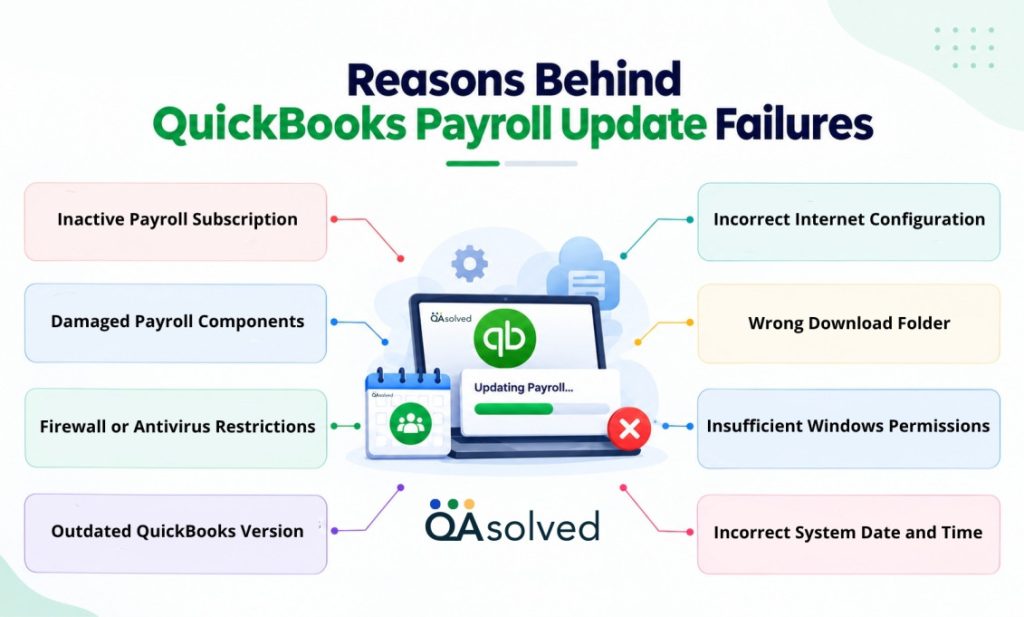
- Inactive Payroll Subscription: An expired subscription or incorrect service key can prevent QuickBooks from verifying your payroll service.
- Damaged Payroll Components: Missing or corrupted files in the CPS folder can interfere with the payroll update process.
- Firewall or Antivirus Restrictions: Security software may block QuickBooks from connecting to Intuit’s servers.
- Outdated QuickBooks Desktop: Running an older software release may lead to compatibility issues or prevent payroll updates from completing.
- Incorrect Internet Configuration: A faulty, unstable connectivity or misconfigured security settings can interrupt payroll downloads.
- Wrong Download Folder: A missing or inaccessible shared download folder may prevent QuickBooks from retrieving update files.
- Insufficient Windows Permissions: Restricted file access can prevent QuickBooks from modifying the files required for updates.
- Incorrect System Date and Time: Incorrect settings may interfere with secure connections or update validation.
Identifying the underlying cause can help you select the troubleshooting method and avoid making unnecessary changes in QuickBooks Desktop.
What Are the Solutions to Fix QuickBooks Payroll Update Not Working Issue
We’ve put together practical solutions to help you fix the QuickBooks Payroll update not working error. Before jumping into the fixes, though, take a moment to check your software, payroll subscription, and system settings. These quick checks can help you rule out common issues and make the troubleshooting process much smoother.
Prerequisites Before Troubleshooting QuickBooks Payroll Update Errors
- Update QuickBooks Desktop to the latest release available for your product and subscription.
- Verify the payroll service key to ensure it is correct, and your payroll subscription is active.
- Check your EIN to confirm it matches the details registered with your payroll service.
- Confirm QuickBooks registration and permissions to ensure the software is registered and you have the required access.
- Check your internet connection and verify that your system’s date and time are correct.
- Review firewall and antivirus settings to ensure they are not blocking QuickBooks or its update components.
- Install QuickBooks Tool Hub and ensure it is updated before using its troubleshooting utilities.
- Check Microsoft components such as .NET Framework, MSXML, and Visual C++ to ensure they are functioning correctly.
- Back up your company file before making changes to company data or performing advanced troubleshooting.
Once these checks are complete, proceed with the troubleshooting methods to identify why QuickBooks Payroll is not updating and resolve the issue.
Solution 1: Verify Your Payroll Service Status, Service Key, and EIN
An active payroll subscription and correctly configured service details are essential for downloading payroll updates in QuickBooks Desktop. Follow the steps below to verify your payroll subscription, service key, and EIN before attempting another payroll update.
Step 1: Confirm Your QuickBooks Payroll Subscription is Active
The first step is to check whether your payroll subscription is active.
- Open QuickBooks Desktop.
- Navigate to Employees, select My Payroll Service, and then click Account/Billing Information.
- Sign in using your Intuit account credentials, if prompted.
- Review your subscription details and confirm that your payroll service is active.
Note: If your subscription is active, but QuickBooks still cannot complete the update, check for other software or update-related issues.
Step 2: Check and Verify Your Payroll Service Key
An incorrect or missing key can prevent QuickBooks from validating the service. Here’s how you can check and verify your service key:
- Launch QuickBooks Desktop and go to Employees.
- Select My Payroll Service, and then click on Manage Service Key.
- In the Service Keys window, verify that the Service Name is correct, and the Status is listed as Active.
- If the service key is missing or incorrect, follow these steps:
- Select Add.
- Enter the correct service key provided in your purchase confirmation or Intuit email.
- Select Next, then select Finish to save the changes.
Once you’ve verified the service key and subscription status, try downloading the payroll update again. If the problem persists, confirm that QuickBooks Desktop is registered and updated to the latest available release.
Step 3: Check Your Employer Identification Number (EIN)
QuickBooks Desktop must have the correct EIN associated with your company and payroll registration. To verify your EIN:
- Start by opening your QuickBooks company file.
- Navigate to Company and click on My Company.
- Open the Company Information window.
- Check the EIN and compare it with the number associated with your payroll registration.
Note: An EIN mismatch can cause payroll activation or tax form errors. Contact QuickBooks Payroll Support to correct the details before making changes to your company file.
Step 4: Restart QuickBooks and Download the Payroll Update
After verifying your subscription, service key, and EIN, restart QuickBooks Desktop and attempt the update again.
- Close QuickBooks Desktop and reopen it.
- Open your company file and navigate to Employees > Get Payroll Updates.
- Select the Download Entire Update checkbox.
- Click Download Latest Update.
- Allow the download to finish, then check the confirmation message.
Let QuickBooks complete the download process and wait for the message: “You have successfully downloaded the payroll update.”
Solution 2: Allow Necessary Windows Permissions
In case the previous solution didn’t resolve the QuickBooks Payroll update not working issue, try this method to fix the problem further. Adjusting the permissions for the QuickBooks executable file may help resolve access-related issues. Here are the steps:
- Open the Start menu and type File Explorer in the search bar.
- Launch File Explorer and navigate to the folder where QuickBooks Desktop is installed.
- For 32-bit systems: C:\Program Files\Intuit\QuickBooks (Year)
- For 64-bit systems: C:\Program Files (x86)\Intuit\QuickBooks (Year)
- Right-click QBW32.EXE and select Properties.
- Open the Security tab and click Edit.
- Click Add, enter the appropriate Windows user or group name, and select Check Names to validate it.
- Click OK and review the permissions available for that account or group.
- Grant only the permissions required for QuickBooks to operate correctly. Avoid assigning Full Control to broad groups such as Everyone unless your IT administrator has confirmed that it is necessary.
- Click Apply, followed by OK, to save your changes.
- Close the Properties window, reopen QuickBooks Desktop, and try downloading the payroll update again.
Note: The QuickBooks Payroll update not working issue may not be caused by file permissions. If the problem continues, restore any unnecessary permission changes and proceed to the next troubleshooting method.
Solution 3: Re-verify the Digital Signatures and Configured Firewall Settings
If QuickBooks Desktop is still unable to download payroll updates, reviewing its digital certificate and firewall permissions is another troubleshooting option. Follow the steps carefully:
Step 1: Re-verify the Digital Signature
A digital signature helps Windows verify the publisher and integrity of an executable file. Checking the signature can help you identify certificate-related problems that may affect QuickBooks.
- Close QuickBooks Desktop and open File Explorer.
- Navigate to your QuickBooks installation folder. A common location is: C:\Program Files (x86)\Intuit\QuickBooks [Year].
- Note: The actual path may vary depending on your installation.
- Locate the QBW32.EXE file, right-click it, and select Properties.
- Open the Digital Signatures tab.
- Check the signature list and select Intuit.
- Click Details to view the digital signature information.
- In the window that opens, select View Certificate.
- When the Certificate window appears, click Install Certificate.
- Follow the on-screen prompts by clicking Next until you reach the final screen, then select Finish.
- Restart your computer to apply the changes.
- Launch QuickBooks Desktop again and try downloading the payroll update.
If Windows reports a certificate problem, avoid installing or replacing certificates without verifying their authenticity. After checking the signature, reopen QuickBooks Desktop and try downloading the payroll update again.
Step 2: Review Windows Firewall Settings
Windows Firewall or third-party security software may restrict QuickBooks from accessing the network resources required for updates. Review the existing firewall settings to determine whether QuickBooks is being blocked.
- Open the Start menu and search for Windows Defender Firewall.
- Open the firewall settings and select Allow an app or feature through Windows Defender Firewall.
- Click Change settings and look for the relevant QuickBooks applications in the list.
- If an application is missing or blocked, consult Intuit’s guidance or your IT administrator before adding an exception.
- Where appropriate, allow the required QuickBooks executable files through the firewall for the applicable network profile.
- If you use third-party antivirus or firewall software, check whether it is blocking QuickBooks or its update components.
- Open QuickBooks Desktop and try downloading the payroll update again.
Note: Avoid disabling the firewall entirely or creating broad port exceptions without confirming the requirements for your QuickBooks version. If your computer is managed by an IT team, ask the administrator to review the relevant network rules.
Solution 4: Update Payroll Tax Tables and Rename the CPS Folder
Are you unable to complete the latest QuickBooks Payroll update? If yes, then you can also try updating the payroll tax tables and renaming the CPS folder to troubleshoot the issue. Follow the steps below to perform these actions in QuickBooks Desktop.
Step 1: Download the Latest Payroll Tax Table Update
First, try downloading the complete payroll tax table update through QuickBooks Desktop.
- Open QuickBooks Desktop and access your company file.
- Navigate to Employees and then click on Get Payroll Updates.
- Select the Download Entire Update checkbox.
- Click Download Latest Update or the equivalent update button displayed in your version.
- Wait for the download to finish and check the confirmation message.
If QuickBooks cannot complete the update, move on to the next step.
Step 2: Rename the CPS Folder
The CPS folder contains payroll-related components used by QuickBooks Desktop. Renaming it may help troubleshoot certain component-related problems by allowing QuickBooks to recreate the folder when necessary. However, this method is not appropriate for every payroll update error.
- Close QuickBooks Desktop.
- Open File Explorer.
- Navigate to the QuickBooks installation directory and locate the CPS folder. A possible path is:
- C:\Program Files\Intuit\QuickBooks20xx\Components\Payroll\CPS
- Replace 20xx with QuickBooks Version Year.
- Right-click the CPS folder and select Rename.
- Note: Before renaming the folder, create a backup copy if practical and confirm that you have the necessary Windows permissions.
- Rename the folder name to CPSOLD.
- Reopen QuickBooks Desktop and navigate to Employees and click on Get Payroll Updates to attempt the download again.
Step 3: If Update Fails, Disable User Account Control (UAC) Settings
You need to disable the UAC if the payroll update continues to fail. Here’s how:
- Open the Start menu and search for either UAC or Change User Account Control settings.
- Select Change User Account Control settings.
- Set the slider to Never Notify and click OK to save the changes.
- Restart your computer to apply the changes.
- Launch QuickBooks Desktop again and try running the payroll update.
Once the update completes successfully, verify that QuickBooks has downloaded the latest available payroll tax table and that no additional error message appears.
Note: Avoid keeping UAC to Never Notify as a routine troubleshooting step, since doing so reduces Windows security protections. If a temporary change is explicitly recommended by qualified support, restore the original setting immediately after testing.
Solution 5: Use Verify and Rebuild Data Utility in QuickBooks
If damaged or inconsistent data is contributing to payroll update problems, running the verify and rebuild data utility in QuickBooks Desktop may help you identify the issue and determine the next troubleshooting step. Follow the steps:
Step 1: Verify Your Data
- Open QuickBooks Desktop and open your company file.
- Navigate to File, select Utilities, and then choose Verify Data.
- If prompted, click OK to close any open windows and continue.
- Allow QuickBooks to complete the verification process.
In case QuickBooks detects no problems, you can proceed to the next troubleshooting method. However, if the utility identifies data issues, continue with the Rebuild Your Data process.
Step 2: Rebuild Your Data
- In QuickBooks Desktop, open the File menu, select Utilities, and choose Rebuild Data.
- When prompted, create a backup of your company file before proceeding.
- Follow the on-screen instructions and allow the Rebuild Data utility to complete the process.
- Once the rebuild finishes, click OK to close the confirmation message.
After completing the rebuild, reopen your company file and try downloading the payroll update again. Check whether QuickBooks completes the update successfully or displays another error message.
Solution 6: Run QuickBooks with Admin Control and Reset the Update
Sometimes, running the software as an administrator and resetting the update settings can help troubleshoot an update that keeps failing or getting stuck. Here’s how to give it a try.
Step 1: Launch QuickBooks as an Administrator
- Close your company file and exit QuickBooks Desktop completely.
- Open the Windows Start menu and search for QuickBooks Desktop.
- Right-click the QuickBooks Desktop icon and select Run as administrator.
- When the No Company Open window appears, select Help and then Update QuickBooks Desktop.
Step 2: Reset the Update Settings
Once you’re in the update window, reset the existing update settings and download the available updates again.
- Open the Options tab.
- Click Mark All, then select Save.
- Switch to the Update Now tab.
- Select the Reset Update checkbox.
- Click Get Updates and let QuickBooks finish downloading the updates.
Resetting the update clears the existing update download status, so QuickBooks can attempt a fresh download. Once the process finishes, close QuickBooks Desktop and reopen it. Restart your computer if needed to complete the update process.
Solution 7: Use the QuickBooks Tool Hub
QuickBooks Tool Hub provides several utilities to troubleshoot common QuickBooks Desktop problems, including program errors and company file issues. If the payroll update issue persists, you can use the relevant tools to check for potential problems and try resolving them. Follow the steps below to get started.
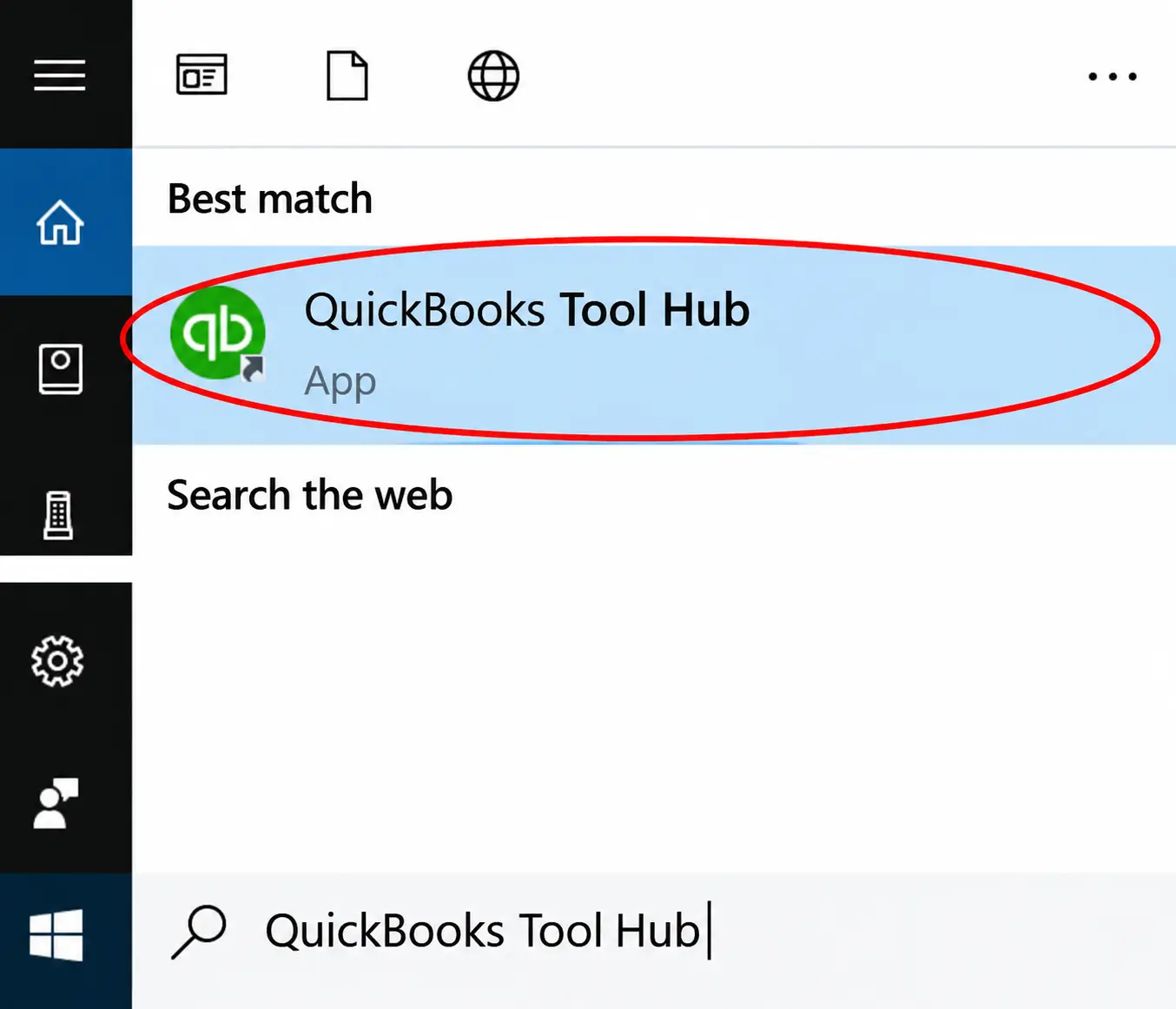
Step 1: Download and Install QuickBooks Tool Hub
To make the best use of QuickBooks Tool Hub, make sure you have the latest version installed on your system. Follow these steps carefully:
- Close QuickBooks Desktop if it is currently running.
- Visit Intuit’s official website and download the latest version of QuickBooks Tool Hub.
- Save the downloaded installation file to an easily accessible location, such as your desktop.
- Locate and open the downloaded QuickBooksToolHub.exe file.
- Follow the on-screen instructions to complete the installation.
- After installation, double-click the QuickBooks Tool Hub icon on your desktop to open the application.
Step 2: Run Quick Fix My Program
Quick Fix My Program closes QuickBooks-related background processes and attempts to repair common program issues. Here’s how to run it using QuickBooks Tool Hub:
- Open QuickBooks Tool Hub and select the Program Problems tab.
- Click on Quick Fix My Program to start the repair process. to start the repair process.
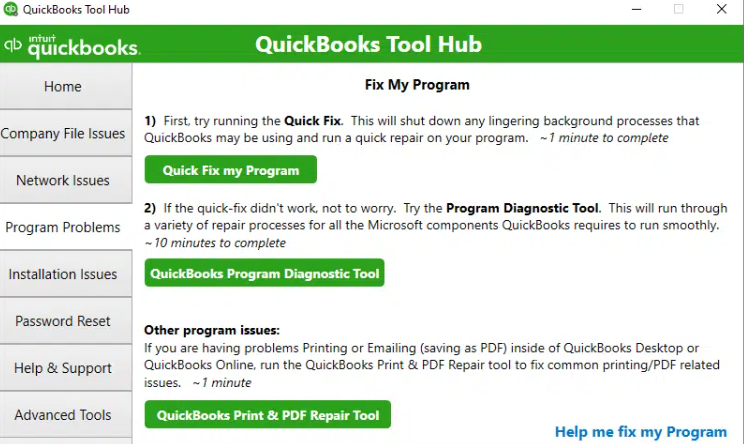
- Let the tool finish running. The process typically takes less than two minutes.
- Once it’s complete, reopen QuickBooks Desktop and try opening your company file again.
If QuickBooks Payroll is still not updating, proceed to the QuickBooks File Doctor tool to check for potential company file issues.
Step 3: Use QuickBooks File Doctor
QuickBooks File Doctor helps identify and repair certain company file problems and checks for network-related issues that may affect QuickBooks Desktop. Here’s how to run the tool through QuickBooks Tool Hub.
- Open QuickBooks Tool Hub and select the Company File Issues tab.
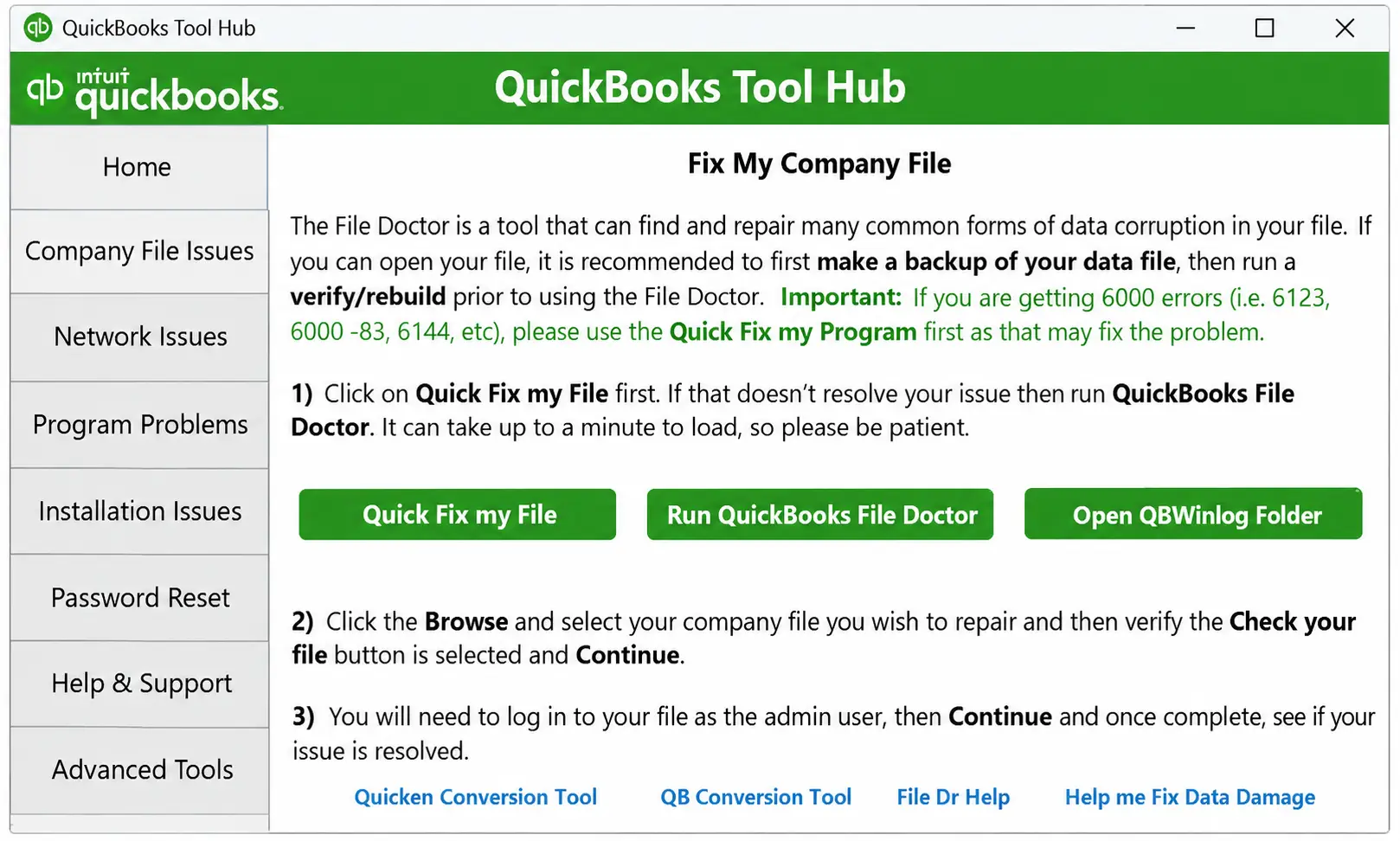
- Click Run QuickBooks File Doctor to launch the tool.
- In the window that appears, click Browse and select your QuickBooks company file.
- Choose Check your file and click Continue.
- Enter your QuickBooks admin credentials when prompted.
- Let QuickBooks File Doctor complete the scan and repair process.
Note: Depending on your company file size and the issues detected, this may take several minutes.
After the scan finishes, reopen QuickBooks Desktop and check whether your company file opens correctly. If the payroll update issue persists, proceed to the next troubleshooting method.
Solution 8: Check Your System Date and Time
There are times when an incorrect date, time, or time zone in Windows can interfere with software updates, leading users to face the QuickBooks Payroll won’t update error. Here’s how you can verify the date and time and correct them if they’re wrong.
- Right-click the clock on your Windows taskbar and select Adjust Date/Time.
- In the Date and Time settings, check whether the displayed date, time, and time zone are correct.
- If the date or time is incorrect, select Change date and time and enter the correct values. You may need administrator access to make these changes.
- Click OK to save your changes, then close the settings window.
- Close QuickBooks Desktop and reopen it.
- Navigate to Employees and click on Get Payroll Updates.
- Try downloading the payroll update again.
Once the date and time settings are corrected, check whether QuickBooks can download the payroll update successfully.
Solution 9: Reset Browser and Connectivity Settings
Incorrect internet settings can sometimes interfere with QuickBooks Desktop’s connection to Intuit’s servers and prevent payroll updates from downloading. You can review internet settings and verify that the required security protocol is enabled by following these steps.
- Close QuickBooks Desktop if it is currently running.
- Open Internet Options. On supported Windows versions, you can search for Internet Options directly from the Start menu.
- Select the Advanced tab.
- Click Restore Defaults if this option is available and appropriate for your configuration. If you choose Reset, review the changes carefully because resetting may affect other browser settings.
- Scroll down to the Security section and review the available TLS settings. Ensure that Use TLS 1.2 is enabled if your QuickBooks version requires it. Do not disable TLS 1.0 or TLS 1.1 indiscriminately if other applications or organizational requirements depend on them.
- Click Apply, then OK, to save your changes.
- Reopen QuickBooks Desktop.
- Navigate to Employees and select Get Payroll Updates.
- Check the Download Entire Update option.
- Click Download Latest Update and wait for the process to finish. Check the on-screen message to confirm whether the download completed successfully.
- If the update still fails, restart your computer and try again.
Note: Internet Explorer has been retired on most supported Windows configurations. The Internet Options settings remain accessible in Windows, but the exact options and their effects can vary by operating system and QuickBooks version.
If the issue persists, check your QuickBooks version’s connectivity requirements before changing additional security settings.
Solution 10: Clean Install QuickBooks to Resolve Payroll Update Errors
If you’ve tried the previous troubleshooting methods and QuickBooks Payroll is still not updating, a clean installation may be worth considering. This process removes the existing QuickBooks Desktop installation, so you can reinstall the software with fresh program files.
Note: Before getting started, make sure you have your company file backed up and your QuickBooks license and product information available.
Step 1: Prepare for the Clean Installation
A little preparation can make the reinstallation process easier and help protect your company data.
- First, download and install the latest QuickBooks Payroll update.
- Back up your QuickBooks company file to a secure location, such as an external drive or cloud storage.
- Close your QuickBooks Desktop.
Step 2: Uninstall QuickBooks
Once your backup is ready, remove the existing QuickBooks Desktop installation from your computer.
- Open the Windows Start menu and search for Control Panel.
- Select Programs and Features or Uninstall a Program, depending on your Windows version.
- Find QuickBooks Desktop in the list of installed programs.
- Select QuickBooks Desktop and click Uninstall/Change.
- Follow the on-screen instructions to complete the uninstallation.
Uninstalling QuickBooks Desktop does not normally delete your company files, but keeping a verified backup is still essential before making changes to the installation.
Step 3: Reinstall QuickBooks Desktop
After removing the existing installation, reinstall QuickBooks Desktop using the appropriate installer.
- Locate your saved QuickBooks installation file or download the installer from the official Intuit website.
- Run the installer and follow the on-screen instructions to complete the installation.
- Open QuickBooks Desktop and activate it using your license and product information, if prompted.
- Open your existing company file. If you need to restore a backup, use the appropriate company file restoration process.
- Navigate to Employees and click on Get Payroll Updates and attempt to download the latest available payroll tax table update.
Once the update finishes, check whether QuickBooks downloads the payroll tax tables successfully.
Which Error Codes Occur During QuickBooks Payroll Updates
If you find QuickBooks payroll not updating, identifying the specific code can help narrow down the cause. The following table outlines common QuickBooks Payroll update error codes and what they generally indicate.
| QuickBooks Error Codes | What It Indicates? |
| QuickBooks Error PS038 | Paychecks stuck in “Online to Send” status may prevent payroll updates from completing. |
| QuickBooks Error PS033 | Problems validating payroll updates, potentially due to a damaged CPS folder file or security settings. |
| QuickBooks Error PS036 | QuickBooks cannot properly verify the payroll subscription or service key. |
| QuickBooks Error PS077 | Payroll update issues potentially related to subscription details, firewall settings, or damaged files. |
| QuickBooks Error 15203 | QuickBooks encounters an update failure that may involve digital signature verification or connection issues. |
| QuickBooks Error 15240 | Payroll updates fail due to possible system date, internet security, or firewall issues. |
| QuickBooks Error 15270 | QuickBooks encounter missing update files or other problems while downloading or installing updates. |
| QuickBooks Error 15102 | QuickBooks cannot access the configured download location or shared download drive. |
| QuickBooks Error 12009 | Internet connection, firewall, or security settings prevent QuickBooks from downloading updates. |
These error codes can point to different underlying problems, so the fix depends on the message QuickBooks displays. For additional guidance, refer to resources on PS-series payroll update errors and 15XXX update errors.
Intuit regularly releases software improvements to remove such errors and payroll tax table updates to help users stay current with changing tax requirements and maintain smooth payroll operations. Let’s take a quick look at what new with the latest QuickBooks Desktop Payroll September 2026 (Release 22616).
What’s New in the Latest QuickBooks Desktop Payroll Release
According to Intuit’s release notes, Payroll Update 22616 includes changes to Maine withholding tables and adds Maryland Family and Medical Leave Insurance (FAMLI) items to the 2026 payroll tax tables. This release does not include E-File and E-Pay updates or form updates.
Key Changes in Payroll Update 22616
- Maine Withholding Tables: The update includes new withholding tables effective August 1, 2026. It also reflects an increase in the standard deduction to $12,850 for single filers and $28,550 for married filers, along with a 2% surcharge on annualized income above specified thresholds.
- Maryland FAMLI Contributions: The 2026 tax tables now include separate Maryland Family and Medical Leave Insurance items for employers and employees. Refer to Intuit’s latest guidance for setup instructions before configuring these items.
How to Check and Verify Your Installed Payroll Update?
You can verify the payroll update currently installed in QuickBooks Desktop by following these steps.
- Open your QuickBooks Desktop company file.
- Select Employees, then choose Get Payroll Updates.
- Click Payroll Update Info to view the installed payroll update number.
Checking your payroll update version is also a useful step when investigating update errors, as it helps establish whether the latest tax table has been installed successfully. And if your installed update is older than the latest release, use the appropriate QuickBooks Payroll tax table update.
How to Get the Latest Tax Table Update in QuickBooks Desktop Payroll
Payroll tax rates and withholding requirements can change, so using an outdated tax table may affect your calculations. Downloading the latest QuickBooks payroll tax table update helps you apply the relevant changes in QuickBooks Desktop and keep your payroll calculations aligned with current tax requirements.
Check or download the latest tax table:
- Open QuickBooks Desktop, go to Employees, and select Get Payroll Updates.
- To check your current tax table version:
- Find the number displayed next to You are using tax table version.
- Compare it with the version listed in Intuit’s latest payroll update news and updates.
- Select Payroll Update Info to view additional details about your installed tax table.
- To download the latest tax table:
- Select Download Entire Update.
- Click Update to begin downloading the available updates.
- Wait for the informational message confirming that the download is complete.
Keeping your QuickBooks Desktop Payroll tax table updated helps ensure accurate payroll calculations. However, tax table updates are only one part of maintaining your payroll setup. With questions surrounding the future availability of Desktop products, it’s also worth understanding whether QuickBooks Payroll is getting discontinued in 2027 and what that could mean for existing users.
Is QuickBooks Desktop Payroll Being Discontinued in 2027
QuickBooks Payroll is not being discontinued across the board, but certain versions and services have reached or may reach their discontinuation dates. The key distinction is between older QuickBooks Desktop versions and the newer supported releases.
Intuit’s August 2026 payroll discontinuation guidance explains that QuickBooks Desktop 2023 lost access to payroll and other connected services after May 31, 2026. However, Intuit also announced in September 2026 that QuickBooks Desktop 2024 would not be discontinued in May 2027 and would continue receiving support and updates.
Also Read: Is QuickBooks Desktop Going Away in 2027?
Why QuickBooks Payroll Is Not Being Discontinued for Some Time
There are important reasons existing users should not assume that all QuickBooks Payroll services are ending in 2027.
- QuickBooks Desktop 2024 support is continuing: Intuit has confirmed that Desktop 2024 will continue receiving product updates, security patches, tax-law compliance updates, and feature enhancements, with no announced sunset deadline for that release.
- Payroll updates are still being released: Intuit published Payroll Update 22616 on September 22, 2026, including updated withholding tables and Maryland FAMLI tax-table items.
- Existing subscriptions have different rules: The impact depends on your QuickBooks Desktop version and payroll service. Older unsupported versions can lose payroll tax calculations, direct deposit, and e-filing features, so users should check the policy for their specific product.
In short, QuickBooks Payroll is not being discontinued entirely in 2027, but support depends on your Desktop version and payroll subscription.
Conclusion
QuickBooks Payroll update errors can occur for several reasons, from subscription and connectivity issues to damaged program files and incorrect system settings. By identifying the cause and following the appropriate troubleshooting steps, you can resolve update problems and keep your payroll tax tables current. Make it a habit to check your installed payroll update, maintain your QuickBooks Desktop software, and verify your payroll subscription regularly. If the issue persists after troubleshooting, contact us at toll-free number 1-888-245-6075 for further assistance.
Frequently Asked Questions
To fix QuickBooks Enterprise payroll update errors, verify your payroll subscription, update QuickBooks Desktop, and download the latest payroll tax table. If the issue persists, try these troubleshooting steps:
1. Go to Employees > My Payroll Service > Manage Service Key and confirm your subscription is active.
2. Navigate to Help > Update QuickBooks Desktop > Update Now, select Reset Update, and click Get Updates.
3. Go to Employees > Get Payroll Updates and select Download Entire Update.
4. Resolve Error Send payroll usage data and follow Intuit’s instructions to resolve paychecks stuck in Online to Send status.
5. Use Verify and Rebuild Data or QuickBooks Tool Hub’s Quick Fix My Program to troubleshoot persistent issues.
QuickBooks Payroll may stop updating after a software update because of incomplete installation files, payroll subscription validation issues, damaged payroll components, firewall restrictions, or incorrect internet settings. Here are some common causes:
1. Incomplete QuickBooks Update
2. Payroll Subscription Issues
3. Damaged CPS Folder Files
4. Firewall or Antivirus Restrictions
5. Incorrect System Settings
6. Payroll-specific Errors
QuickBooks Error 15270 can occur when a payroll update fails to download or install correctly. Try these troubleshooting methods to resolve the issue.
Solution 1: Go to Help > Update QuickBooks Desktop > Update Now, select Reset Update, and click Get Updates. Restart QuickBooks and download the payroll update again.
Solution 2: Close QuickBooks, right-click its icon, select Run as administrator, and retry the update.
Solution 3: Navigate to Employees > My Payroll Service > Manage Service Key and verify that your service key is correct and active.
Solution 4: Open the QuickBooks Tool Hub, select Program Problems, and run Quick Fix My Program.
This error can occur when QuickBooks fails to verify your payroll subscription due to incorrect service keys, outdated software, or damaged entitlement data. Try these solutions to resolve it:
1. Verify Product Activation and EIN
2. Verify Your Payroll Service Key
3. Update QuickBooks and Payroll Tax Tables
4. Refresh Entitlement Data
5. Run QuickBooks Tool Hub
A Windows update may affect QuickBooks permissions, background services, or system settings, preventing payroll updates from completing. Try these troubleshooting steps:
1. Right-click the QuickBooks Desktop icon and select Run as administrator, then retry the payroll update.
2. Press Windows + R, type services.msc, and press Enter. Locate QuickBooks FCS and check its status and startup settings.
3. Go to Settings > Time & Language > Date & Time and ensure your system clock and time zone are correct.
4. Open Program Problems and select Quick Fix My Program. If needed, use the QuickBooks Install Diagnostic Tool under Installation Issues.
5. Navigate to Employees > My Payroll Service > Manage Service Key and confirm that your subscription and service key are active.