Updated
27 min read



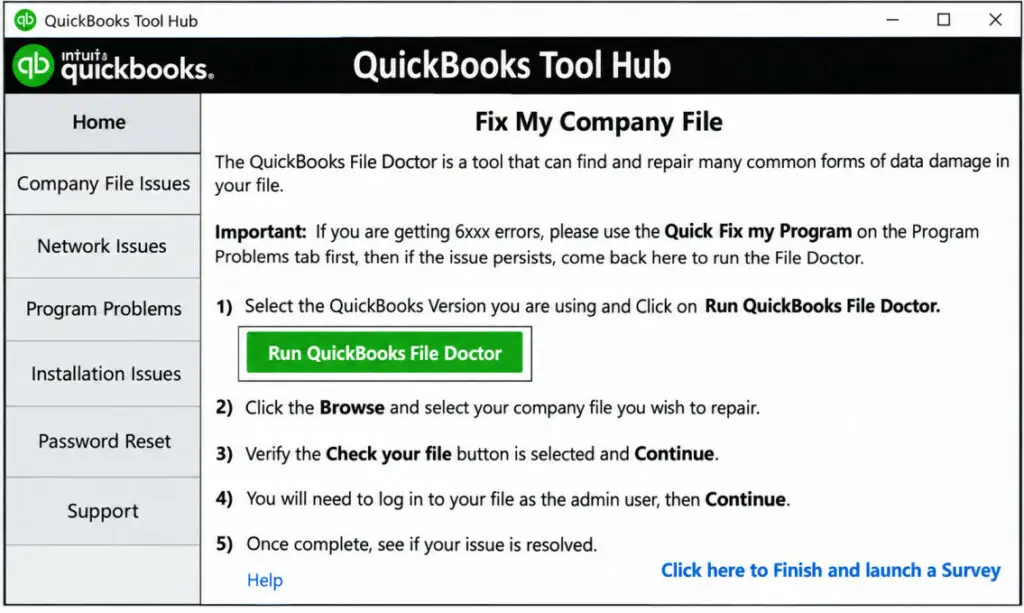
QuickBooks File Doctor is a built-in repair tool in QuickBooks Tool Hub that helps identify and resolve common company file and network-related issues. It can diagnose problems such as damaged company files, data corruption, and network connectivity errors that prevent users from opening or accessing their QuickBooks company files. By detecting these issues, the tool helps users troubleshoot file-related problems and restore access to their accounting data.
To use QuickBooks File Doctor, you first need to download and install QuickBooks Tool Hub on your Windows computer. Once installed, you can access File Doctor from the Company File Issues section and run it to fix QuickBooks’ company file and network issues. In this blog, we’ll walk you through the complete process of downloading, installing, and using QuickBooks File Doctor, along with the steps to follow when the tool fails to open or complete a repair.
QuickBooks File Doctor serves as a troubleshooting utility for situations where QuickBooks Desktop encounters difficulties reading company files or establishing connections with other computers. It provides an automated way to check specific file and network problems, reducing the need to investigate multiple settings manually. You may need this utility for the following reasons:
In short, it helps you narrow down the possible causes and resolve common errors before you need to move on to advanced troubleshooting methods. Let’s now take a closer look at system requirements and how to download and install the latest QuickBooks Tool Hub to troubleshoot company file and network-related problems.
Before downloading QuickBooks File Doctor, make sure your computer meets the basic operating system and software requirements to run the utility smoothly.
Note: QuickBooks File Doctor is not available as a separate standalone utility in the current QuickBooks Tool Hub workflow. It is integrated into QuickBooks Tool Hub and can be accessed from the Company File Issues tab.
To use QuickBooks File Doctor tool, you first need to download and install QuickBooks Tool Hub. Next, access File Doctor from the Company File Issues tab and run the utility to check for common problems. But before all of that, you must meet the necessary system requirements and prerequisites to run QuickBooks File Doctor successfully.
Once you have confirmed system compatibility, prepare the following before running QuickBooks File Doctor:
With these requirements fulfilled, you can download, install, and run QuickBooks File Doctor without unnecessary interruptions.
To access QuickBooks File Doctor, you first need to download and install QuickBooks Tool Hub on your computer. Follow the steps below to download the latest version and complete the installation.
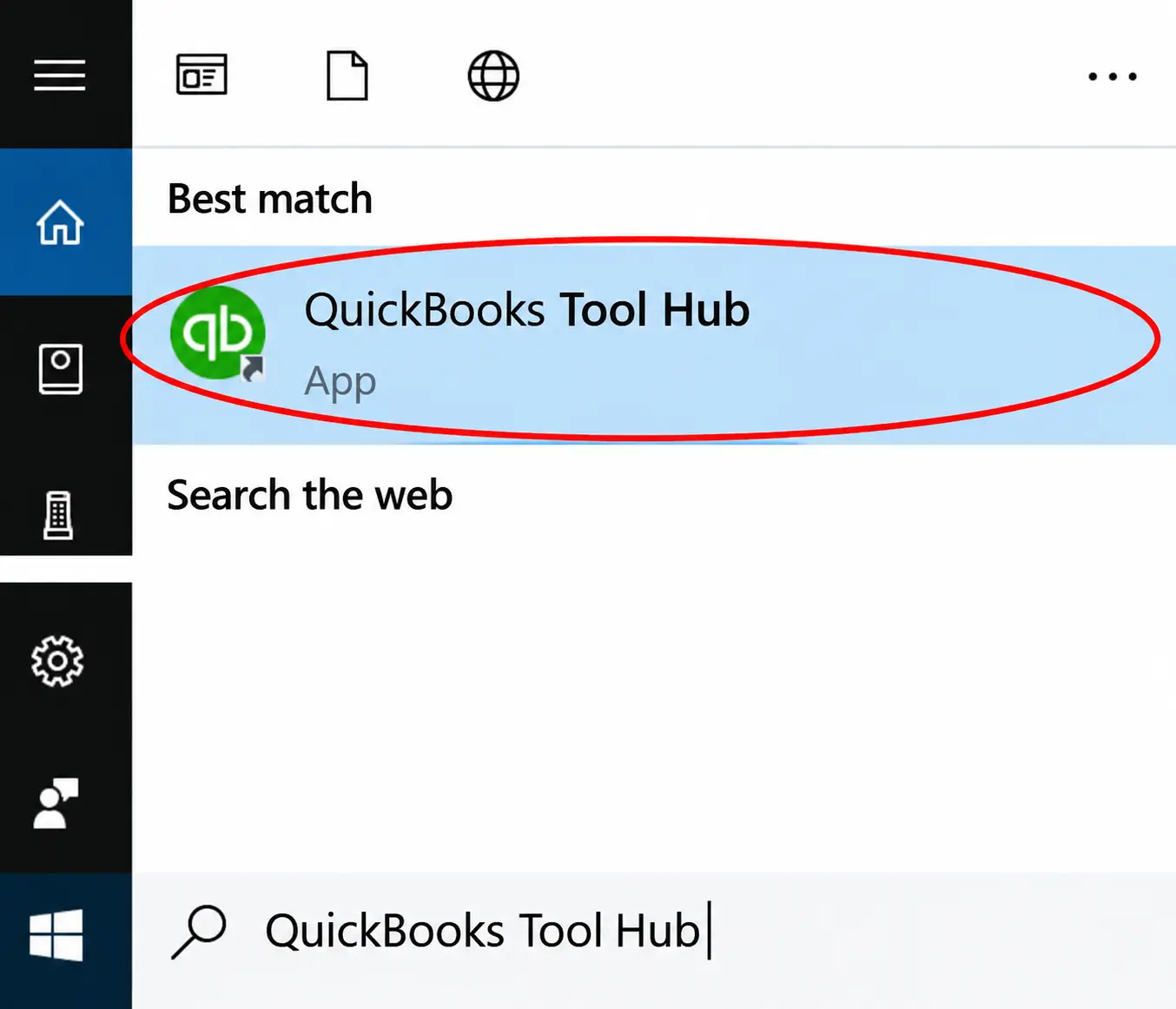
Note: To check your existing Tool Hub version, open the application and select the Home tab. The version number appears at the bottom.
Quick Fix My File performs a quick check of your company file and attempts to resolve common data-related issues before you run File Doctor.
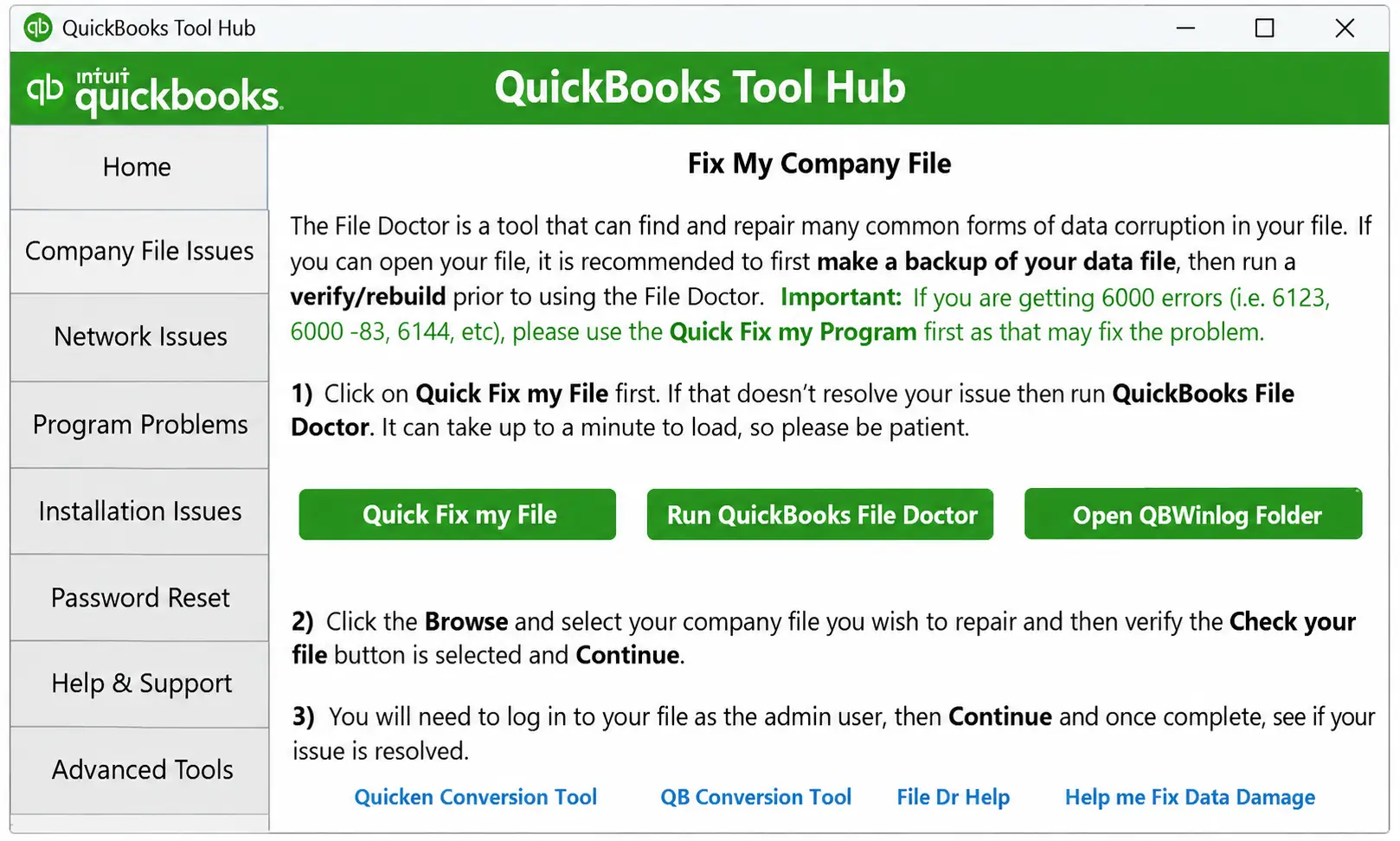
Once QuickBooks Tool Hub is installed and Quick Fix My File has finished running, you can fix company file and network issues with QuickBooks File Doctor.
With the installation and scanning process covered, let’s move on to the common QuickBooks errors that File Doctor can help diagnose and repair.
Having Trouble with QuickBooks File Doctor?
Struggling to download, install, or run QuickBooks File Doctor? Having trouble fixing company file errors? Don't waste time troubleshooting on your own. Get the assistance you need today!
QuickBooks File Doctor can assist with errors that might prevent you from opening company files, accessing data, or connecting to a shared file in multi-user mode. Let’s take a look at some common errors and issues you can address using this utility.
| QuickBooks Error | What It Means |
| QuickBooks Error -6150 | Occurs when QuickBooks cannot open a company file due to file-related problems or damage. File Doctor can scan the file and attempt to repair supported issues. |
| QuickBooks Error -6000 -832 | Generally associated with hosting problems or an issue with the Network Data (.ND) file that prevents QuickBooks from accessing the company file. |
| QuickBooks Error -6000 -305 | It occurs due to incorrect network configuration or damage to the company file, preventing QuickBooks from accessing it. |
| QuickBooks Error –6000 -301 | Can occur when QuickBooks support files, such as the .TLG or .ND file, or the company file itself becomes damaged. |
| QuickBooks Error -6147 | Occurs when QuickBooks cannot open a company file or restore a company backup (.QBB) file. |
| QuickBooks Error -6130 | Prevents QuickBooks from opening or accessing a company file and is included in Intuit’s list of errors that File Doctor can help troubleshoot. |
| QuickBooks Error -6000 -77 | Occurs when QuickBooks encounters problems accessing a company file, particularly when it is stored on an external drive or network location. |
| QuickBooks Error H202 and H505 | These errors occur when workstations cannot communicate with the server computer hosting the company file, disrupting multi-user access. |
| QuickBooks Company File Damage | Damage to a QuickBooks company file can prevent users from opening it, accessing financial records, or working with transactions. |
| QuickBooks Damaged Windows Registry | Corrupted Windows Registry entries can disrupt QuickBooks operations, trigger error messages, and prevent essential program functions from working. |
| QuickBooks Freezing or Crashing | This issue occurs when QB Desktop stops responding, becomes unresponsive, or closes unexpectedly while you are working. |
| QuickBooks Data Corruption Errors | Damaged or inconsistent company file data can cause missing transactions, incorrect balances, and financial record access errors. |
Understanding these results is equally important, as they help you identify the underlying problem and determine the appropriate steps to resolve it. Let’s look at how to review the test results and proceed with the recommended fixes.
After the scans, you need to review the test results carefully to understand the problems identified by the utility and determine the appropriate action plan. Each result includes a detailed explanation of the issue, along with relevant resources and troubleshooting instructions to help you address it.
QuickBooks File Doctor may identify Hosting Mode Is Off as a network-related issue. Hosting must be enabled on the computer where the company file is stored to allow other workstations to access it over the network. Without the correct hosting configuration, users may encounter errors when opening the company file in multi-user mode. So, enable the hosting mode so that your company file can be accessed by other users.
Hosting enables multiple computers, known as workstations, to access a shared company file stored on a central computer called the host. QuickBooks Desktop relies on version-specific database services to manage these connections and facilitate multi-user access. The service name varies depending on the QuickBooks Desktop version, as listed below:
You can locate the corresponding Windows service through the Windows administrative tools. Now, let’s take a look and understand the different hosting modes in QuickBooks.
QuickBooks Desktop supports three hosting configurations, each determining how company files are accessed and shared across a network.
In this configuration, QuickBooks Database Manager runs as a regular process under the currently signed-in Windows user account. It uses shared memory to communicate with QuickBooks Desktop on the same computer. However, the computer does not host company files for remote workstations, so other users cannot access its files through multi-user hosting.
With this setting enabled, QuickBooks Database Server Manager runs as a Windows service named QuickBooksDBXX under the QBDataServiceUserXX account.
The service runs in the background as long as the computer is powered on and supports multi-user access through TCP/IP connections. This allows other workstations on the network to access company files stored on the host computer.
In this configuration, QuickBooks Database Manager runs as a regular process under the currently signed-in Windows user account. It supports multi-user access through TCP/IP connections and allows users to work with company files stored on both the local computer and remote computers.
The folder where your QuickBooks company file is stored must have the appropriate sharing and Windows access permissions. Without these permissions, workstations on the network may be unable to access the company file in multi-user mode.
To resolve this issue, review the folder’s sharing settings and verify that the required Windows user permissions are configured correctly. For detailed instructions, refer to Set Up Folder and Windows Access Permissions to Share Company Files.
If the folder already has the necessary permissions, or this issue does not apply to your setup, proceed to the next section.
QuickBooks requires at least one functioning TCP/IP network adapter to establish network connections. Additionally, the host computer’s hostname must be resolvable so that other computers can identify and communicate with it over the network.
You can use the Windows IPConfig command-line utility to inspect the server computer’s TCP/IP configuration and troubleshoot common network connectivity problems. Follow these steps to run IPConfig:
| Command | Description |
| ipconfig | Displays basic TCP/IP configuration details for network adapters. |
| ipconfig /all | Displays detailed TCP/IP information, including IP addresses, DNS settings, and adapter details. |
| ipconfig /renew | Request a new IPv4 address for network adapters configured to obtain an address automatically. |
| ipconfig /release | Releases the current IPv4 address assigned to network adapters configured for automatic addressing. |
Use these commands to review the network configuration and identify potential connectivity issues. If your network connection is functioning correctly or this issue does not apply, move on to the next test result.
This result indicates that Windows may be unable to resolve a hostname to its corresponding IP address or perform a reverse lookup to identify the hostname associated with an IP address. Both processes are important for communication between computers on a network. To troubleshoot this issue:
For additional guidance, refer to Microsoft’s article on DNS query responses and firewall configuration in Windows Server.
QuickBooks File Doctor may detect that the QBCFMonitorService or QBDBMgrN service is not running. Both services are essential for managing network communication and enabling workstations to access shared QuickBooks Desktop company files in multi-user mode.
When the QBCFMonitorService stops running or cannot communicate over the network, check the following settings:
The QBDBMgrN process helps manage access to QuickBooks company files in a multi-user environment. When the service is unavailable or blocked, workstations may have difficulty connecting to the company file. Check the following:
An active Windows Firewall or third-party security application may block the network ports and program files required by QuickBooks Desktop. These restrictions can interrupt network communication and prevent workstations from accessing shared company files.
Review the detected firewall settings and configure the necessary exceptions for your QuickBooks Desktop version to allow the required programs and ports through.
Configure your firewall to allow both incoming and outgoing traffic for the QuickBooks program files listed above. Open the required ports 80, 8019, 56725–56728, and 55363–55382 to ensure these applications can communicate properly over the network. These port ranges apply to QuickBooks Desktop 2018 and 2019. The following QuickBooks program files may also require firewall access:
| QuickBooks Program File | Default File Location |
| AutoBackupExe.exe | C:\Program Files\Intuit\QuickBooks Enterprise Solutions XX.X |
| Dbmlsync.exe | C:\Program Files\Intuit\QuickBooks Enterprise Solutions XX.X |
| DBManagerExe.exe | C:\Program Files\Intuit\QuickBooks Enterprise Solutions XX.X |
| FileManagement.exe | C:\Program Files\Intuit\QuickBooks Enterprise Solutions XX.X |
| FileMovementExe.exe | C:\Program Files\Intuit\QuickBooks Enterprise Solutions XX.X |
| IntuitSyncManager.exe | C:\Program Files\Common Files\Intuit\Sync |
| QBCFMonitorService.exe | C:\Program Files\Common Files\Intuit\QuickBooks |
| QBDBMgrN.exe | C:\Program Files\Intuit\QuickBooks Enterprise Solutions XX.X |
| QBGDSPlugin.exe | C:\Program Files\Intuit\QuickBooks Enterprise Solutions XX.X |
| QBLaunch.exe | C:\Program Files\Common Files\Intuit\QuickBooks |
| QBServerUtilityMgr.exe | C:\Program Files\Common Files\Intuit\QuickBooks |
| QBW32.exe | C:\Program Files\Intuit\QuickBooks Enterprise Solutions XX.X |
| QBUpdate.exe | C:\Program Files\Common Files\Intuit\QuickBooks\QBUpdate |
| QuickBooksMessaging.exe | C:\Program Files\Intuit\QuickBooks Enterprise Solutions XX.X |
| OnlineBackup.exe | C:\Program Files\QuickBooks Online Backup |
Use the QuickBooks program file list above to identify the files that need firewall access. Replace XX.X in the file paths with your installed QuickBooks version (for example, Enterprise 18.0). Then, follow the configuration instructions provided on your firewall provider’s website to create the necessary exceptions and allow the listed QuickBooks files to communicate through the firewall.
To allow QuickBooks to communicate properly over your network, configure your firewall to permit both incoming and outgoing traffic for the program files listed above. Make sure to open ports 80, 8019, 56725–56728, and 55363–55382 for these applications. These port ranges apply to QuickBooks Desktop 2018 and 2019.
| QuickBooks Program File | Default File Location |
| AutoBackupExe.exe | C:\Program Files\Intuit\QuickBooks 20XX |
| Dbmlsync.exe | C:\Program Files\Intuit\QuickBooks 20XX |
| DBManagerExe.exe | C:\Program Files\Intuit\QuickBooks 20XX |
| FileManagement.exe | C:\Program Files\Intuit\QuickBooks 20XX |
| FileMovementExe.exe | C:\Program Files\Intuit\QuickBooks 20XX |
| IntuitSyncManager.exe | C:\Program Files\Common Files\Intuit\Sync |
| QBCFMonitorService.exe | C:\Program Files\Common Files\Intuit\QuickBooks |
| QBDBMgrN.exe | C:\Program Files\Intuit\QuickBooks 20XX |
| QBGDSPlugin.exe | C:\Program Files\Intuit\QuickBooks 20XX |
| QBLaunch.exe | C:\Program Files\Common Files\Intuit\QuickBooks |
| QBServerUtilityMgr.exe | C:\Program Files\Common Files\Intuit\QuickBooks |
| QBW32.exe | C:\Program Files\Intuit\QuickBooks 20XX |
| QBUpdate.exe | C:\Program Files\Common Files\Intuit\QuickBooks\QBUpdate |
| QuickBooksMessaging.exe | C:\Program Files\Intuit\QuickBooks 20XX |
| OnlineBackup.exe | C:\Program Files\QuickBooks Online Backup |
After reviewing the test results, you can identify common hosting, company file permission, network connectivity, and firewall-related issues. However, File Doctor may sometimes fail to launch, stop responding, or complete the diagnostic process. In such cases, you need to troubleshoot the utility itself before attempting further repairs. Let’s look at how to fix QuickBooks File Doctor not working or opening issues.
QuickBooks File Doctor may sometimes fail to open, stop responding during a scan, or get stuck while attempting to repair a company file. These problems can occur due to a variety of reasons. Let’s take a quick look before troubleshooting it:
| Causes of QuickBooks File Doctor Not Working |
| Outdated QuickBooks Tool Hub | Incomplete Tool Hub Installation |
| Third-Party Application Conflicts | Network Connectivity Problems |
| Insufficient Permissions | Insufficient Disk Space |
| Windows System Issues | Company File Damage |
Let’s go through some practical solutions to get the utility working again.
Running QuickBooks File Doctor manually with administrator privileges can help resolve issues caused by restricted permissions or application access. Follow these steps to launch the utility and diagnose your company file:
If this solution doesn’t work, move to the next one which is updating or reinstalling the Tool Hub utility.
Updating Tool Hub to the latest available version can resolve compatibility issues and replace outdated program components. If updating doesn’t help, reinstalling can fix problems caused by missing or damaged files. Here are the steps:
Note: Reinstalling QuickBooks Tool Hub replaces potentially damaged installation files.
QuickBooks Auto Data Recovery (ADR) helps restore company file data when the original file becomes damaged or corrupted. Follow these steps to restore your company file:
Another solution that can help you fix the “QuickBooks File Doctor not working” issue is to run Quick Fix My File. Follow the steps:
If running Quick Fix My File doesn’t resolve the issue, proceed to the next troubleshooting method to identify and fix the underlying problem.
Windows permissions can sometimes prevent QuickBooks File Doctor from accessing the files and folders required to perform repairs. Running QuickBooks Tool Hub with administrator privileges gives it the necessary access to troubleshoot these issues. Follow these steps:
If File Doctor still fails to launch after granting administrator permissions, the issue may be related to company file damage. In that case, move on to the next solution and use QuickBooks’ built-in Verify and Rebuild Data utilities to check and repair your company file.
Verify Data checks your company file for data integrity issues, while Rebuild Data attempts to repair the problems it detects. Follow these steps:
Note: Before running Rebuild Data or attempting any major repair, create a fresh backup of your company file. This gives you a recovery point if the repair process does not produce the expected results
So, these are the solutions that can help you fix the QuickBooks File Doctor not working or won’t open issue. If none of these methods work, you can contact our support team at +1-888-245-6075 for immediate assistance.
Before concluding, we would like to share a few preventive measures to help you avoid recurring QuickBooks File Doctor issues and maintain smooth access to your company files. Let’s look at some of the best practices you can follow.
Fixing QuickBooks File Doctor is only part of the job. You should also take a few preventive measures to keep the utility working properly and avoid repeated company file issues. Here are some practices worth following:
Following these preventive measures can help maintain company file integrity and reduce recurring issues with QuickBooks File Doctor. However, prevention alone cannot eliminate every technical problem, and the utility itself has certain limitations that you should understand before relying on it for troubleshooting. Let’s take a quick look.
Although QuickBooks File Doctor can help diagnose and resolve certain company file and network issues, it cannot fix every QuickBooks Desktop problem. The utility has some limitations that users should understand before relying on it for troubleshooting. Here are some limitations of QuickBooks File Doctor:
In short, QuickBooks File Doctor is useful for diagnosing common company file and network issues, but more complex problems may require manual repairs or professional assistance.
QuickBooks File Doctor is a useful troubleshooting utility for diagnosing and resolving common company file damage, data-related errors, and network connectivity problems in QuickBooks Desktop. By installing QuickBooks Tool Hub, running File Doctor, and reviewing its diagnostic results, you can identify potential issues and apply the appropriate fixes. However, when the utility fails to launch or complete a scan, additional fixes may become necessary.
No. QuickBooks File Doctor is designed for QuickBooks Desktop and is accessed through QuickBooks Tool Hub. It does not troubleshoot QuickBooks Online because the online version uses a different infrastructure.
This popup usually indicates that your current QuickBooks File Doctor version is outdated or needs an update. To resolve it, download and install the latest version of QuickBooks Tool Hub from Intuit’s official website. Then, open Tool Hub and run File Doctor from the Company File Issues tab. If the popup continues to appear, try reinstalling QuickBooks Tool Hub to replace any outdated or damaged installation files.
Yes. QuickBooks File Doctor is available free of charge through QuickBooks Tool Hub. You can download the Tool Hub from Intuit’s official website and access File Doctor without purchasing a separate utility.
Yes. QuickBooks File Doctor is available through QuickBooks Tool Hub for supported Windows 10 and Windows 11 systems. Make sure your Windows operating system and QuickBooks Tool Hub are updated before running the utility.
If QuickBooks File Doctor freezes or stops responding during a scan, allow some time for it to finish before interrupting the process. Large company files or extensive data damage may increase the scan duration. Follow these steps to troubleshoot the issue:
A. Check Whether the Scan Is Still Running
1. Press Ctrl + Shift + Esc to open Windows Task Manager.
2. Look for QuickBooks or File Doctor processes in the list.
3. Check whether these processes are using CPU or disk resources.
4. If background activity is visible, allow the scan to continue.
5. If there is no activity for an extended period, proceed to the next step.
B. Close the Unresponsive Utility
1. Open Windows Task Manager.
2. Locate the unresponsive QuickBooks or File Doctor process.
3. Select the process and click End Task.
4. Restart your computer.
5. Open QuickBooks Tool Hub and try running File Doctor again.
C. Run Quick Fix My Program
1. Open QuickBooks Tool Hub.
2. Select Program Problems from the left menu.
3. Click Quick Fix My Program.
4. Allow the utility to complete the repair process.
5. Reopen QuickBooks Desktop and check whether the issue persists.
No. QuickBooks File Doctor is available through the Windows version of QuickBooks Tool Hub and does not run natively on macOS. Mac users need to follow the troubleshooting options available for their QuickBooks Desktop for Mac version.
File Doctor may attempt to repair damaged company file data during the diagnostic process, which can affect existing file contents. To protect your accounting records, create a backup before running the utility and carefully review the repair results once the process is complete.
QuickBooks File Doctor may not identify every type of company file or network issue. This can happen for several reasons:
1. Unsupported Issues: The error may be related to a problem that File Doctor is not designed to diagnose or repair.
2. Incorrect Hosting Settings: Improper hosting configuration on the server computer may prevent workstations from accessing the company file.
3. Firewall Restrictions: Windows Firewall or third-party security software may block the network ports required by QuickBooks.
4. Folder Permission Issues: Incorrect folder-sharing settings or Windows access permissions may restrict access to the company file.
5. Other Underlying Problems: The error may require a different troubleshooting method, such as checking network connectivity or repairing company file data.
Review the specific QuickBooks error code, identify its possible cause, and follow the corresponding troubleshooting steps to resolve the issue.
About the author
Have a QuickBooks® question? Our ProAdvisors can help. QAsolved is not affiliated with Intuit.